


Glad its sorted buddy, thread closed..
Posts by master G
-
-

Whats New ?
This image is sly uk ready with Oscam and CCcam editted for updating entitlements
Mgcamd 1.35a
CCcam 2.1.3
Oscam 5677 ( start/stop script added )
CCcam Providers update to 19.07.2011
CCcam Channel Info update to 19.07.2011
Catseye E2 Settings File 75 East-58 West 09.07.2011
Nephilim 28.2E Picons (usr/share/enigma2)
Cooltvguide Coolman V4.0.0
Shoutcast
Glass system utility 3.39
Multi Quickbutton
TSpanel 3.2
Screenshots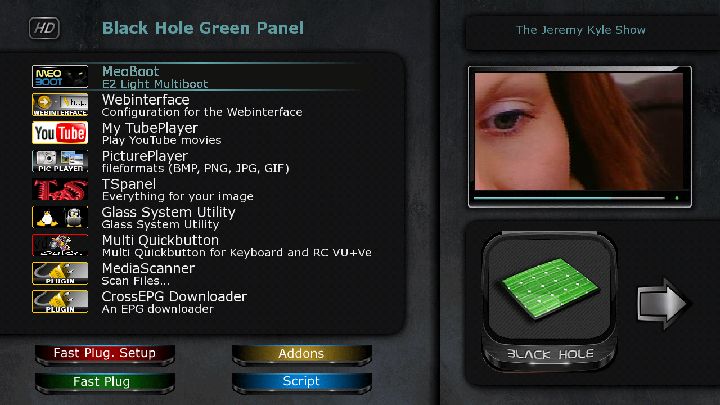

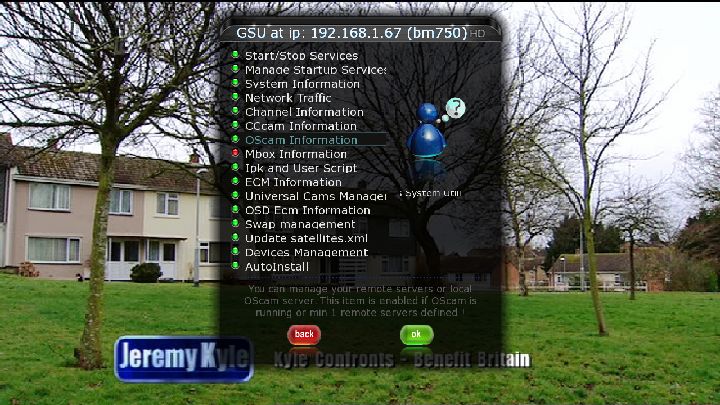
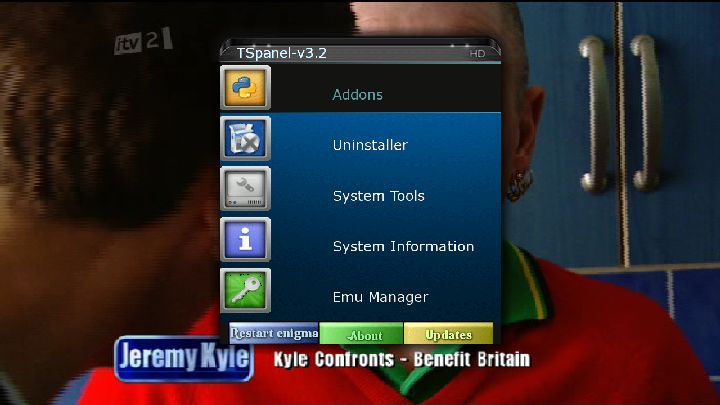
PASSWORD:
vuplusEnjoy
Linuxsat-support Team -
It would be nice to have the best of both in 1 image - but that is wishful thinking....
I hope the developers read this beer10
-
I have tried them all and keep coming back to VIX. Now would not use anything else.
The right image for you & me will no doubt be different to the next persons, have also having tested pretty much everything available i can say for me nothing comes close to the blackhole images. -
Display More
Thanks for looking New
Oscam config
[global]
nice = -1
WaitForCards = 1
logfile = stdout
preferlocalcards = 1
saveinithistory = 1[webif]
httpport = 8888
httpuser = admin
httppwd = admin
httpallowed = 127.0.0.1,192.168.0.0-192.168.255.255
# protocols[newcamd]
key = 0102030405060708091011121314
port = 15366@0963:000000;10001@0963:000000Oscam server
[reader]
label = *** UK
enable = 1
protocol = mouse
device = /dev/ttyUSB0
caid = 0963:000000
# 0963 is *** UK.
boxid = ********
# Oscam can read a *** card i.d, but you can also put this
# in manually
detect = cd
cardmhz = 357
# this helps the card run more smootly
group = 1
# Oscam has the concept of groups. Only users in group 1 can
# use this reader. I'm only using one group.
emmcache = 1,3,2
ecmcache = 1
blockemm-unknown = 1
blockemm-g = 1
# these ensure smooth decrypting
lb_weight = 101
# for load balancing - can be commented out.Oscam user
account]
user = dreambox1
description = for local mgcamd or DVBAPI
pwd = lounge
disabled = 0
uniq = 1
group = 1
au = lower card
caid = 0963:000000N line in dreambox cccam.cfg
N: 127.0.0.1 15366 dreambox1 lounge 01 02 03 04 05 06 07 08 09 10 11 12 13 14 256
This should be the ip of your server, the way you have it configured is local machine.
-
Sorry, using the latest ViX image and have CCcam 2.1.4 installed.
Get the latest oscam file from http://linuxsat-support.com/os…800-8000-vu-solo-duo.html, extract then rename oscam-svn5677-mips-tuxbox-webif to oscam. FTP to usr/softcams/, you should be able to start/stop oscam in softcam manager.
-
The Sun website has been hacked by LULZ
They had it redirecting to the LULZ twitter account it's been taken down now.
This put a smile on my face lol.
-
Sorry, using the latest ViX image and have CCcam 2.1.4 installed.
oscam for vix is here mate.
-
When you download a recent version of oscam it will be named oscam-svn5307-mips-tuxbox etc, you rename this file to oscam.
-
when you say rename to oscam - do i need to rename Oscam or oscam - i.e. does the capital matter?
As Master G said oscam without caps.
-
-
i'm looking for same info for BH1.6.2
thx
stu
For Blackhole you will find oscam HERE or use TSpanel plugin to download it. If you want to use a recent version you need to compile your own. Depending on which image you use the oscam binary will be found /usr/bin/ or /usr/softcams/. Download the recent version, rename it to oscam and replace the old version then chmod 755 -
Ftp the file to tmp, then do manual install via yellow/ green/ manual install bh packages.
-
This is what you are looking for.
-
-
The info is here, which image are you using?
-
Make sure it is set to enigma2 receiver settings, those filepaths are for enigma1.
-
Device Manager System plugin for enigma2
Coded by DarkVolli 2010-2011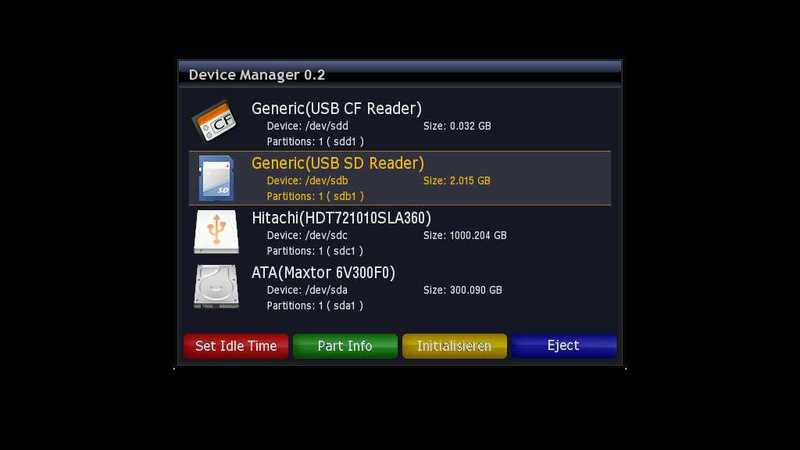
What's that plugin?
With this plugin, all media will be on the box initialized or formatted. So be careful when using this because ALL the data on the storage media may be deleted!
Currently only the file systems ext2 and ext3 are supported by writing. FAT16, FAT32 and NTFS partitions, only the system information is displayed when the respective kernel modules are installed and the kernel supports.Using the plugin
Since it is a system plugin the plugin can be found after the installation / Menu / Settings / System / Device Manager. After starting all storage media are found displayed in a listbox. Icon on the left can be detected by a storage medium for what it is. Do not show any partitions, but only the "main device" eg / Dev / sda. With the Cursurtasten, the respective storage medium will be selected. For further processing, then the keys are "green", "yellow and" blue "is available.Main Dialog - Green "Part Info"
This button opens the dialog "Partition Info". Here, all detected partitions. After selection with the cursor keys can be carried out with the "green" and "yellow" further actions:Partition Dialog Info - Green "Test"
Here is the program fsck with the-C 0-f-p is called and displays the result. With large hard drives that can take quite a considerable time, an abort is not possible. The-p option causes an automatic correction of errors (if possible).Partition Dialog Information - Yellow "format"
This button opens the dialog "format partition". With "Label Format" can be selected whether
- No label is used (no label)
- A label can be freely entered (user defined label)
- A pre-defined labels can be selected (predifined label).
If a label is to be used, and (no entry in the fstab) to a removable medium, the entry "Generate auto.hotplug entry" is visible. This may be an entry in the file / etc / auto.hotplug be generated, so that later on the media / autofs / can be accessed LabelName.
For a non-removable media or an entry in fstab can be adjusted if the movie folder will be created after the formatting process.
The formatting process starts with the green button, after a security check all data in that partition are definitely gone - you should be sure if you really want ...Main Dialog - Yellow "Initialize"
This button opens the dialog "Initialize media". With "Label Format" can be selected whether
- No label is used (no label)
- A label can be freely entered (user defined label)
- A pre-defined labels can be selected (predifined label).
If a label is to be used, and (no entry in the fstab) to a removable medium, the entry "Generate auto.hotplug entry" is visible. This may be an entry in the file / etc / auto.hotplug be generated, so that later on the media / autofs / can be accessed LabelName.
For a non-removable media or an entry in fstab can be adjusted if the movie folder will be created after the initialization process.
During initialization, the medium is re-partitioned, ALL existing partitions are deleted and a new partition is created. The initialization process is started by pressing the green button, after a security check all the data of this medium are definitely gone. Not just one partition - you should be very sure whether you really want ...Main Dialog - Blue "Mount", "unmount" or "Eject" depending whether the medium is added to the fstab
If the media is entered in fstab can be mounted / unmoutet be. Otherwise it can be ejected and will be removed from the list box. Need to mount the media again briefly on / off or set the box to be rebooted. In my opinion it makes no sense be a removable medium write in the fstab, so this plugin does not support this option.Main Dialog - Red "Set Idle Time"
This key is called on all disks in the box (internal and external), the dialog for setting the standby time. Even if it looks that it is individually adjustable for each medium - it's not suffer so. The value entered is valid for all plates of the system. -
Yes to the first question. The cams need to be compatable with the image, try using TSpanel you might find the cams there.
-
Baha2 wrote this plugin to eliminate frustrating Current / Next EPG entries even after epg import process with tools like Rytec EPGImport and CrossEPG. This plugin both fixes infobar and EPG info screen.

