


Debian on Windows
A couple of people have asked me this. So I thought I would write a little guide of how I create .deb files from my Windows PC files. (or from an extracted .ipk)
As I already have this setup and don't want to delete it for the sake of this guide. These instructions might need tweaking later.
Enable / Install WSL2
Windows 11
Already pre-installed.
Windows 10.
Start Menu, search "Turn Windows features on or off"
Make sure "Virtual Machine Platform" and "Windows Subsytem for Linux" are checked.
Restart your PC if you have had to turn any of them on.
----------------------------------------------------------------------------
or
Start menu, search "Windows PowerShell"
Right click and run as administrator
enter these commands
wsl --install
restart your PC
-----------------------------------------------------------------------------
Install debian GUI package from Microsoft store
Open Microsoft Store
Search for debian
Install
-----------------------------------------------------------------------------
Download a linux distrubution
Start menu, search "Windows PowerShell"
Right click and run as administrator
enter these commands
wsl --update
wsl --install -d Debian
After a few minutes
enter a username
enter a password
You now have a linux operating system on windows.
------------------------------------------------------------------------
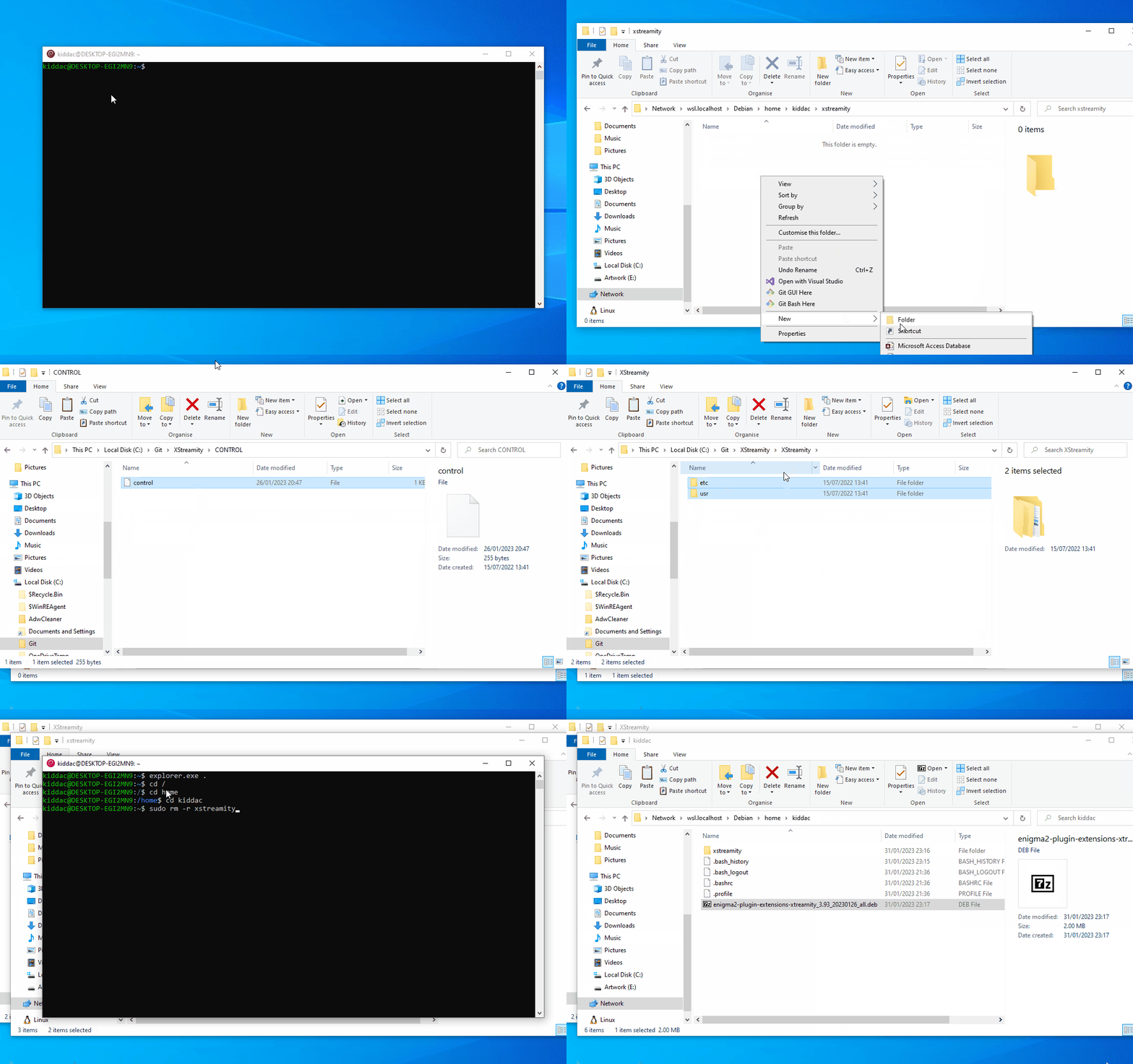
To view file explorer in debian app
explorer.exe .
other quick commands
ls - list files
cd [folder]
cd .. - parent directory
cd / root directory
------------------------------------------------------------------------
In your home folder. In my case home/kiddac
Create a new folder for your plugin. i.e xstreamity
Inside that home/kiddac/xstreamity folder create a DEBIAN folder
Your control file goes inside that DEBIAN folder
Your root files also go inside this plugin folder. i.e usr, etc
The folders must be the same as your enigma2 box.
i.e
/usr/lib/enigma2/python/Plugins/Extensions/XStreamity
---------------------------------------------------------------------------------
So if I was to now create a new .deb file.
I would copy my contol file into DEBIAN folder. Overriding the existing file.
I would delete any existing folders for usr, etc and then copy a fresh copy of the usr, etc folders into my plugin folder.
Then back in your Debian console
make sure you are in the correct home folder
cd /
cd home
cd kiddac (for example)
# dpkg-deb -b <dir/DEBIAN> <new-package.deb>
dpkg-deb -b /home/kiddac/xstreamity enigma2-plugin-extensions-xstreamity_3.93_20230126_all.deb
this will then produce the .deb file in my home folder.
------------------------------------------------------------
And the next time you use Debian app, all your previous commands will be saved. So you can just up cursor, to quickly load a previous command.
In which case, I just change the version number each time
 never noticed before. But how strange my random desktop pc name is pretty much an anagram of enigma2. EGI2MN9