
Vhannibal Setting E1
20.10.2015


Vhannibal Setting E1
20.10.2015
Vhannibal Setting E2
20.10.2015
SerienRecorder 3.2
New features:
- Retrieve the data through a proxy
- Improved support for FullHD Skins
- Improving the treatment of event programming
- A series markers can be assigned tags now, which are then given to the Timer
Bug fixes:
- Various bug fixes and refactorings
thx @ MacDisein
SerienRecorder 3.2
New features:
- Retrieve the data through a proxy
- Improved support for FullHD Skins
- Improving the treatment of event programming
- A series markers can be assigned tags now, which are then given to the Timer
Bug fixes:
- Various bug fixes and refactorings
thx @ MacDisein
MediaPortal 7.2.4
new update
thx @ devs

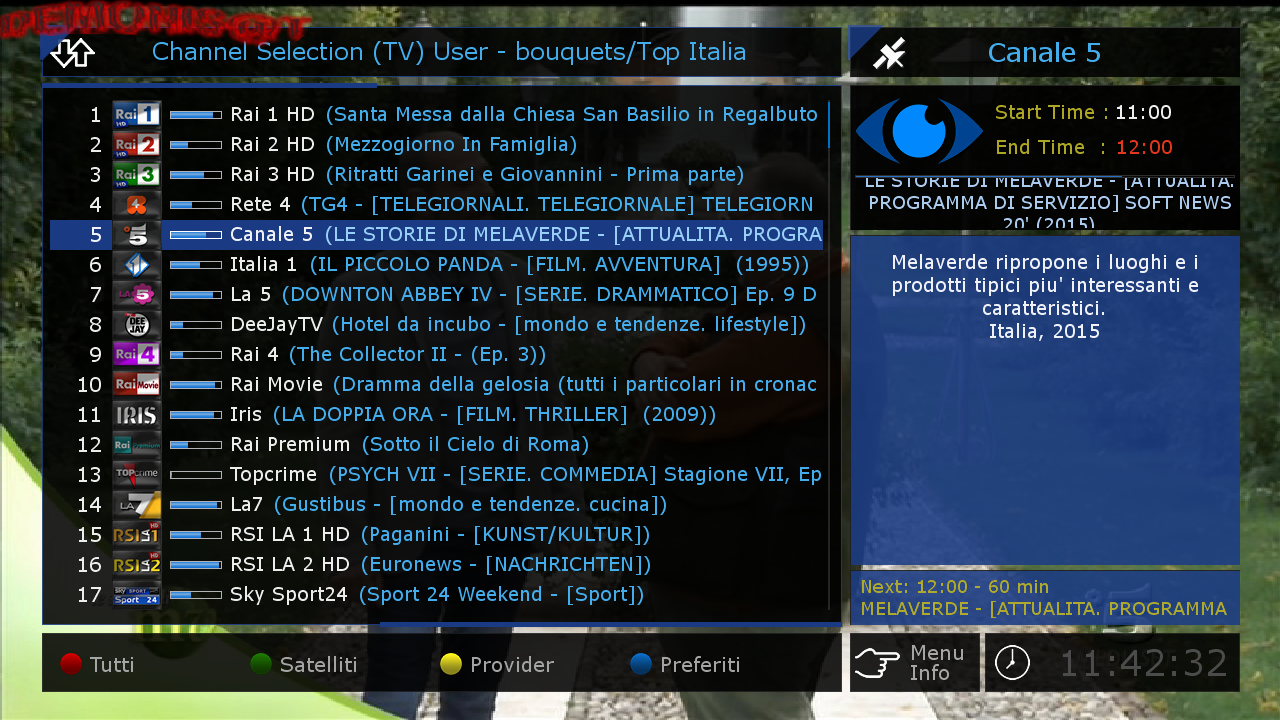
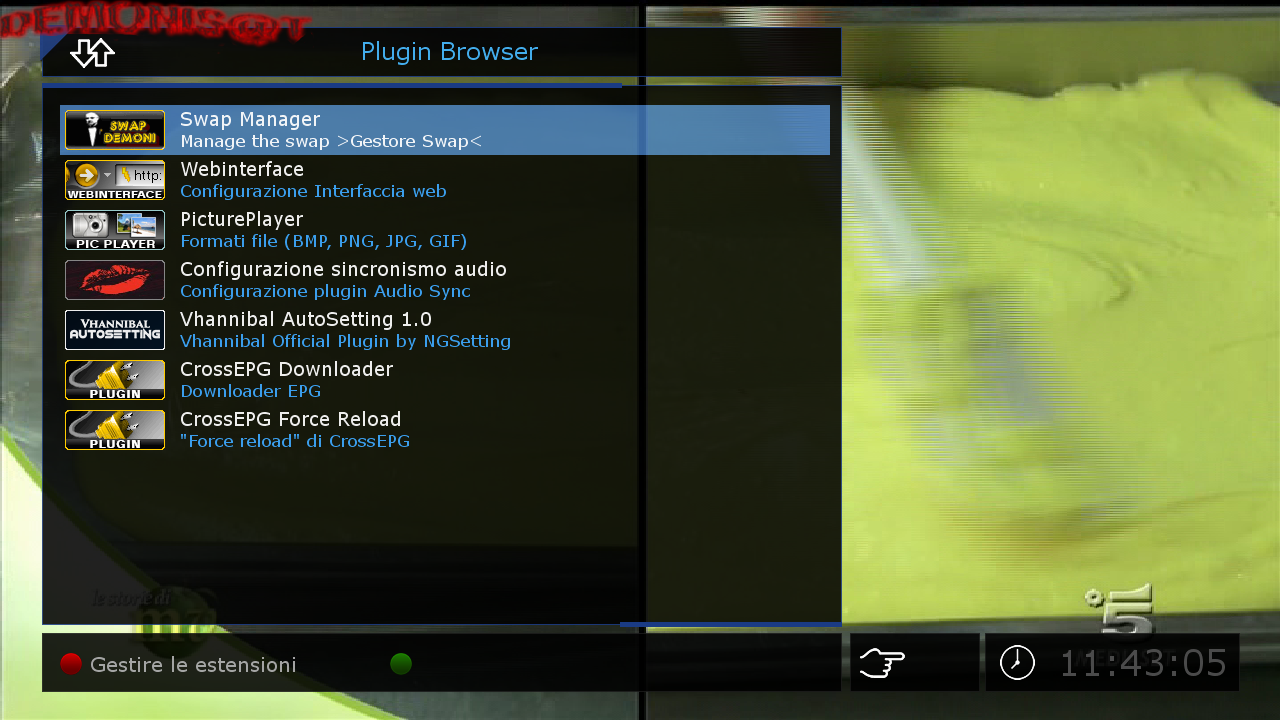
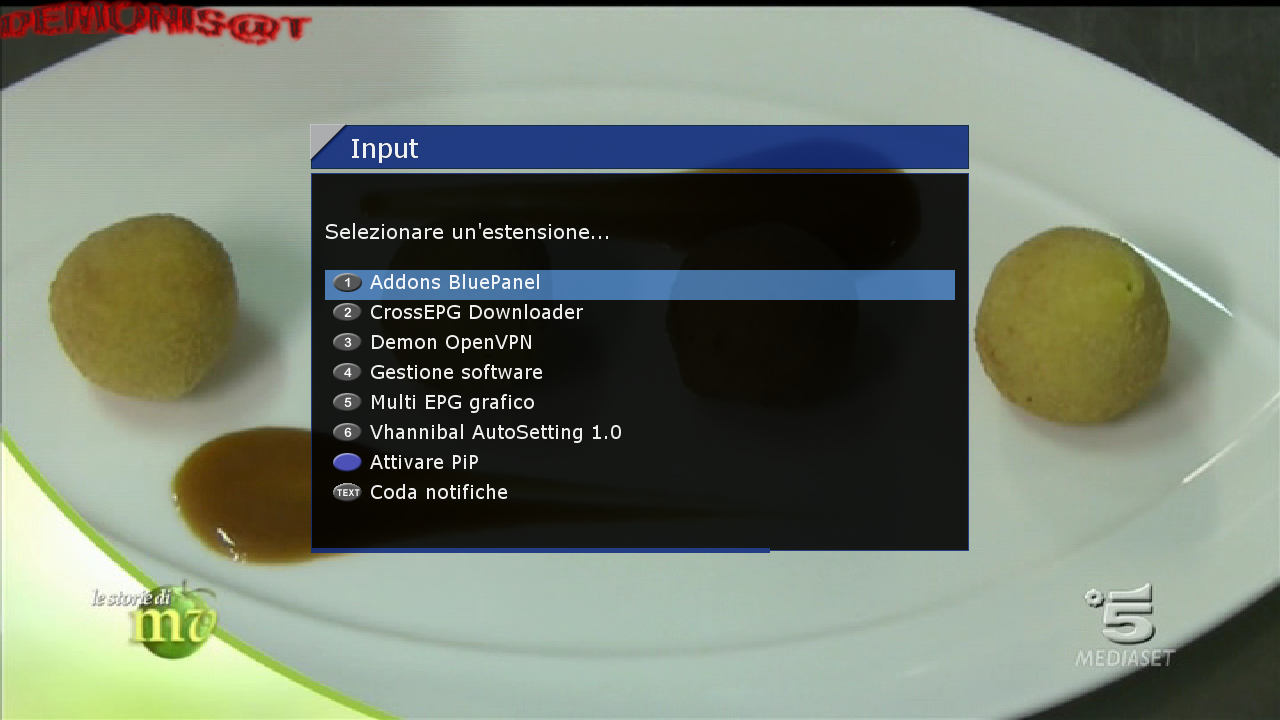
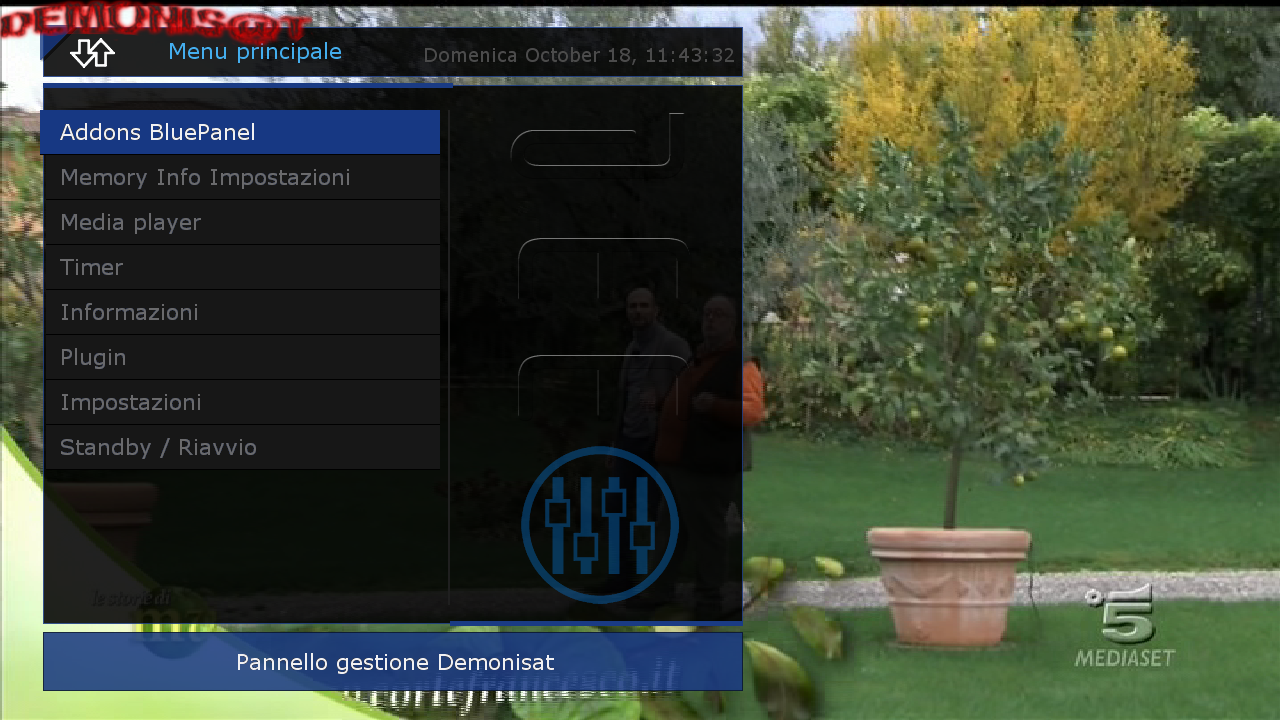
D.M.S-image-dm7020hdv2-OE2-v4.3.nfi
Date: 2015-10-18 09:26
Enigma2: 3.999git20150528-r10.1
Distro: opendreambox 2.0.0
Machine: Dreambox dm7020hdv2
Link:
http://dreamboxupdate.com//opendreambox/2.0.3/dm7020hd/
MD5: 64bee79e02009a58f7f8162982bb6fea
SHA256: 2378aef1c8f121a8c62e1e8fdc660df3b94d73cebed3dda1fd 37612e97a04bef
Genuine image with the Last CVS
Creatori immagini
°°ANTR@G°°
-----------------------
Sviluppatore del blue panel
asanovich
--------------------
Beta tester
°°ANTR@G°°
tonino1956
AutoSetting Vhannibal Default
-------------------------------------
many new updates Enigma2
-------------------------------------
potete scaricare i picon by mmark dal pannello demonisat
----------------------------------------------------------
New Memory Info Thanks m43c0
New DynDNS Thanks m43c0
Aggiunto OpenVPN Thanks m43c0
You can download picon by mmark panel demonisat
New bootlogo demonisat
---------------------------------------------
if you want to download other plugins go
menu / plugin
Manage extensions
--------------------------------------------------------------------
these images contain only 3 languages
Italian English Deutsch
you can download your preferred language from the panel demonisat
Added language Brazilian downloaded from the panel demonisat
---===ooo0ooo===---
------------------------------------------------------------
We recommend not to do software update
possibly to put image in flash
we thank the authors of the various plugins skin patches etc etc
----------------------------------
New Blue Panel demonisat
You'll find everything you need
for the operation of the image
to download from the panel demonisat put the DHCP automatically
About to more than one satellite is set to expert enable multiple bouquets
menu, settings, system, customize
set of expert
thanks to the authors of the various skin patch plugins etc etc !!
D.M.S-image-dm7020hd-OE2-v4.3
Date: 2015-10-17 17:57
Enigma2: 3.999git20150528-r10.1
Distro: opendreambox 2.0.0
Machine: Dreambox dm7020hd
Link: http://dreamboxupdate.com//opendreambox/2.0.3/dm7020hd/
MD5: 4246be1a3bde82b5109f2e7b8a74ec44
SHA256: 5c4e9fd3c8ed4f11704a15fa484b47bd1c53d8ac2db68901ea d935d0db8ae26f
Genuine image with the Last CVS
Creatori immagini
°°ANTR@G°°
-----------------------
Sviluppatore del blue panel
asanovich
--------------------
Beta tester
°°ANTR@G°°
tonino1956
AutoSetting Vhannibal Default
-------------------------------------
many new updates Enigma2
----------------------------------------------------------
New Memory Info Thanks m43c0
New DynDNS Thanks m43c0
Aggiunto OpenVPN Thanks m43c0
You can download picon by mmark panel demonisat
New bootlogo demonisat
---------------------------------------------
if you want to download other plugins go
menu / plugin
Manage extensions
--------------------------------------------------------------------
these images contain only 3 languages
Italian English Deutsch
you can download your preferred language from the panel demonisat
Added language Brazilian downloaded from the panel demonisat
---===ooo0ooo===---
-----------------------------------------------------------
We recommend not to do software update
possibly to put image in flash
we thank the authors of the various plugins skin patches etc etc
----------------------------------
New Blue Panel demonisat
You'll find everything you need
for the operation of the image
to download from the panel demonisat put the DHCP automatically
About to more than one satellite is set to expert enable multiple bouquets
menu, settings, system, customize
set of expert
thanks to the authors of the various skin patch plugins etc etc !!
NEW LIST 13 OUT 2015
Astra 19.2E
Hotbird 13E
HISPASAT 30W
Sky UK 28,2º
if you have a skin with .ipk extension then read this
Vhannibal Setting E1
13.10.2015
Vhannibal Setting E2
13.10.2015
Link doesn't work can You fix it?
How to Dual boot enigma2 images using Open Multiboot with Open Black hole in Flash
Updated regarding revision Open Black Hole 01 from 19/06/2015, with online updates on 13/07/2015 DVB drivers from 20150623.r0.
It´s strongly recommended to iniatialize your USB PEN DRIVE, instead of deleting the OPENMULTIBOOT and OPENMULTIBOOTUpload inside it!
It´s also recommended to install a new and fresh image before using Open Multiboot for OBH.
Make sure you don´t have any directorys on your USB Pen Drive or HDD.
*** WARNING *** If you have used Open Multiboot previously, you must remove all folders and files from your Usb and Hdd devices before you use this patched version ( Better iniatialize from begining your USB Pen Drive ) and follow the steps on this GUIDE.
What is Open Multiboot 1.0A modded by Meo?
OpenMultiboot by Skaman is a newer and more advanced version of the popular Meoboot plugin that has been used in BH images for a long time now. We previously included a patched version of OpenMultiboot in the OpenBlackHole 0.1 image update 06-06-2015, however there were some limitations in this earlier version.
This latest patched version of OpenMultiboot has had large parts of the code re-written by Meo to allow it to work correctly with all Vu+ boxes, and more importantly most of the popular images out there.
The main advantage of OpenMultiboot over Meoboot is that it will swap the kernel and drivers when you swap images. This means that no image drivers or kernels get mixed up, which stops images from becoming corrupt, and therefore it means that any online updates can be applied to to any image(s) that are used in multiboot, as well as the image in flash, again without the risk of corrupting the images.
You can now use multiple versions of OpenBlackHole in multiboot, you can also use the classic BlackHole images and VTi, as well as OpenPLi and any of your favourite OE-A images.
Meo has also been able to find a way to allow the bootmenu to show up 8 images per page, even with the latest OpenGL based images, however having the bootmenu enabled does slow down the boot time slightly, because it needs to load the video drivers before the menu is displayed. Because of this an option to turn off the bootmenu has been included, to speedup the boot time.
If you disable the bootmenu you just need to go into the image plugins menu to access the OpenMultiboot plugin and select the image you want to boot next.
This version of OpenMultiboot works with most of the popular images out there, however we can not guarantee it will work with all images on all Vu+ boxes.
We also recommend that if you install the Classic BlackHole image into OpenMultiboot that you disable Meoboot in the SpeedUp panel, to avoid conflicts and confusion.
Needed:
Vuplus Original STB
1 USB Pen Drive ( Must be formatted as EXT4 and mapped as /media/usb )
You can use, instead of an USB PEN DRIVE an SSD HARD DISK.
Note: The other HDD ( conventional ones, must not be used dued continous spinning that can produce an annoying noise )!
IN THIS TUTORIAL WE WILL USE AN USB PEN DRIVE
1) On Open Black Hole do this:
Use your remote control and press <MENU>, choose <BLACK HOLE APP´S>
( Fig. 1 )
When you get this menu press <OK>, and scroll down in the menu until you found USB Format Wizard.
On USB Format Wizard press <OK>
Follow the steps and ---> Only connect your USB PEN DRIVE, when prompted to do so!
Connect now your USB PEN DRIVE
Press the <RED KEY> on your RCU ( remote control unit ), your USB PEN DRIVE should be detected.
Press the <RED KEY> on your RCU ( remote control unit )
and choose the number of partitions you want to be creatred ( I´ll choose 2 )!
Cause i have a USB PEN DRIVE 16GB ( the 1 Part 8000 Mb ), the second will have the free space avaiable!
Upon this you should be prompted to format ( initialize ) your USB PEN DRIVE.
Press the <RED KEY> button on your RCU to do it!
The Partitions created must be formated now
Press <RED KEY> on your RCU
To have Open Multi Boot, you must choose EXT4 ( File System ) and Press <OK>.
Your USB PEN DRIVE should be formatted on both partitions or just the partition ( for ONE PARTITION ).
You have formatted your USB PEN DRIVE, now you must restart the STB, and you must remap it as:
/media/usb
To remapr you must, after reboot, Press <MENU>, choose <Open Black Hole APP´S>, Press <OK>, and choose <DEVICES MANAGER> and press <OK>.
Press <RED KEY> to Mountpoints on your USB PEN DRIVE.
I´ll choose sdb1 to mount as /media/usb --> where i´ll mount the Open Multi Boot for OBH images.
Press <RED KEY> on your RCU to save configuration and reboot your VUPLUS STB.
Press <OK> to start your VUPLUS STB.
When rebooted --> Press <GREEN KEY> on your remote control, scroll down on plugins until you found Open Multiboot.
On Open Multiboot ---> Press <OK>.
Partition 1 --> sdb1 is DataTraveler 2.0 --> Press <OK>
Press <OK>
Press <OK>
Press <OK>
Your STB --> Should be reebooted and Open Multiboot installed in your VUPLUS STB.
Now with an FTP program ( DCC or Filezilla ), you can upload to your STB a image that must be on a format, with file extension zip.
As example, i will go to upload Blackhole 2.1.6.1 to use as second boot ( installed on my USB PENDRIVE ).
I´ve uploaded all images i have disponible on my PC ( Hard Disk Drive ) --> to /media/usb/open-multiboot-upload.
Now this images can be installed on multiboot:
Some information and about images supported:
OpenMultiBoot is a newer and more advanced version of Meoboot.
It does not mix drivers and kernels so you can run any Vu+ image, and even use the online update function for that image, without the risk of corrupting the multiboot image or the main image in flash.
With OpenMultiBoot you can have Open Black Hole in flash and classic Black Hole in multiboot.
OpenMultiboot has been tested and is working with the following images:
OBH in multiboot ( Image in Flash )
VTi 8.2.2
BH 2.1.6.1
OpenVix hades 012
PBnigma VI 4.3.0
SatDreamGR4.0
OpenPli4.0
OpenAtv 4.2
OpenAtv 5.0
OpenNfr 5.0
OpenLD 1.8
OpenSpa 4.0
OpenDroid 5.0
More Images may work, but don´t forget to use only the ones that match with your STB hardware
Now take hand of your RCU ( Remote control and repeat:
Press <OK> to start your VUPLUS STB.
When rebooted --> Press <GREEN KEY> on your remote control, scroll down on plugins until you found Open Multiboot.
On Open Multiboot ---> Press <OK>.
Press <GREEN KEY> on your RCU.
to install one of the images uploaded ( transferred ) to your USB PEN DRIVE
Select the image you want to be installed for Open Multiboot on your VUPLUS STB.
As you know i´ll prefer Blackhole 2.1.6, so let´s do it!
Choose Blackhole-2.1.6 to install and press <OK>, it takes about 5 or 6 minutes, it depends the STB used and the Image size.
When finished installing you´ll see the next screen:
Now you can choose to boot, between image installed on flash ( as you know Open Black Hole ), or instead of this image installed on Open Multiboot ( USB PEN DRIVE ) --> Blackhole 2.1.6.
Note: If you use Blackhole Image on Open_Multiboot, on Blackhole Image do this to avoid any confusion, as Blackhole has embebed Multiboot Plugin:
On running Blackhole 2.1.6 / 2.1.6.1, press <MENU>, open BLACKHOLE APP´S, and select BLACKHOLE SPEED-UP, disable MULTIBOOT to remove MULTIBOOT from Plugins, or
Press <BLUE KEY> X 2, to acess directly BLACKHOLE SPEED-UP, and disable MEOBOOT, i.e., on MEOBOOT turn <YES> TO <NO>.
Save and Exit
Note: If you use Blackhole Image on Open_Multiboot, on Blackhole Image do this to avoid any confusion, as Blackhole has embebed Multiboot Plugin:
On running Blackhole 2.1.7, press <MENU>, open BLACKHOLE APP´S, and select BLACKHOLE SPEED-UP, disable OPEN MULTIBOOT, or
Press <BLUE KEY> X 2, to acess directly BLACKHOLE SPEED-UP, and disable OPEN MULTIBOOT, i.e., on OPEN MULTIBOOT turn <YES> TO <NO>.
Save and Exit
The procedure for installing OTHER IMAGES on Open-Multiboot is allways the same.
thx @ BLACKHOLE TEAM
To install a new image, you need an empty USB stick FAT32 formatted.
If, for any reason, the upgrade fails, first disconnect any USB devices connected to your Vu+ and then try again to install the new image.
If the upgrade fails again, try to use another USB stick.
Vu+ Duo
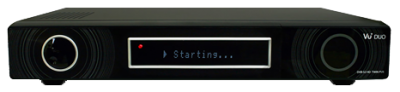
Update is done when upgrade completed message is shown on the display.
Vu+ Duo2
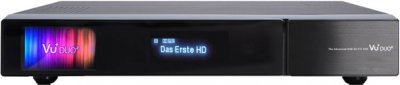
Push POWER button on the box (not on remote control!) when message appears on display.
Update is done when upgrade completed message is shown on the display.
Vu+ Solo
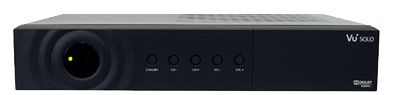
Update is done when green light blinks on the front panel.
Vu+ Solo2
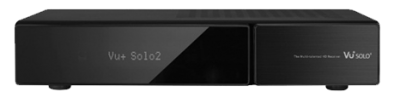
Push POWER button on the box (not on remote control!) when message appears on display.
Update is done when upgrade completed message is shown on the display.
Vu+ SoloSE
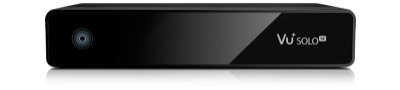
Update is done when the LED on front panel remains lit briefly and then starts blinking rapidly.
Vu+ Ultimo
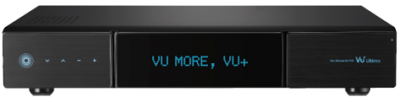
Push - button on the box (not on remote control!) when message appears on display.
Update is done when upgrade completed message is shown on the display.
Vu+ Uno
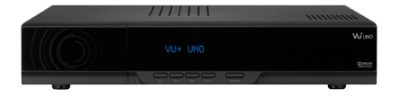
Push CH- button on the box (not on remote control!) when message appears on display.
Update is done when upgrade completed message is shown on the display.
Vu+ Zero

Update is done when the LED blinks on the front panel.
Since it doesn't seems to be enough clear, we specify that to starting the Ultimo update, you have to press the button shown in the following picture.
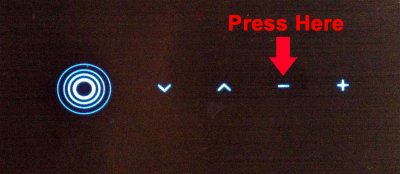
To install a new image, you need an empty USB stick FAT32 formatted.
If, for any reason, the upgrade fails, first disconnect any USB devices connected to your Vu+ and then try again to install the new image.
If the upgrade fails again, try to use another USB stick.
Vu+ Duo
Update is done when upgrade completed message is shown on the display.
Vu+ Duo2
Push POWER button on the box (not on remote control!) when message appears on display.
Update is done when upgrade completed message is shown on the display.
Vu+ Solo
Update is done when green light blinks on the front panel.
Vu+ Solo2
Push POWER button on the box (not on remote control!) when message appears on display.
Update is done when upgrade completed message is shown on the display.
Vu+ SoloSE
Update is done when the LED on front panel remains lit briefly and then starts blinking rapidly.
Vu+ Ultimo
Push - button on the box (not on remote control!) when message appears on display.
Update is done when upgrade completed message is shown on the display.
Vu+ Uno
Push CH- button on the box (not on remote control!) when message appears on display.
Update is done when upgrade completed message is shown on the display.
Vu+ Zero
Update is done when the LED blinks on the front panel.
Since it doesn't seems to be enough clear, we specify that to starting the Ultimo update, you have to press the button shown in the following picture.

NEW OpenLD 2.3 Test Image
Drivers from 26.08.2015
- update enigma2
- update oe core
- update 3rd-party plugins
- update gstreamer 1.6.0
- fixed some bugs
openld-2.3-gbquad-20151011_usb.zip

