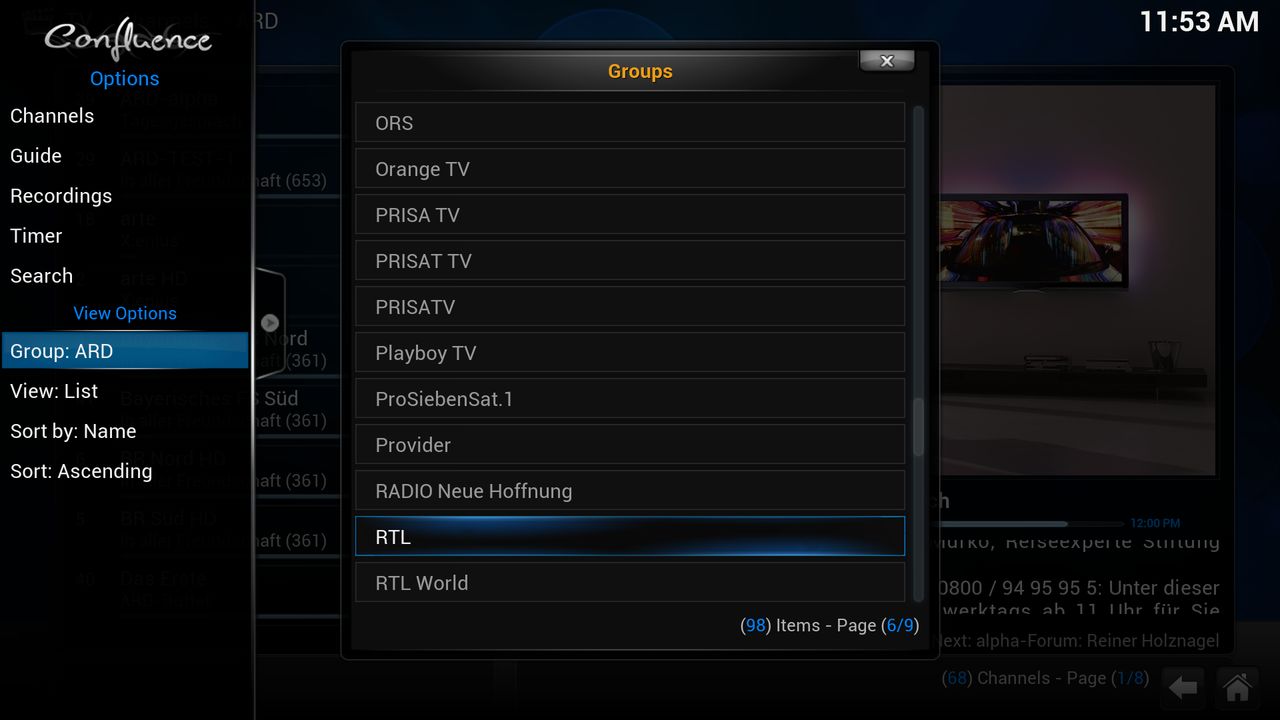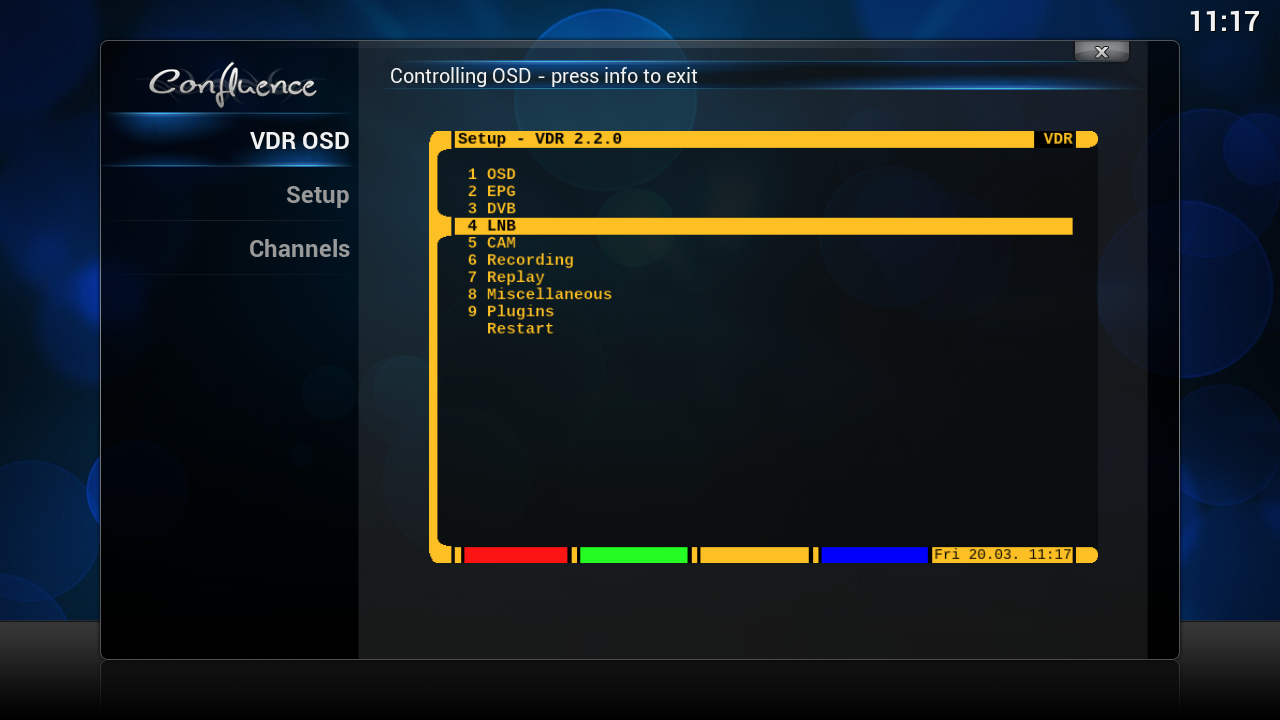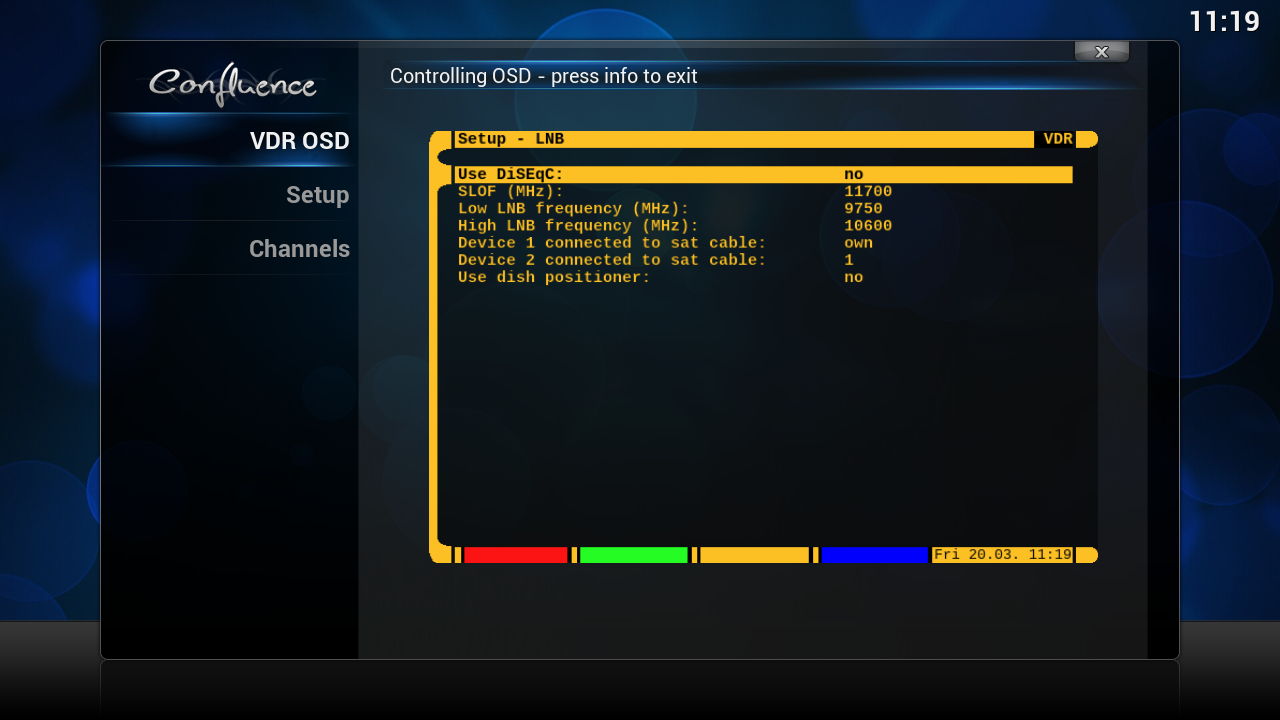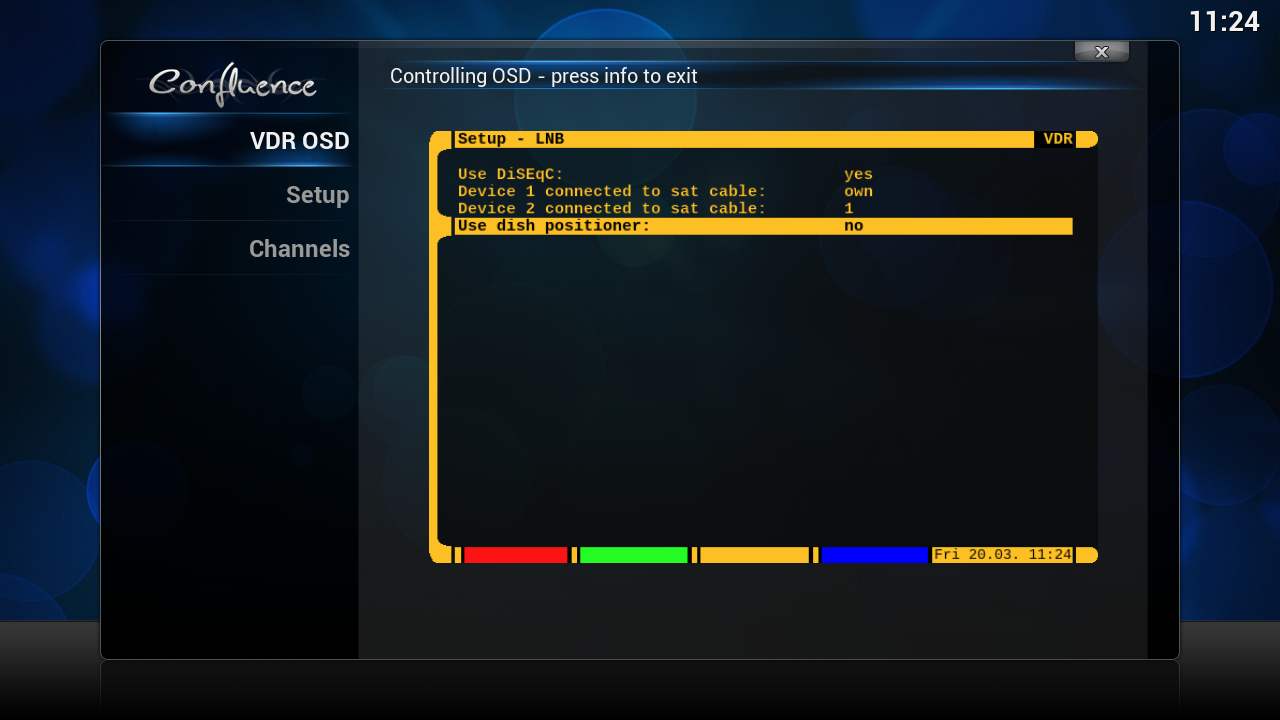
Posts by snifferdsx


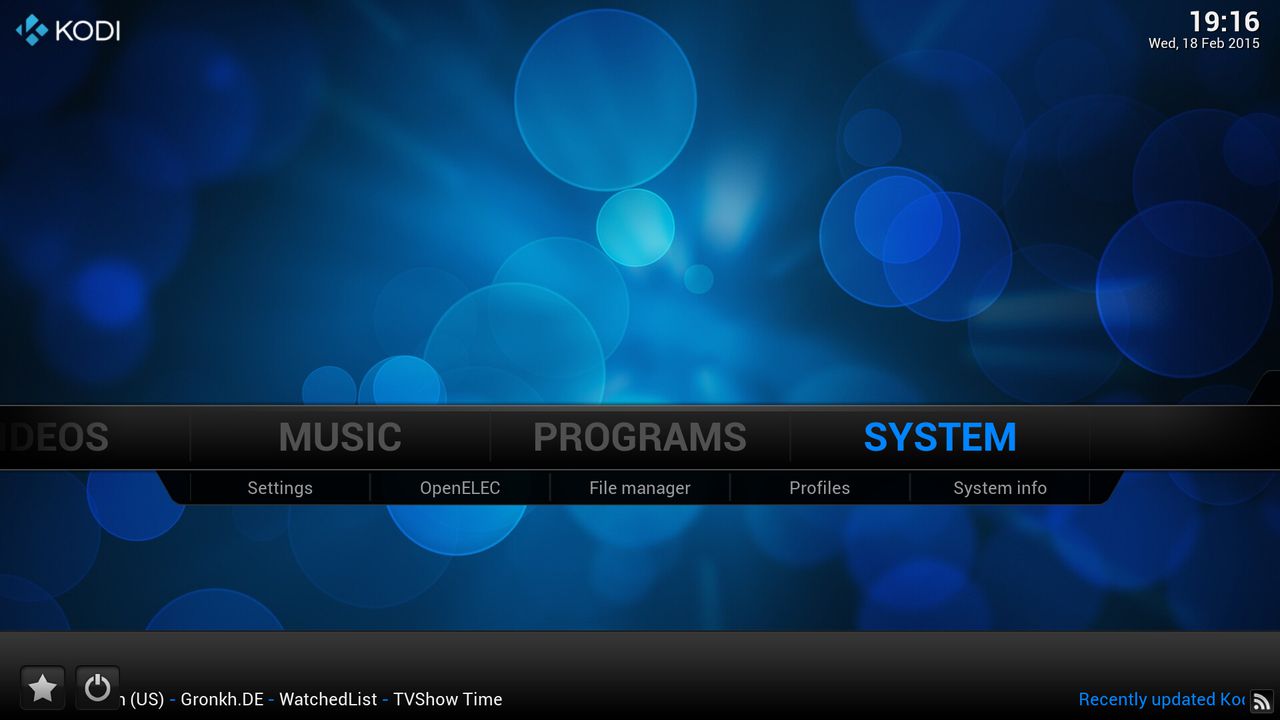
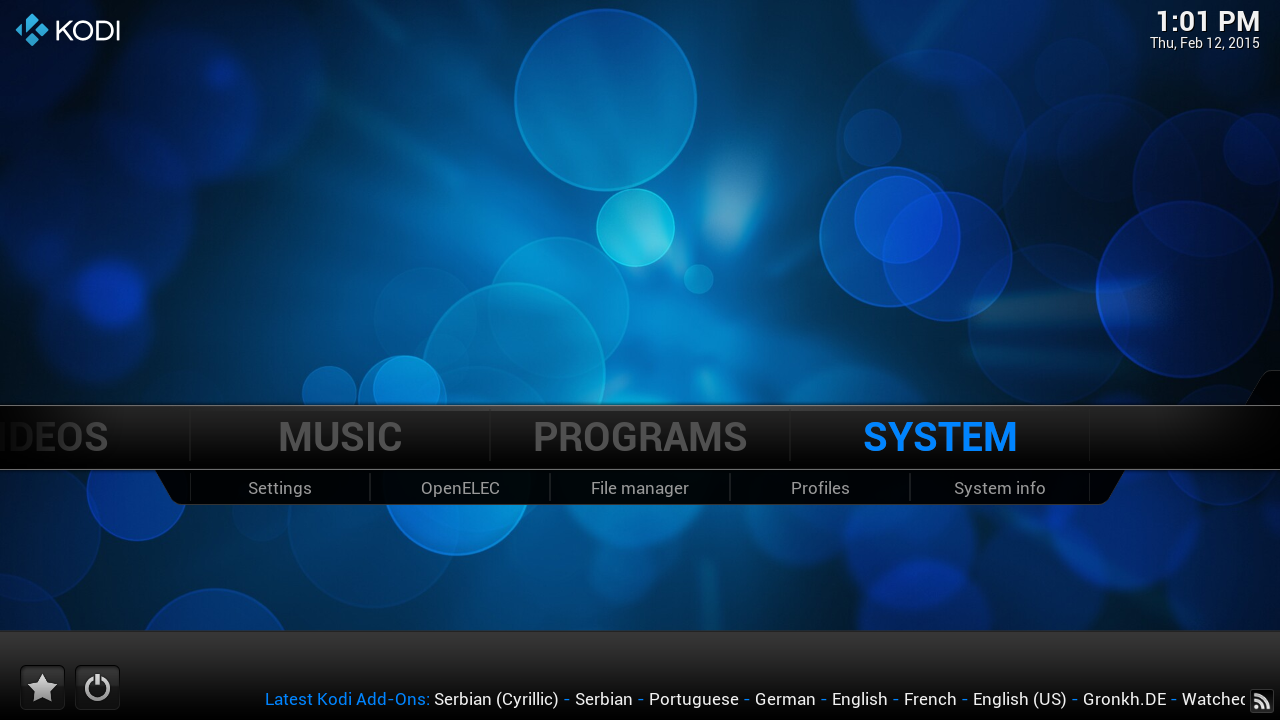
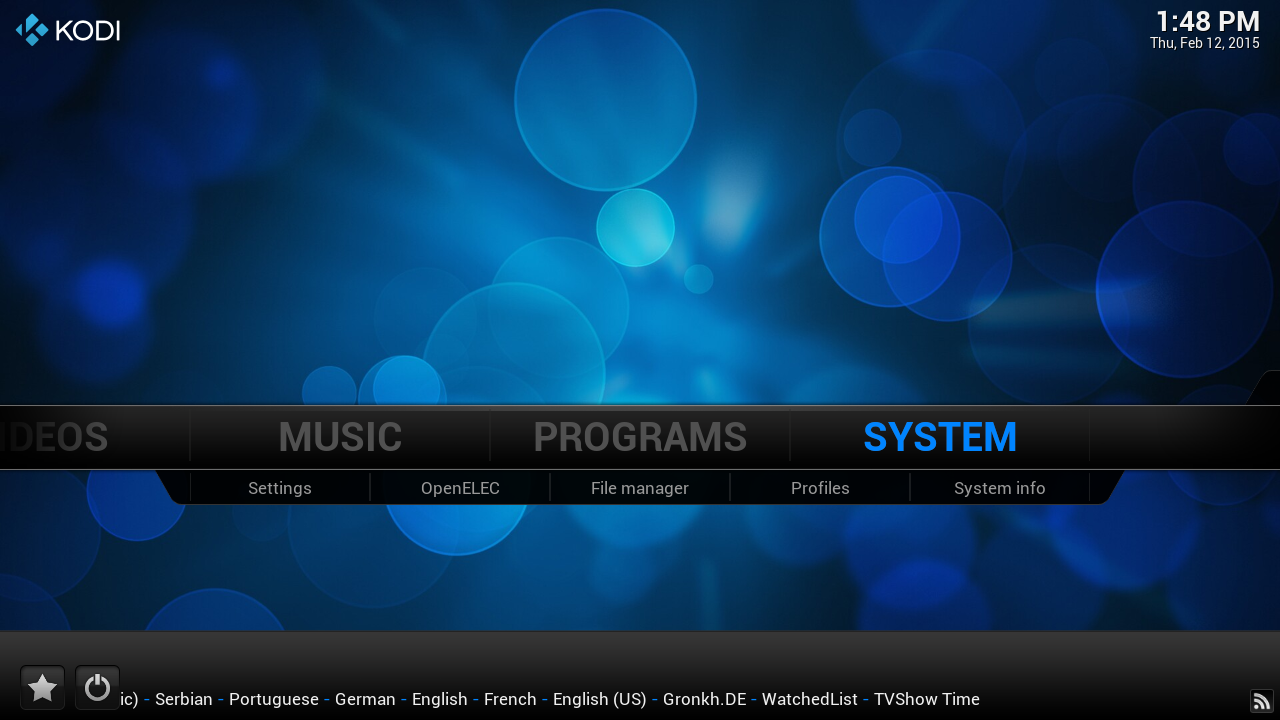
    click on "System"


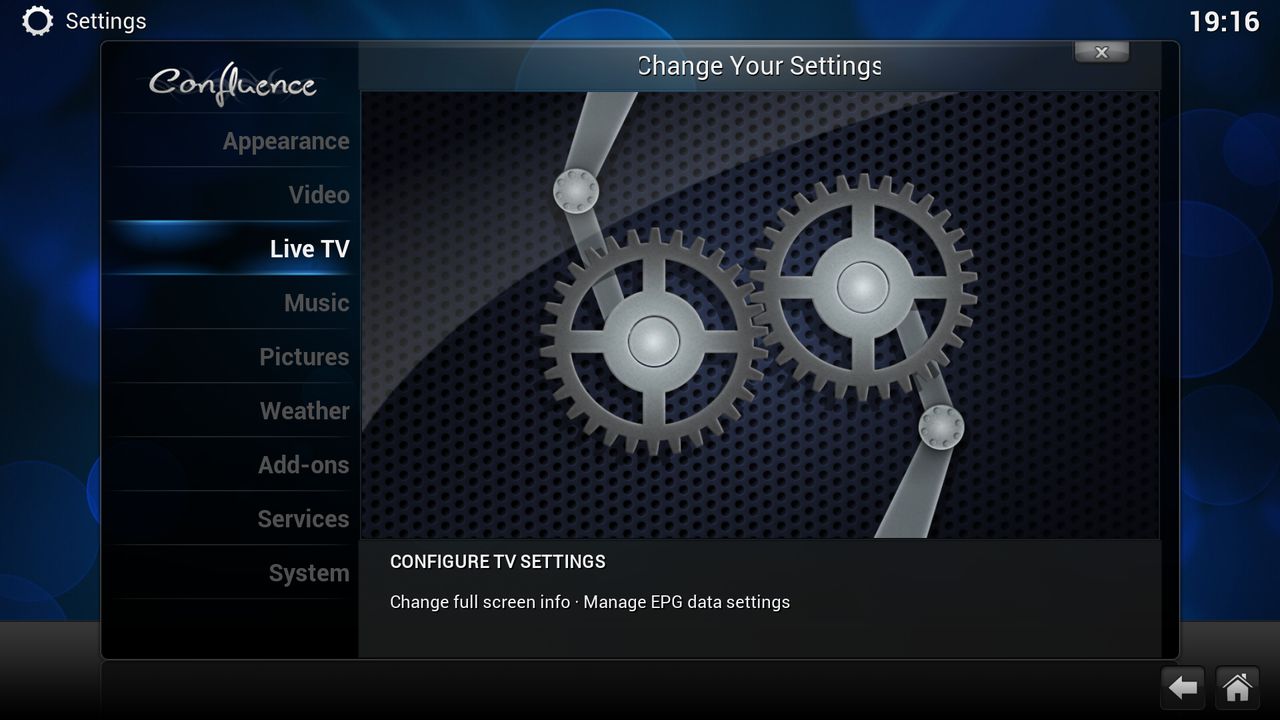
    click on "Live TV"


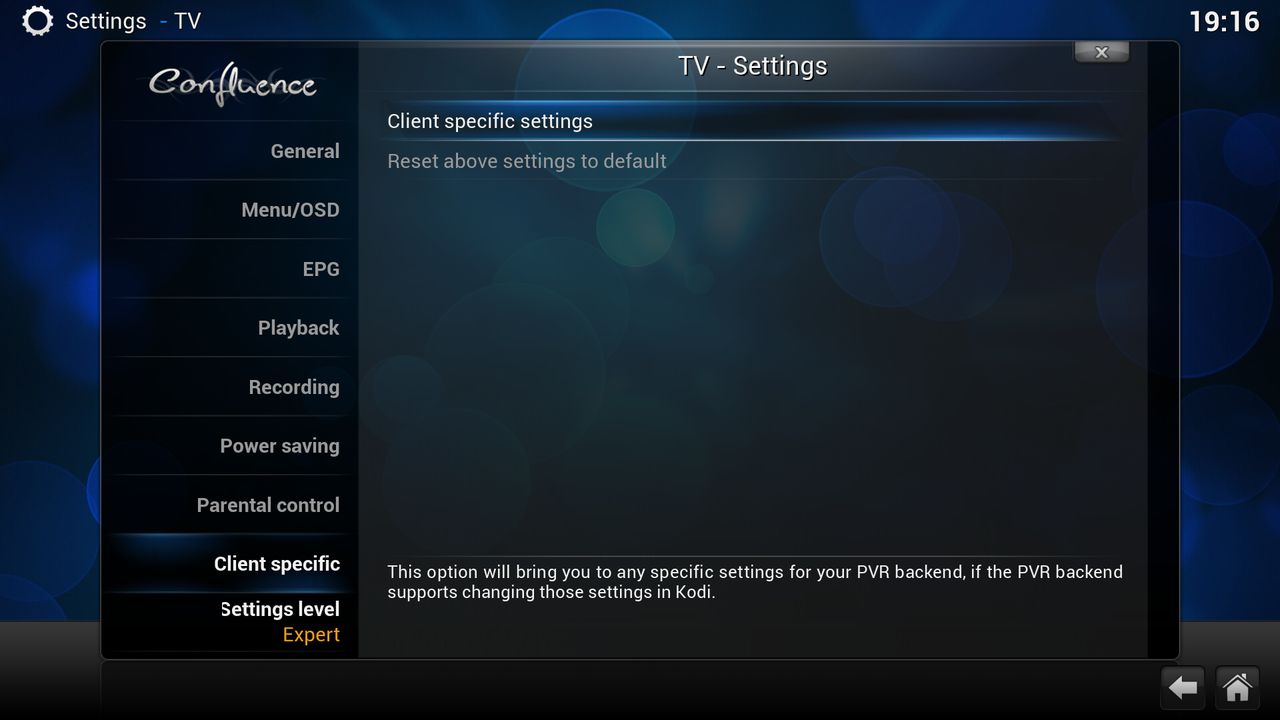
    Click on "Client specific> Client specific settings"


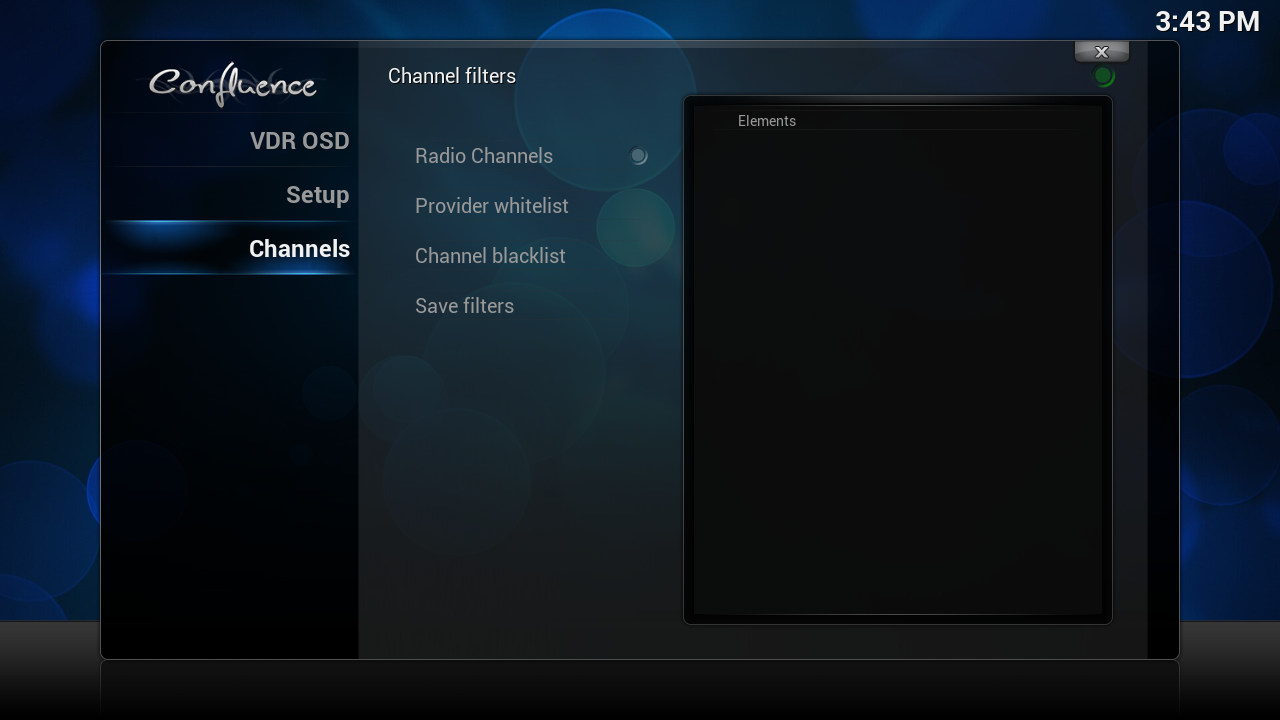
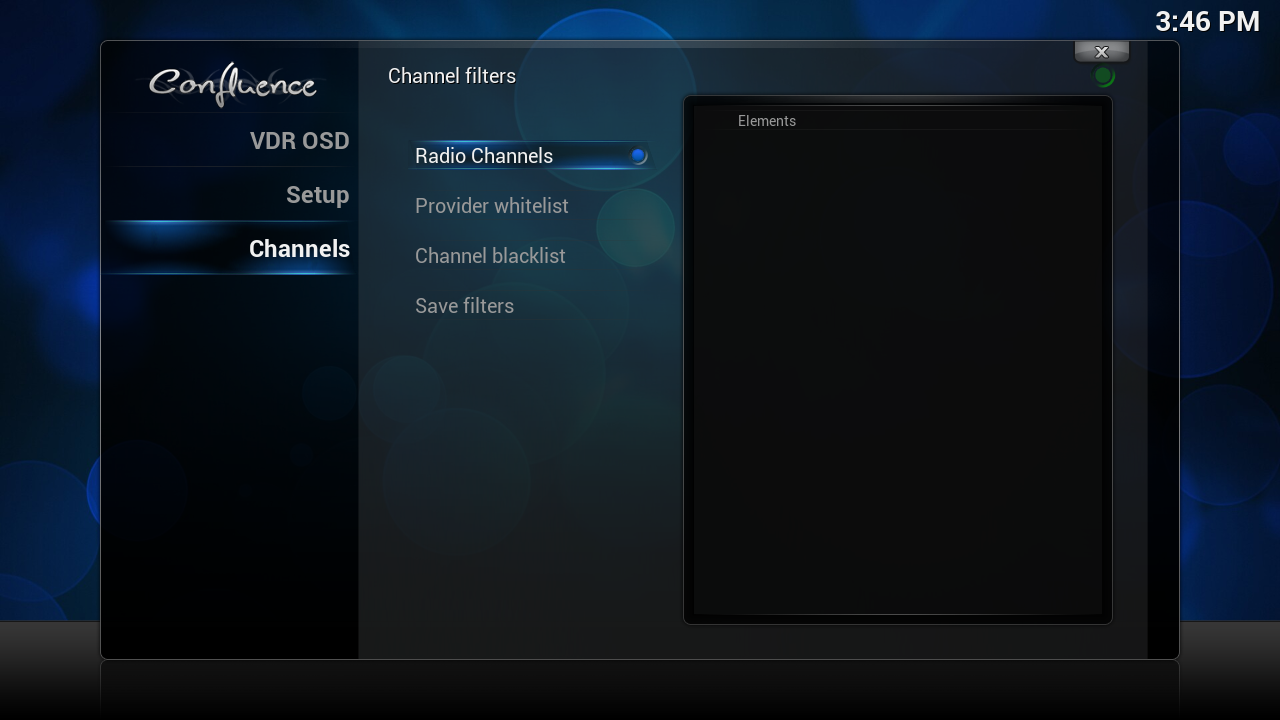
    click on "channels"
    in this mode is it for tv channels


    click on "Radio Channels"
    this for radio channels


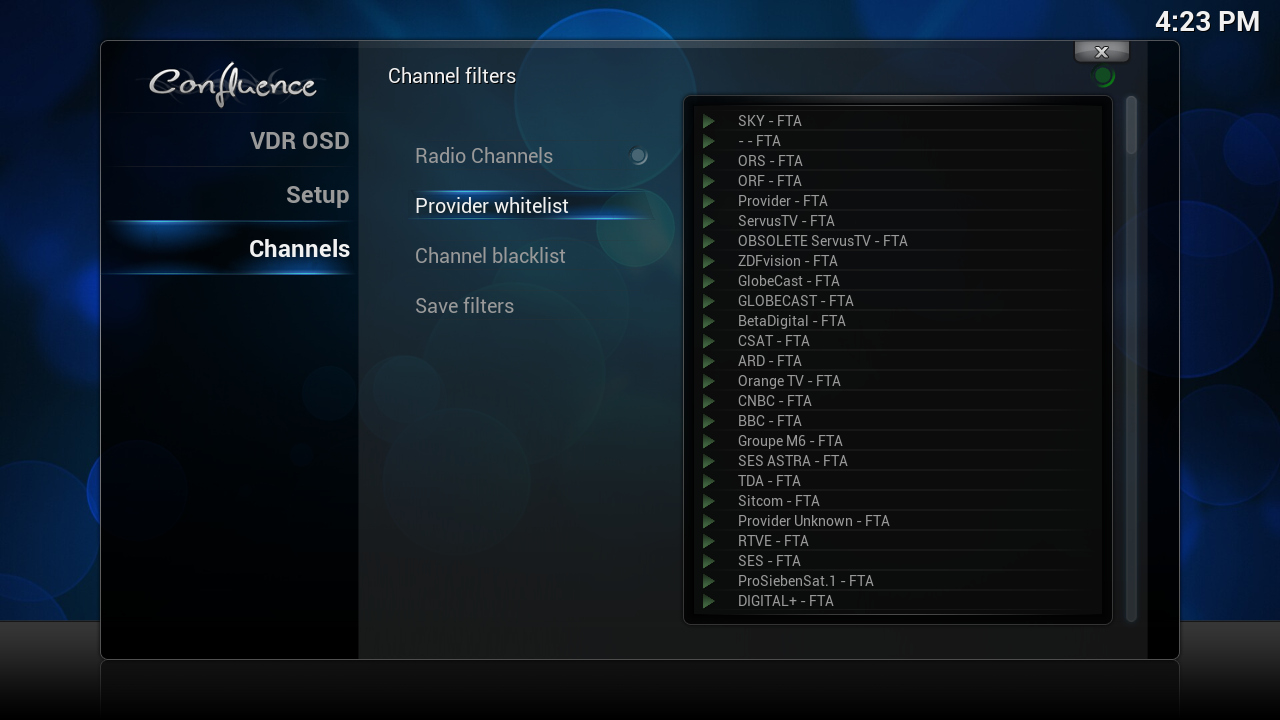
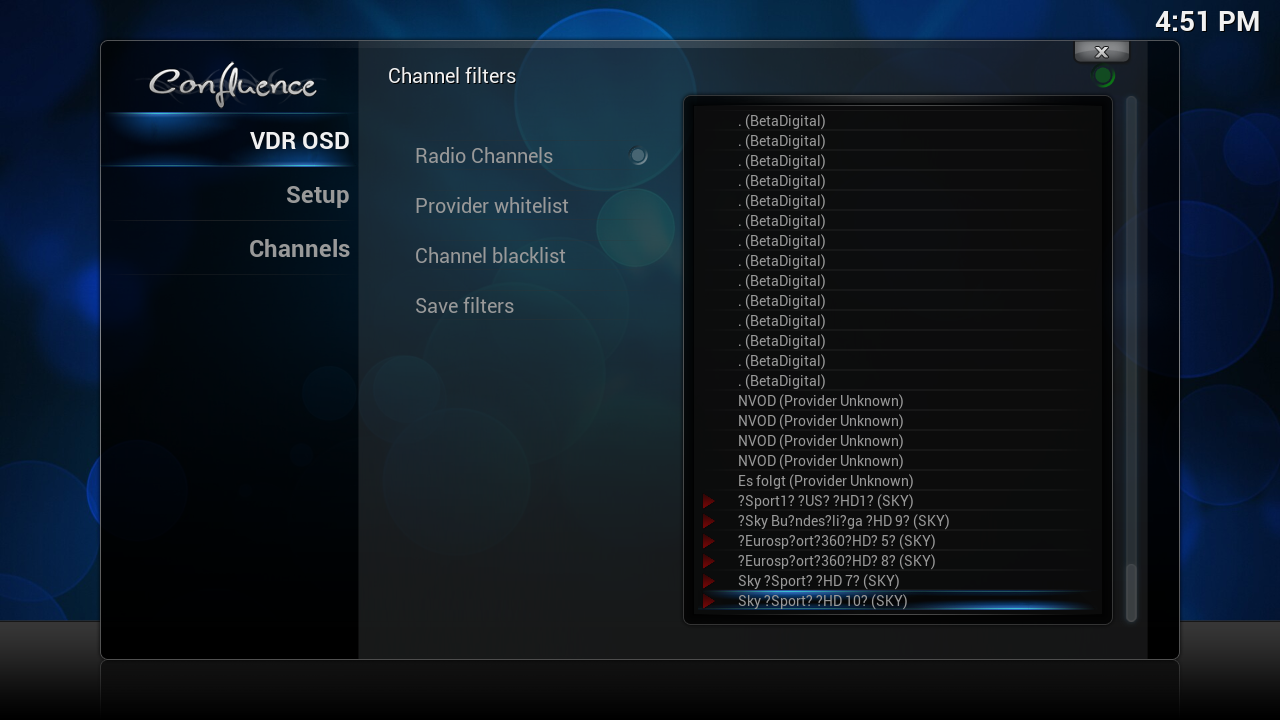
    click on "Provider whitelist"


    every provider with a GREEN arrow before the name stand in your channel list
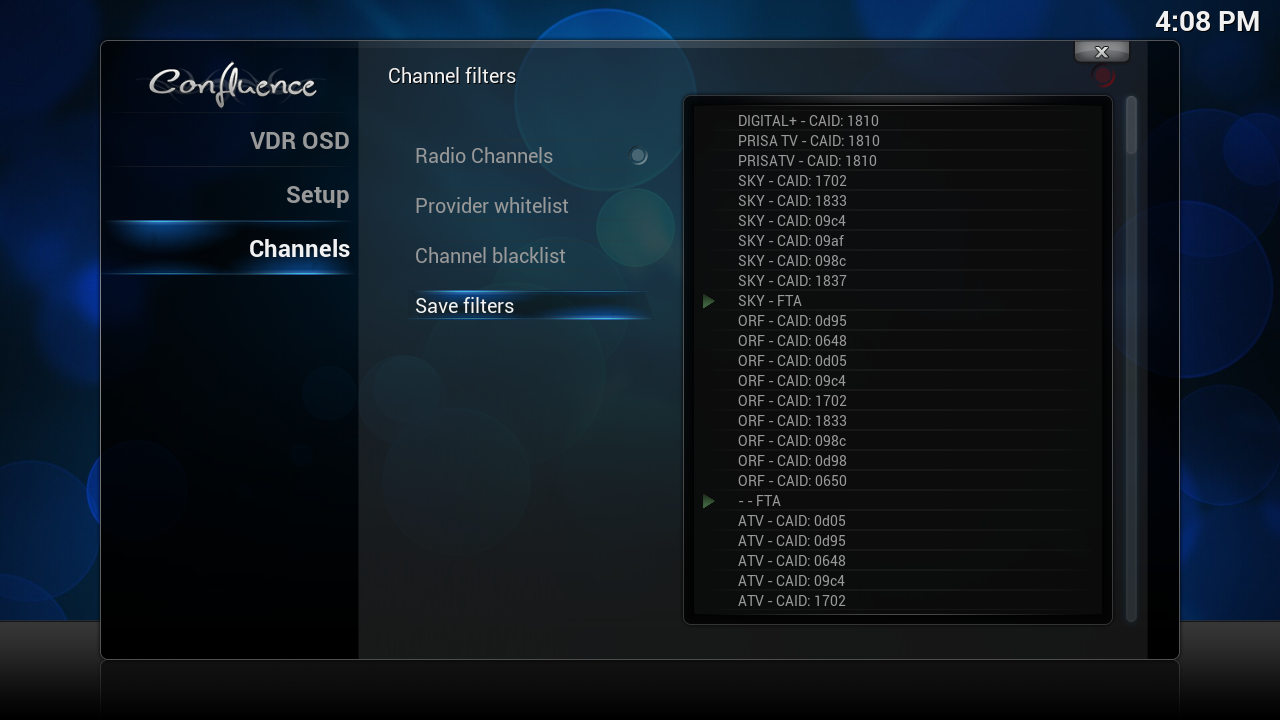
    all the lines with "caid" in it are crypted channels
    click on a name and the GREEN arrow go away


    like this when you done press on Save filters


    reboot kodi
    you can that do on ssh terminal with


    stop kodi

    Code
    systemctl stop kodi


    start kodi

    Code
    systemctl start kodi


    or with the reboot button from kodi


    the provider are in this list but on the bottom


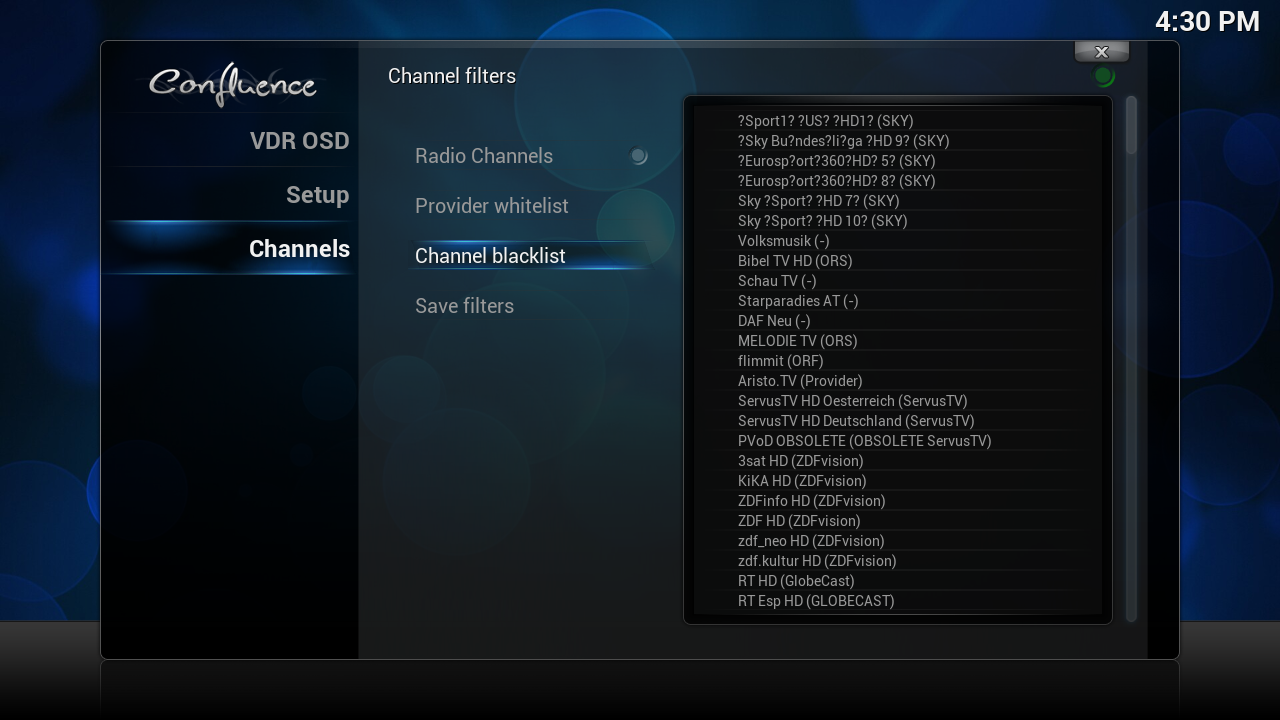
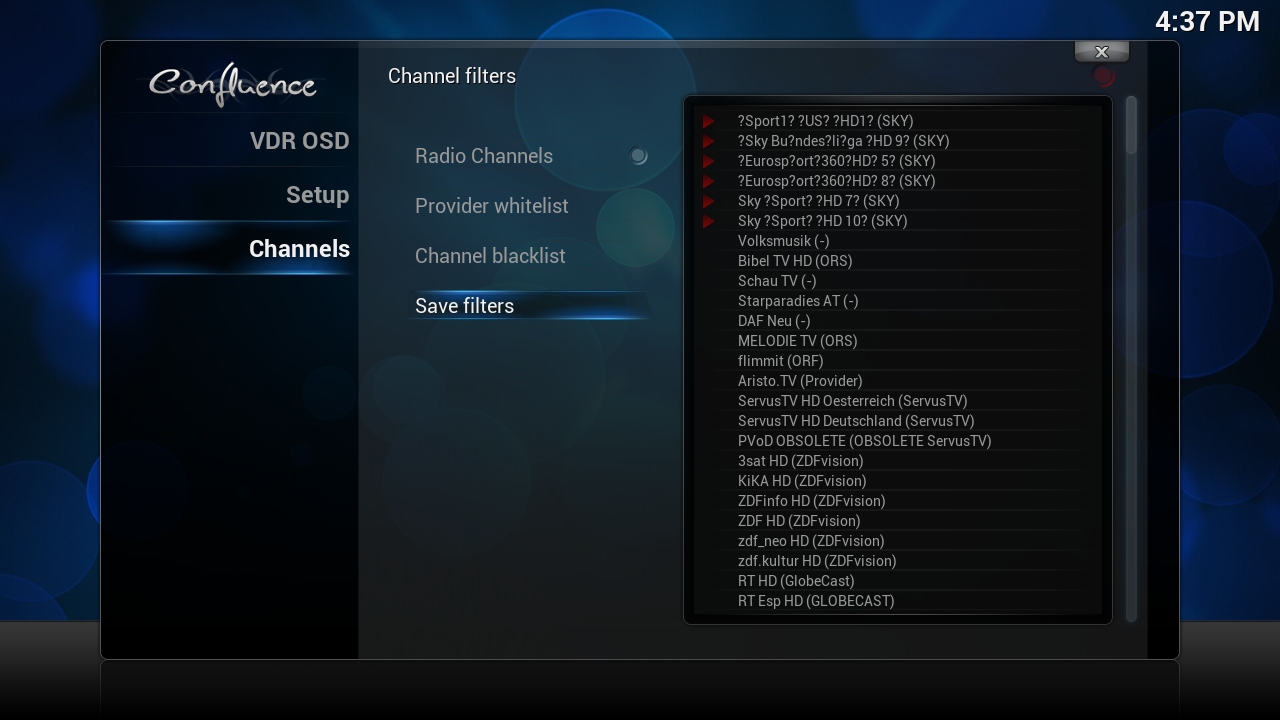
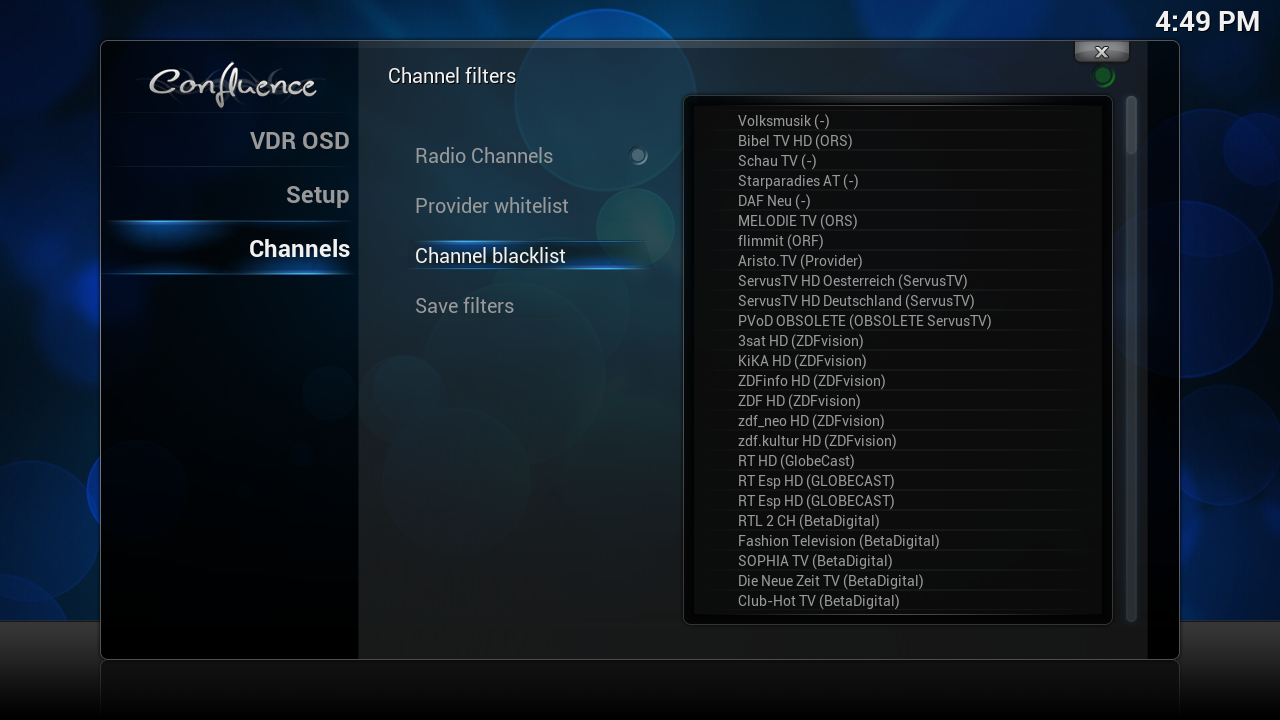
    click on "Channel blacklist"


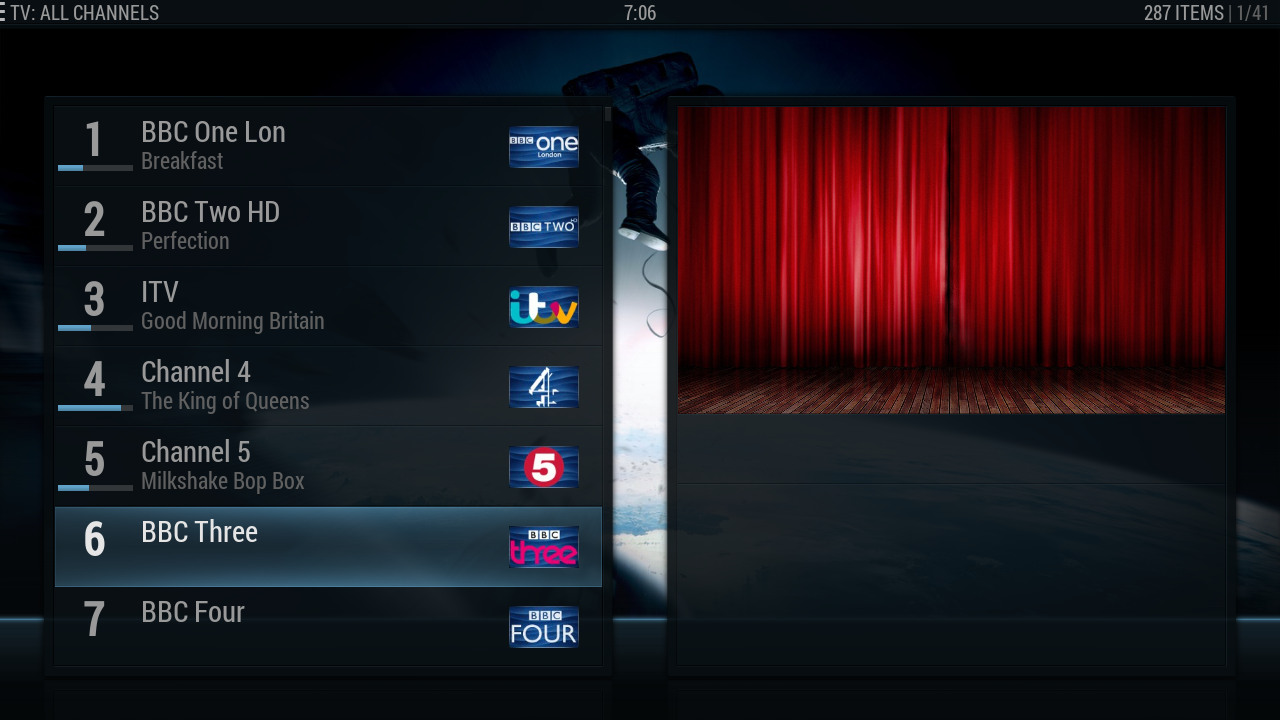
    for "example" i want the first 6 channel not in my channel list so i marked them clicked on them


    the channel with the red arrow are now on the blacklist, then you click on "save filters"
    then reboot KODI


    you see the channel are not more on top
    you can rescan your device but the channels come not back in your channel list


    if you want them back in your list remove the red arrows

    [01] Install vdr-addon
    If you have this already skip this step


    [02] Configure Vdr-addon

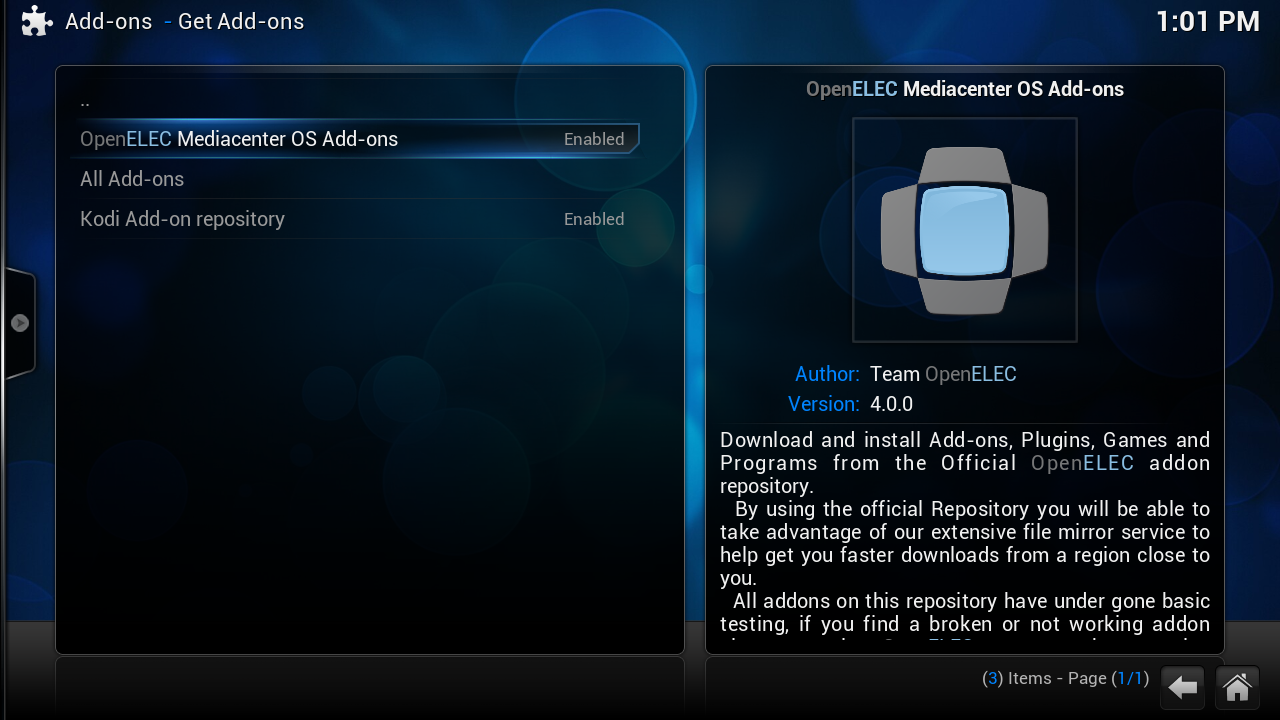
    click on "system"


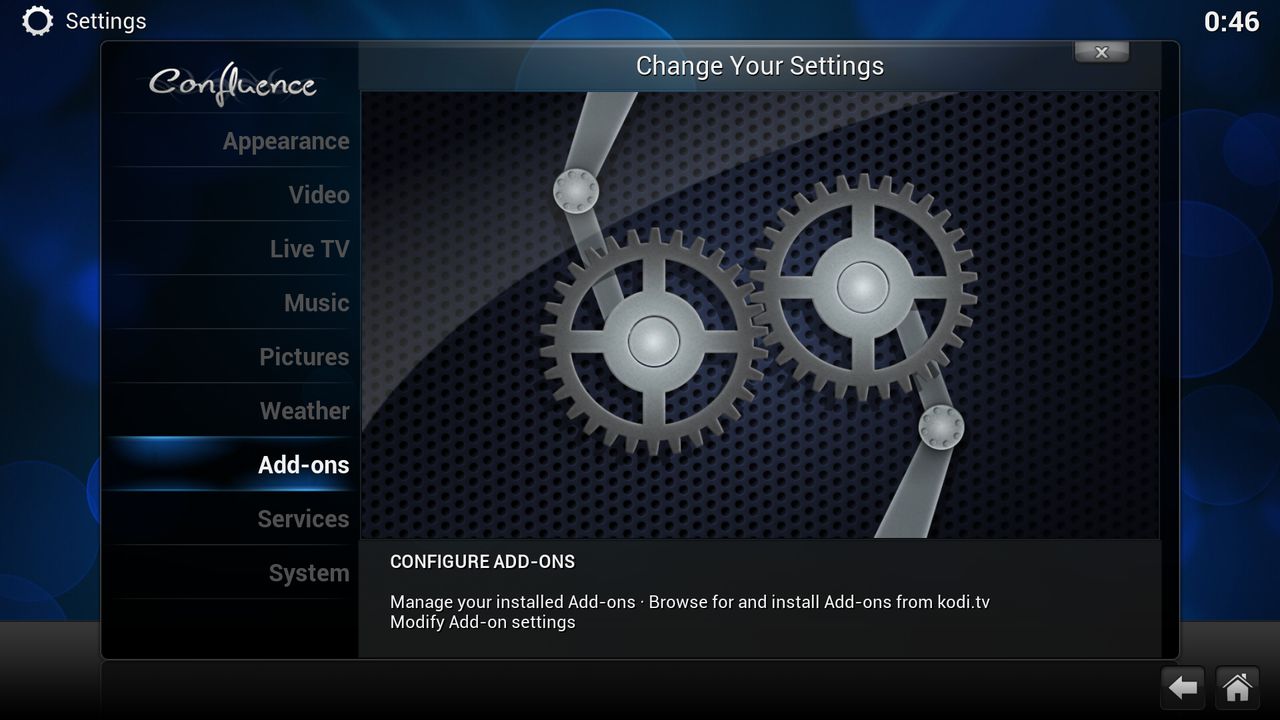
    click on "Add-ons"


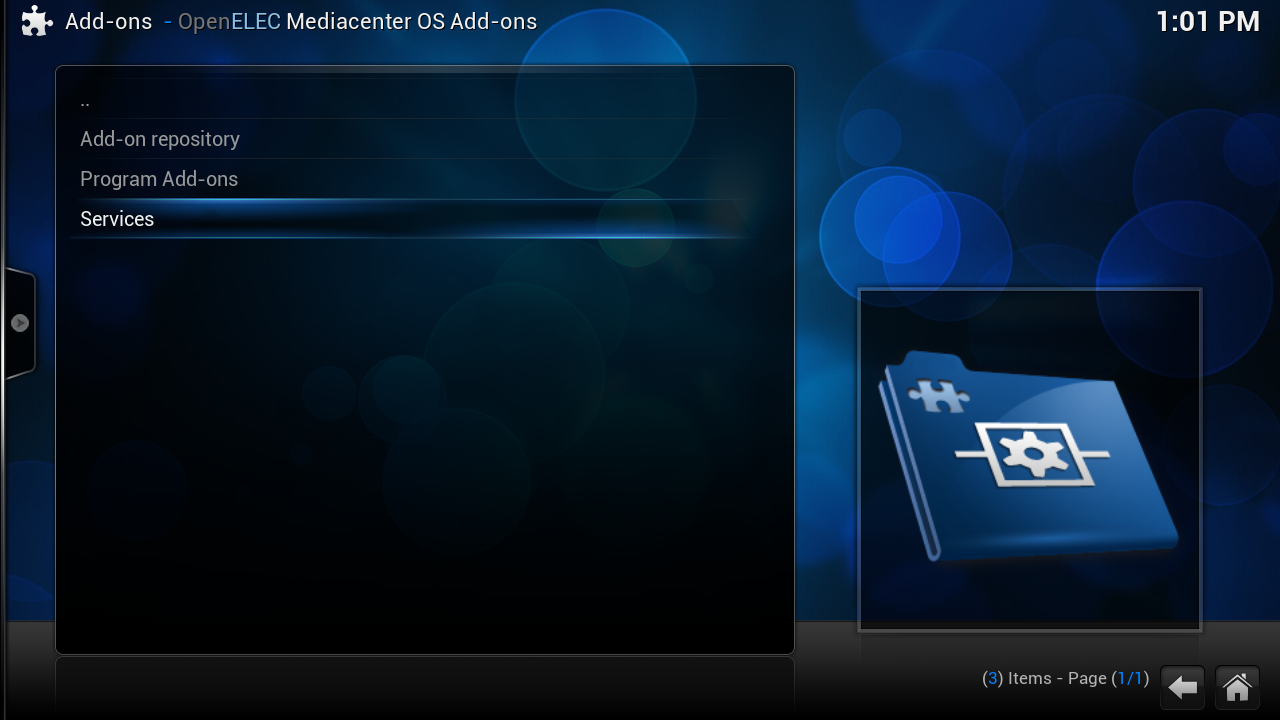
    Click on "OpenELEC Mediacenter OS Add-ons¨


    click on "Services"


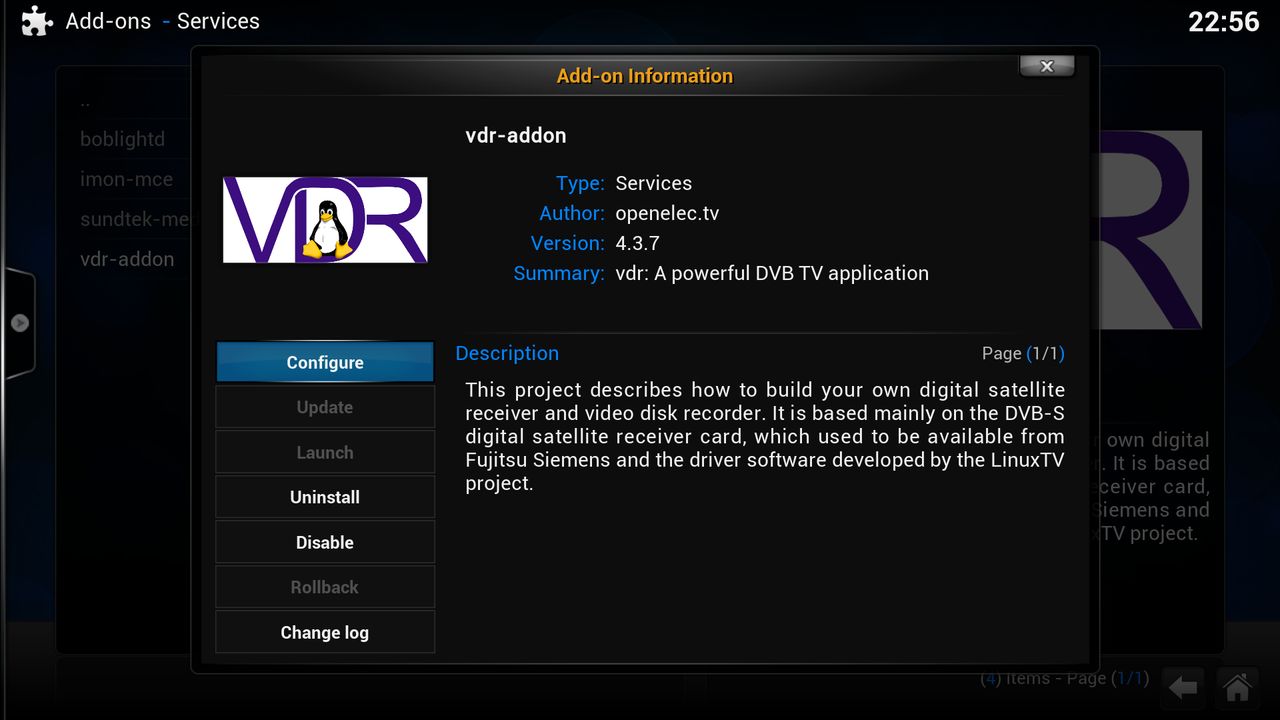
    click on "vdr-addon"


    click on configure


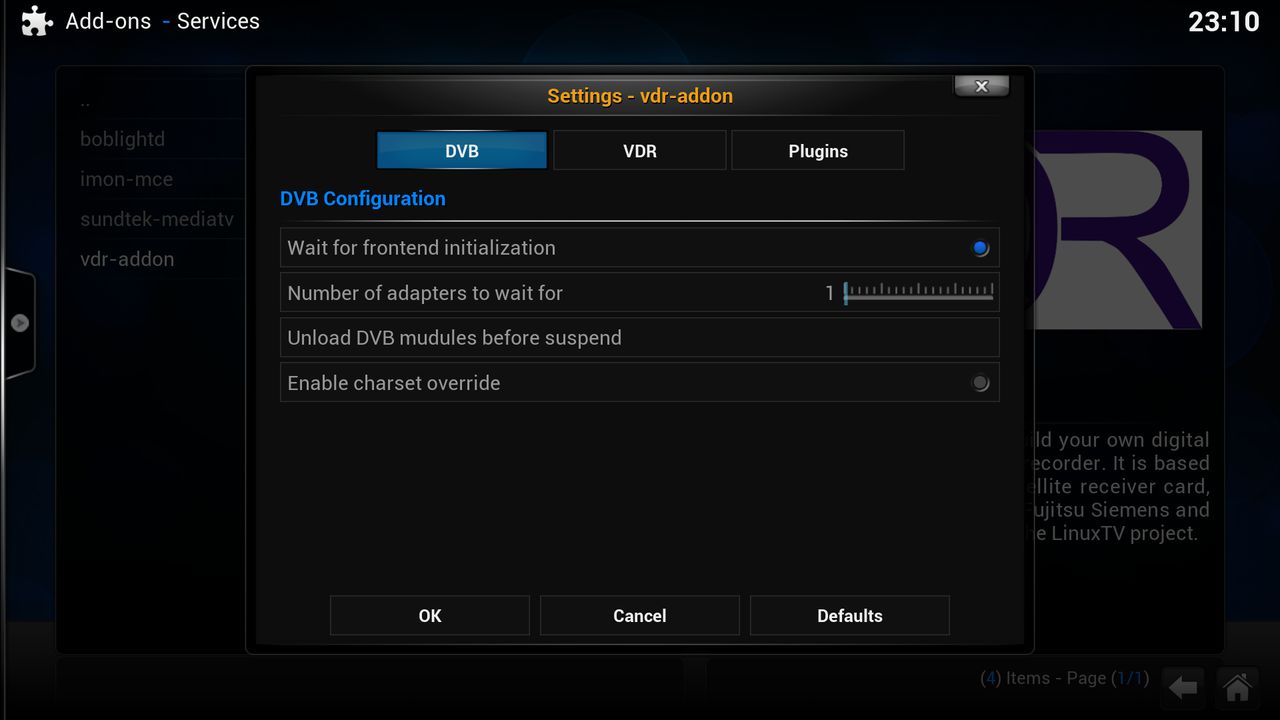
    [03] DVB Configure


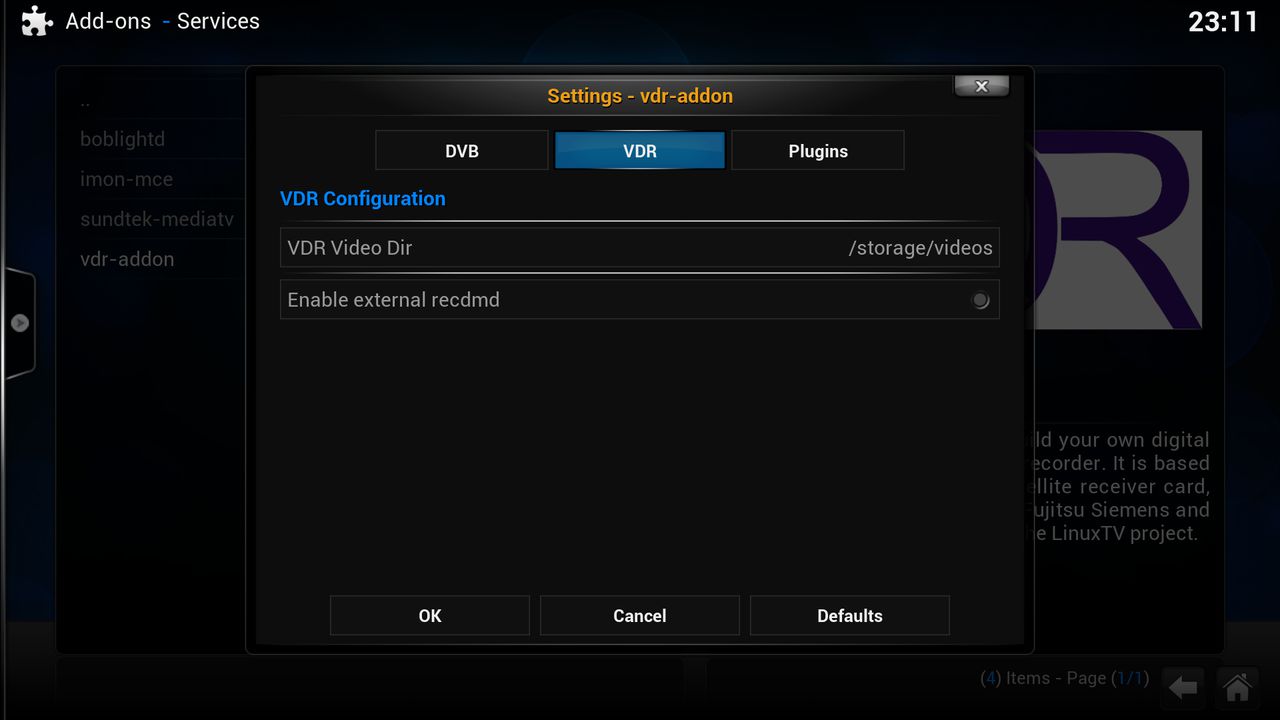
    [04] VDR Configure


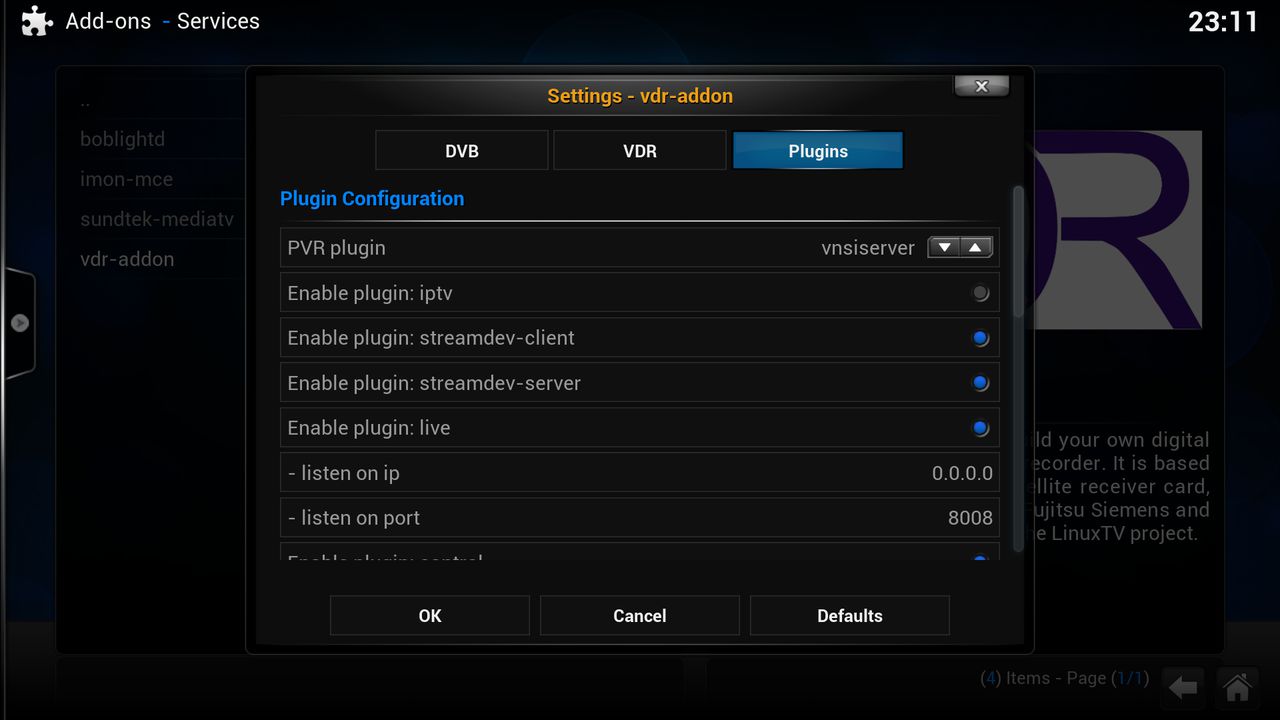
    [05] Vdr Plugin's Configure


    PVR plugin


    Enable plugin: iptv Integrated IPTV offerings in the VDR


    Enable plugin: streamdev-client Streaming-Server/Client


    Enable plugin: streamdev-server Streaming-Server/Client


    Enable plugin: live Live Interactive VDR Environment


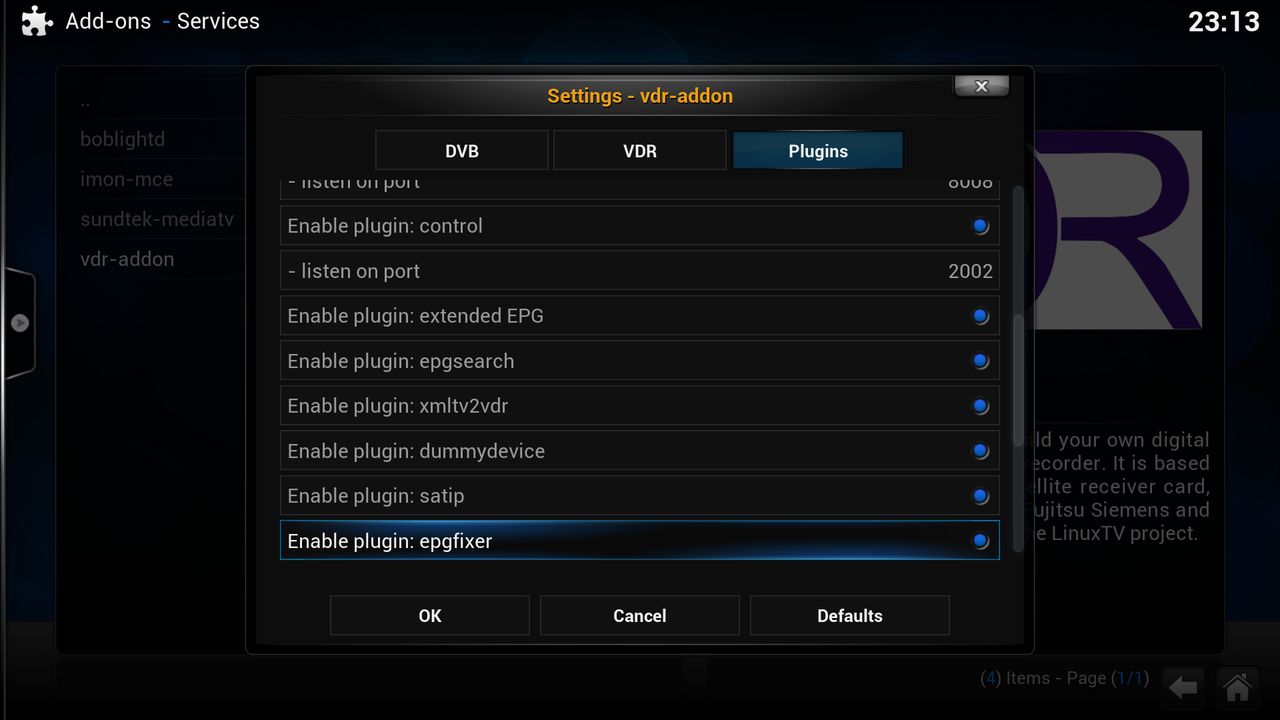
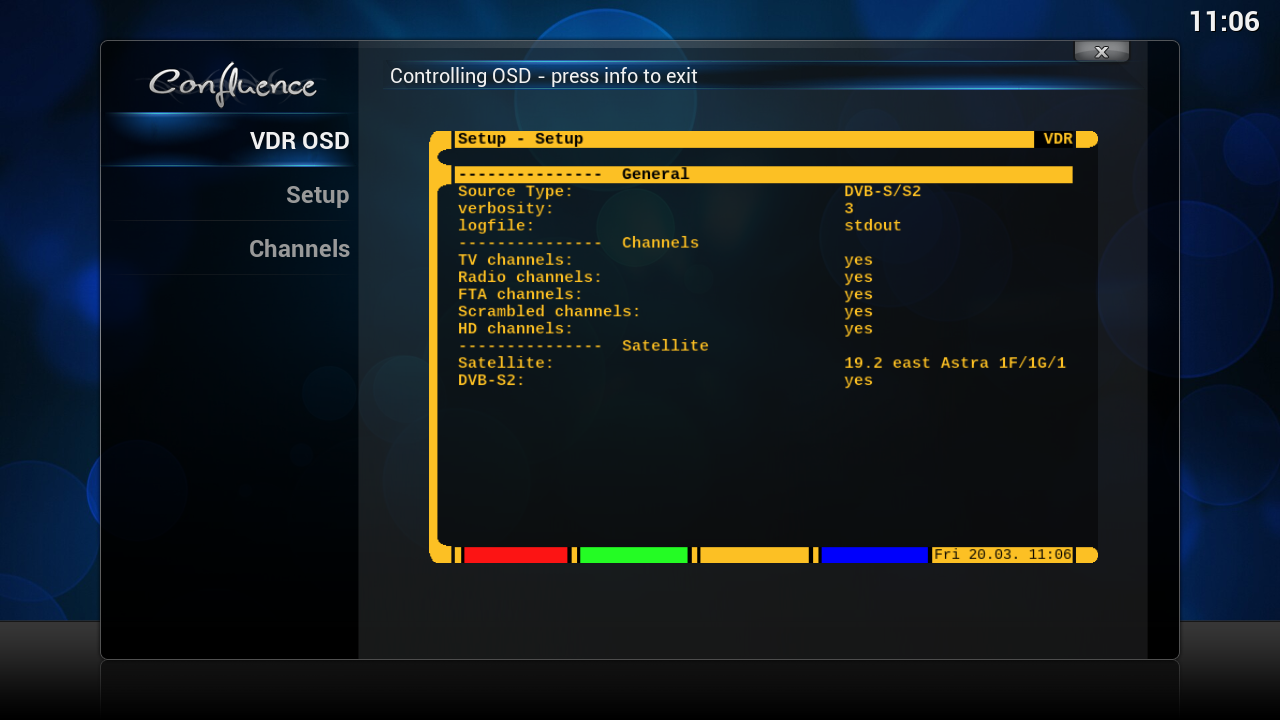
    Enable plugin: control Edition of the OSD on a Telnet terminal


    Enable plugin: externded EPG

    Quote

    The plugin loads EPG information for other providers (2-10 days). Thus, the program information from Premiere, Media Highway 1 and 2, Sky Uk Sky Italy, Freesat and NagraGuide are also displayed in the vdr EPG menu.


    Enable plugin: epgsearch Advanced EPG search and automatic creation of timers


    Enable plugin: xmltv2vdr Import EPG data in VDR


    Enable plugin: dummydevice Dummy output device


    Enable plugin: satip ?


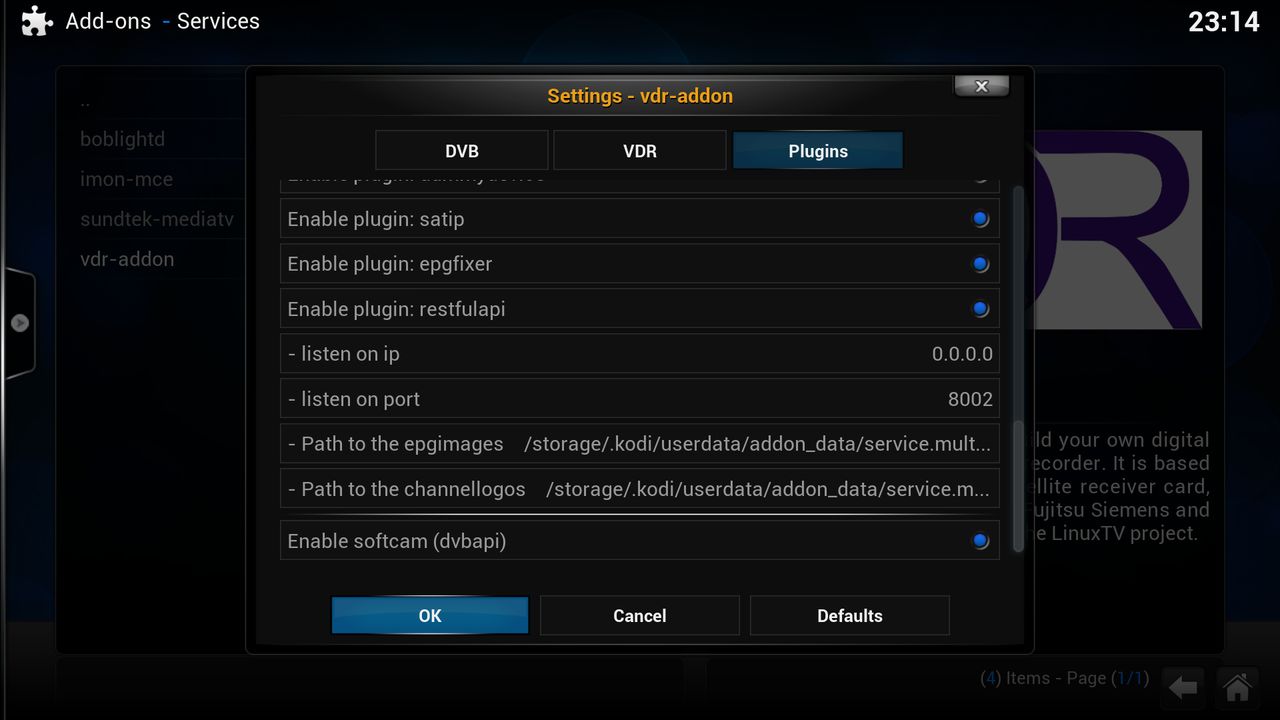
    Enable plugin: epgfixer Processing of EPG content with RegExp


    Enable plugin: restfulapi Provides a RESTful API to access VDR data ready


    Enable plugin: softcam (dvbapi) Software-Conditional Access Modul


    sorry all links are in germans

    Quote

    VDR (The Video Disk Recorder) is an open source PVR backend application for Linux designed to allow any computer to function as a DVR (Digital Video Recorder), in order to stream Live TV, radio, and record television programming using the computer's hard drive. The computer needs to be equipped with a digital TV tuner aapter (or TV tuner card). VDR uses drivers from the LinuxTV project.


    By levering existing third-party PVR backend applications such as VDR that specialize in receiving television signals and support a client–server model which XBMC/Kodi can access via a PVR client addon, these PVR features allows you to watch Live TV, listen to radio, view a EPG TV-Guide, schedule recordings and enables many other TV related features, all using XBMC/Kodi as your primary interface once the initial pairing connection to VDR have been done and and configuration of the PVR client addon for it is complete.


    [01] Installing VDR

    click on "system"


    click on "add-ons"


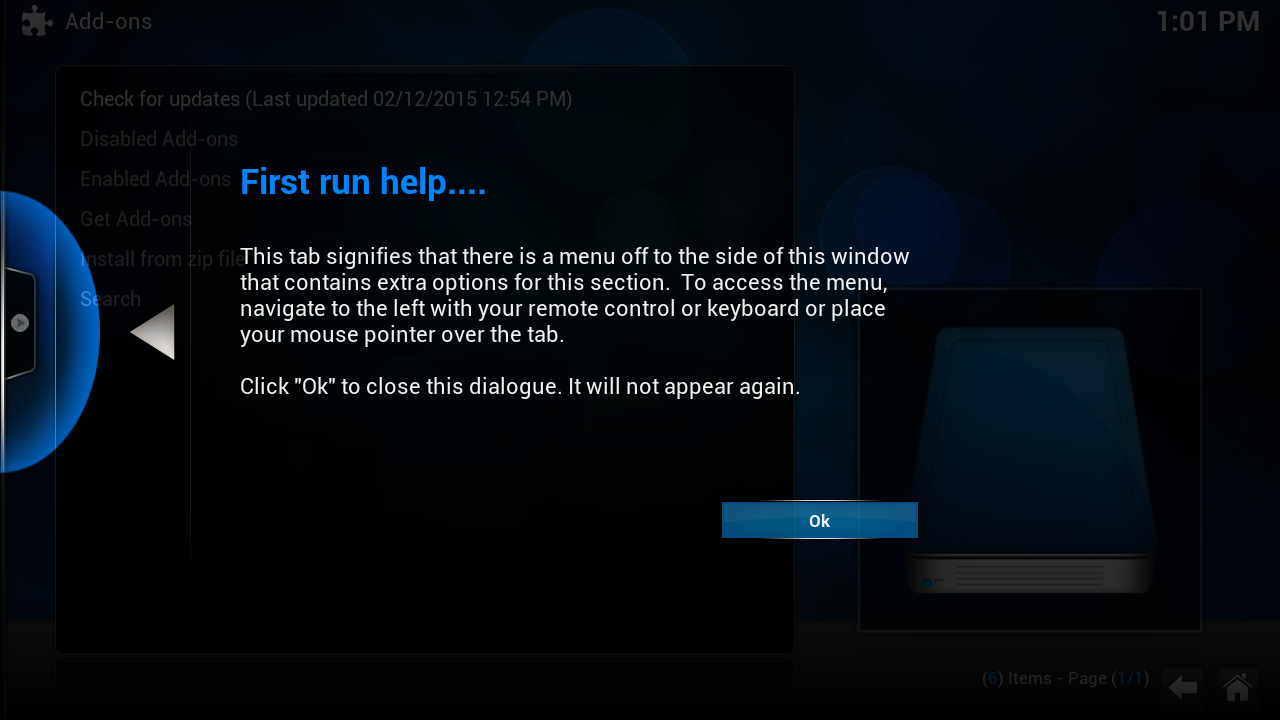
    click on "OK" (this screen you get 1x in the begin)


    Click on "OpenELEC Mediacenter OS Add-ons¨


    click on "Services"


    click on "vdr-addon"


    click on "Install"


    install done

    [01] vdr vnsi client Configure

    if you not on this screen goto [02] if you in this screen goto [03]


    [02]

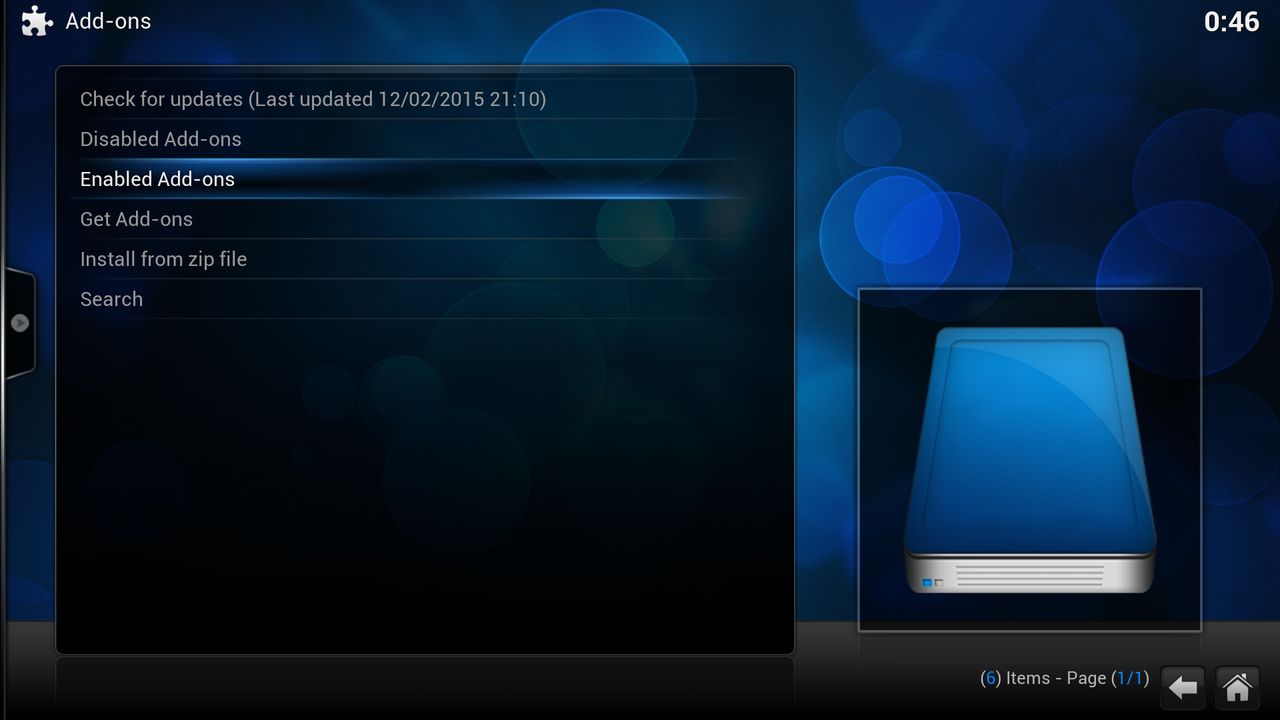
    click on "system"


    click on "Add-ons"


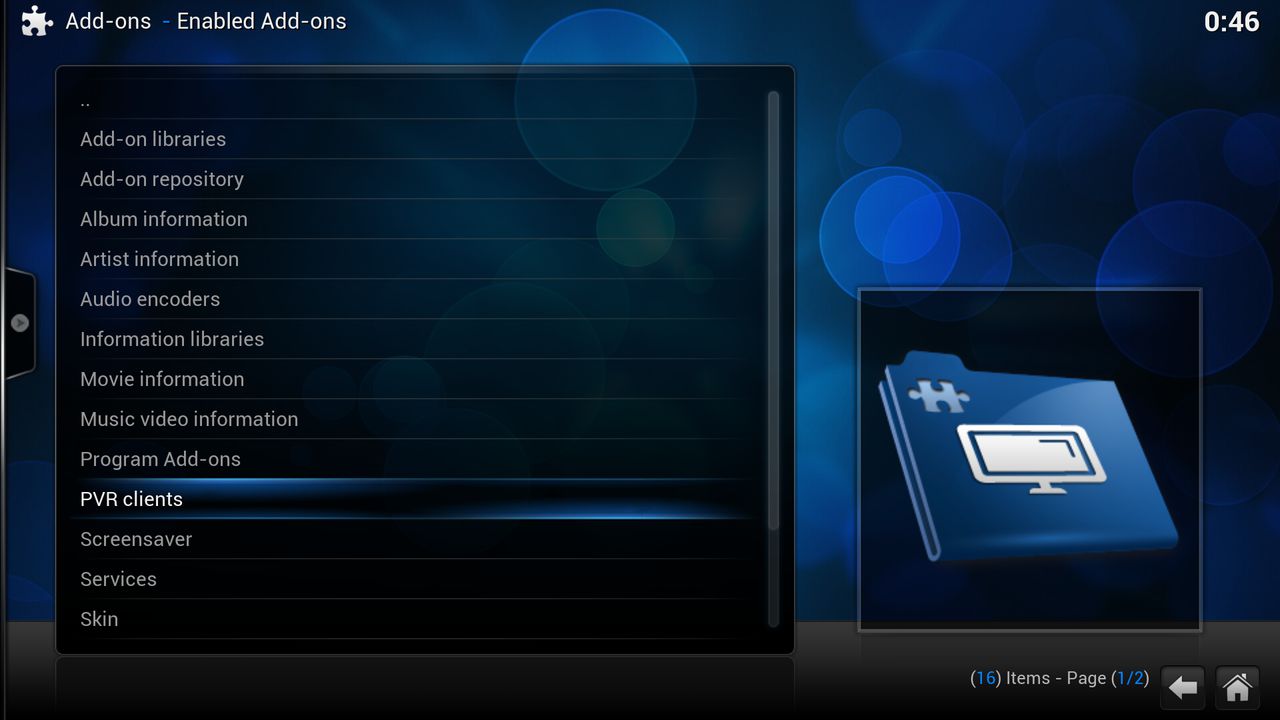
    click on "Enabled Add-ons"


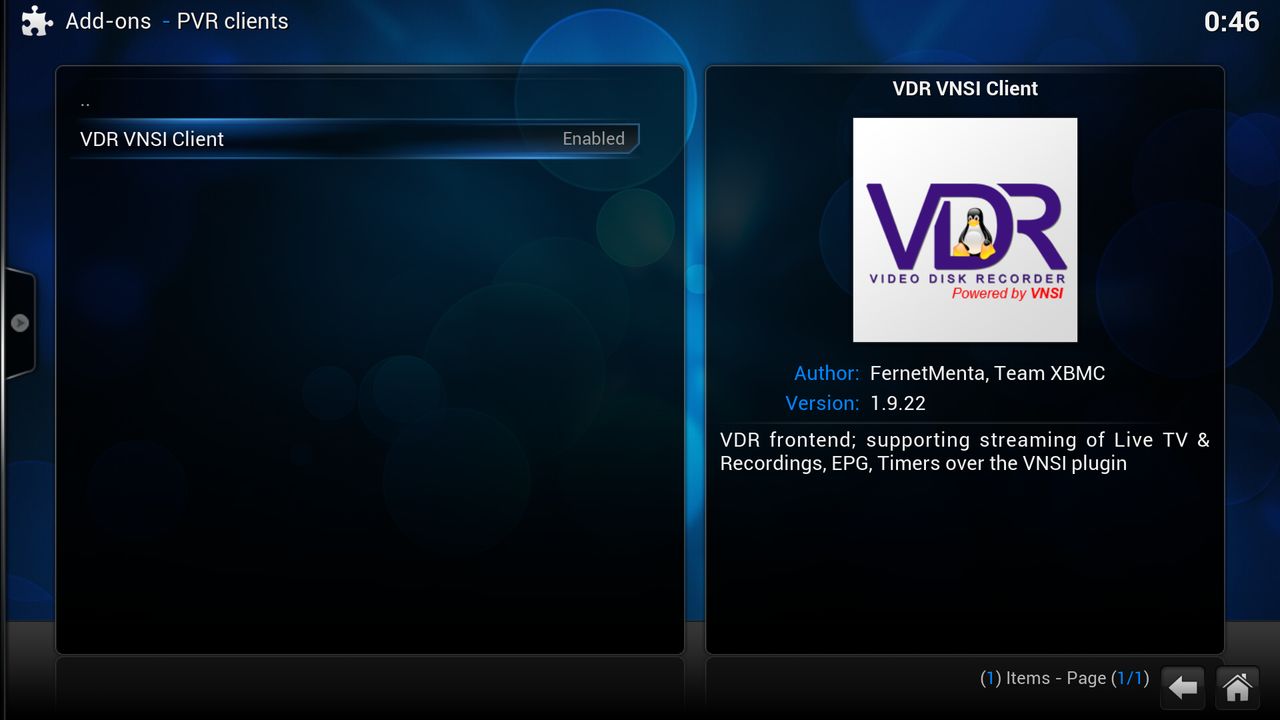
    click on "PVR clients"
    if you not have PVR clients in your list you must Enable the PVR addon


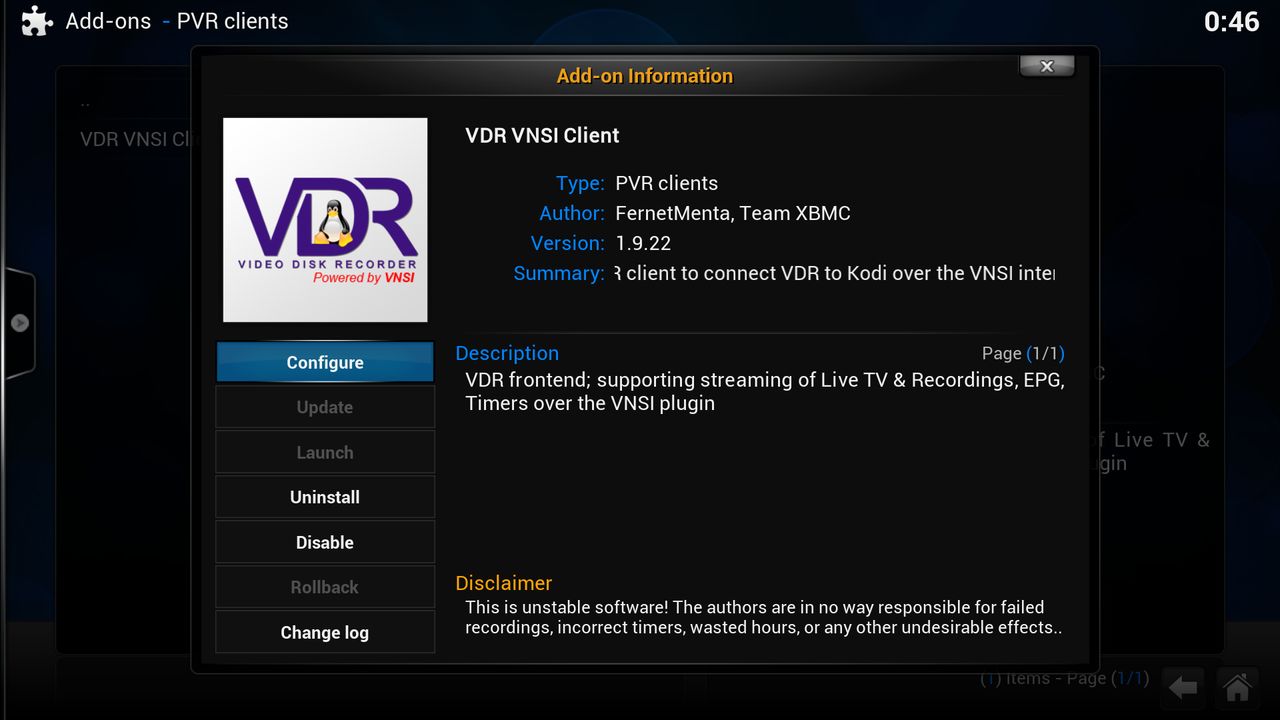
    click on "VDR VNSI Client"


    click on "Configure¨


    [03]


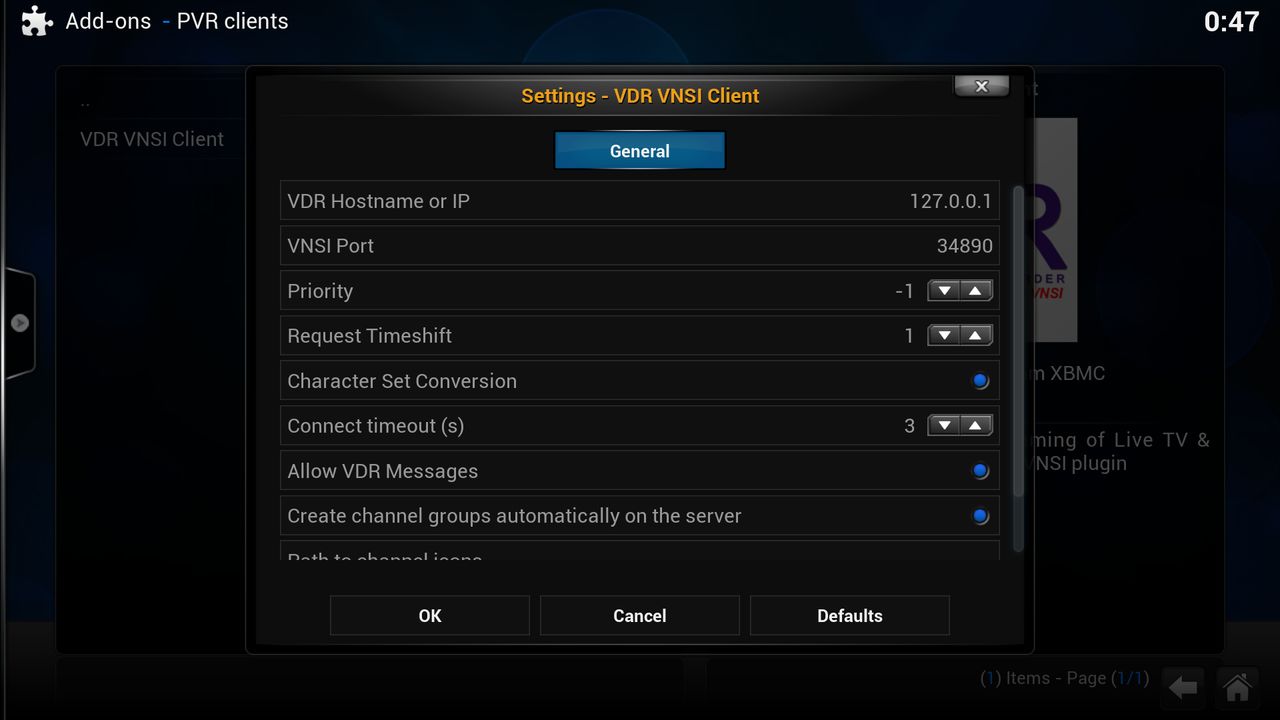
    VDR Hostname or IP

    Quote

    The hostname or IP address of the server where VDR is installed. If on the same machine then 'localhost' or 127.0.0.1 can be used.


    VNSI Port

    Quote

    The default for VDR with VNSI is 34890 but this will need updating if you have changed it in on the VDR side.


    Priority ??


    Character Set Conversion

    Quote

    If KODI and VDR use different character sets, then enable this option to convert the texts after receiving them from VDR.


    Connect timeout(s)

    Quote

    How many seconds should KODI wait for a connection to VDR. Time is given in seconds.


    Allow VDR Messages

    Quote

    Do you allow the VDR to display messages inside KODI?


    Create channel groups automatically on the server


    Path to channel icons

    Quote

    here can you set the picon map


    VDR Server MAC for wake-on-LAN ?

    Code
    S360E  11700 V  9750  t V W20 P W20 t vS360E  99999 V 10600  t V W20 P W20 T vS360E  11700 H  9750  t V W20 P W20 t VS360E  99999 H 10600  t V W20 P W20 T V# Full DiSEqC sequence:#Eutelsat 3B / Rascom QAF 1R (3°E) S3.0E 11700 V 9750 t v W15 P1 W15 tS3.0E 99999 V 10600 t v W15 P1 W15 TS3.0E 11700 H 9750 t V W15 P1 W15 tS3.0E 99999 H 10600 t V W15 P1 W15 T#Astra 4A / SES 5 (4.8°E)S4.8E 11700 V 9750 t v W15 P1 W15 tS4.8E 99999 V 10600 t v W15 P1 W15 TS4.8E 11700 H 9750 t V W15 P1 W15 tS4.8E 99999 H 10600 t V W15 P1 W15 T#Eutelsat 7A / Eutelsat 7B (7°E)S7.0E 11700 V 9750 t v W15 P1 W15 tS7.0E 99999 V 10600 t v W15 P1 W15 TS7.0E 11700 H 9750 t V W15 P1 W15 tS7.0E 99999 H 10600 t V W15 P1 W15 T#Eutelsat 9A (9°E) S9.0E 11700 V 9750 t v W15 P1 W15 tS9.0E 99999 V 10600 t v W15 P1 W15 TS9.0E 11700 H 9750 t V W15 P1 W15 tS9.0E 99999 H 10600 t V W15 P1 W15 T#Eutelsat 10A (10°E) S10.0E 11700 V 9750 t v W15 P1 W15 tS10.0E 99999 V 10600 t v W15 P1 W15 TS10.0E 11700 H 9750 t V W15 P1 W15 tS10.0E 99999 H 10600 t V W15 P1 W15 T#1 Eutelsat Hot Bird 13A/13B/13CS13.0E 11700 V 9750 t v W15 P1 W15 tS13.0E 99999 V 10600 t v W15 P1 W15 TS13.0E 11700 H 9750 t V W15 P1 W15 tS13.0E 99999 H 10600 t V W15 P1 W15 T#Eutelsat 16A (16°E)S16.0E 11700 V 9750 t v W15 P1 W15 tS16.0E 99999 V 10600 t v W15 P1 W15 TS16.0E 11700 H 9750 t V W15 P1 W15 tS16.0E 99999 H 10600 t V W15 P1 W15 T#2 Astra 1KR/1L/1M/2CS19.2E 11700 V 9750 t v W15 P2 W15 tS19.2E 99999 V 10600 t v W15 P2 W15 TS19.2E 11700 H 9750 t V W15 P2 W15 tS19.2E 99999 H 10600 t V W15 P2 W15 T#Eutelsat 21B (21.6°E)S21.6E 11700 V 9750 t v W15 P2 W15 tS21.6E 99999 V 10600 t v W15 P2 W15 TS21.6E 11700 H 9750 t V W15 P2 W15 tS21.6E 99999 H 10600 t V W15 P2 W15 T#Astra 3B (23.5°E)S23.5E 11700 V 9750 t v W15 P2 W15 tS23.5E 99999 V 10600 t v W15 P2 W15 TS23.5E 11700 H 9750 t V W15 P2 W15 tS23.5E 99999 H 10600 t V W15 P2 W15 T#Badr 4 / Badr 5 / Badr 6 (26°E)S26.0E 11700 V 9750 t v W15 P2 W15 tS26.0E 99999 V 10600 t v W15 P2 W15 TS26.0E 11700 H 9750 t V W15 P2 W15 tS26.0E 99999 H 10600 t V W15 P2 W15 T#Astra 2A / Astra 2C / Astra 2D / Astra 2E / Astra 2F / Astra 2G / Eutelsat 28A (28.2°E)S28.2E 11700 V 9750 t v W15 P2 W15 tS28.2E 99999 V 10600 t v W15 P2 W15 TS28.2E 11700 H 9750 t V W15 P2 W15 tS28.2E 99999 H 10600 t V W15 P2 W15 T

    Code
    /storage/.kodi/userdata/addon_data/service.multimedia.vdr-addon/config

    Quote


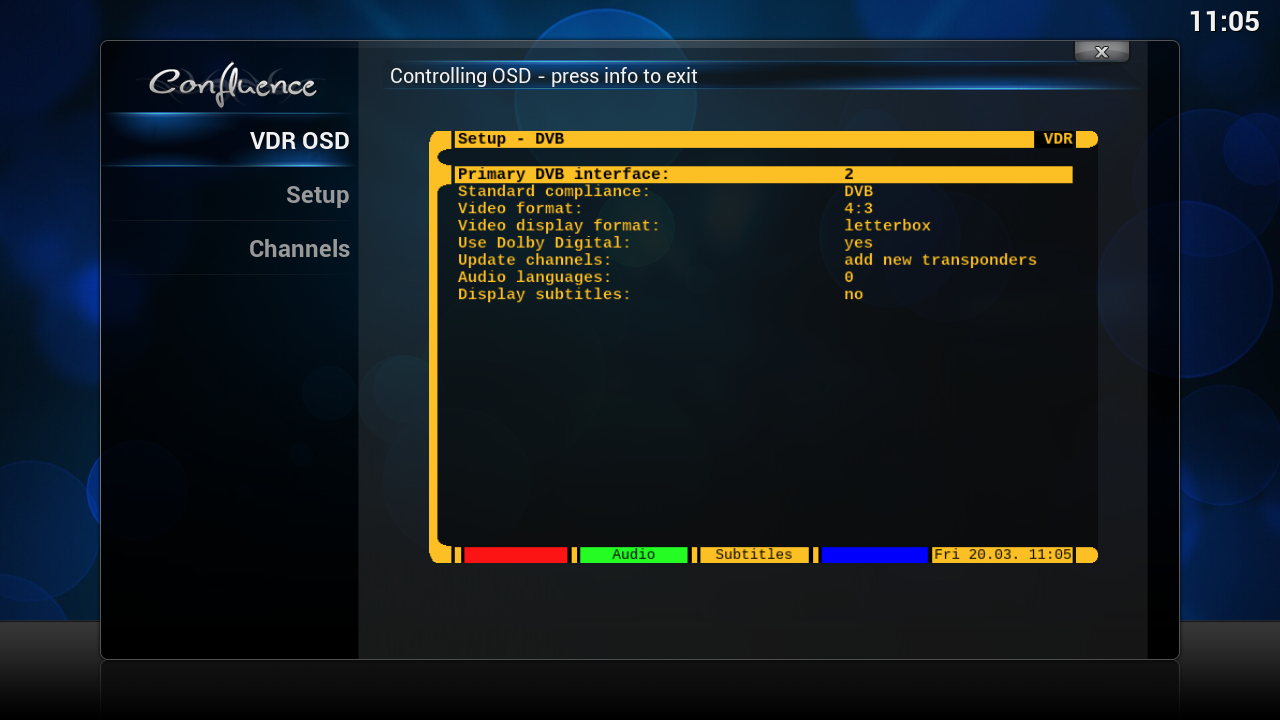
    i use tuner 2 so i set primary dvb interface on 2
    to confirm press [enter]


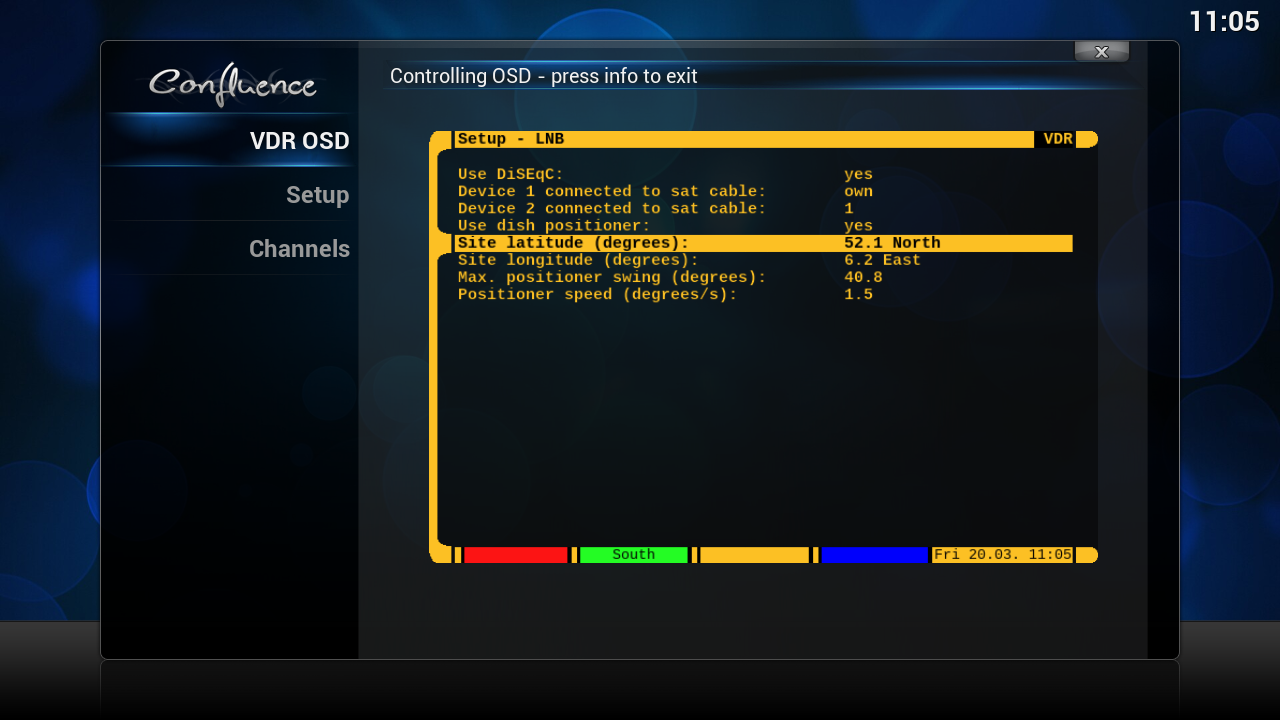
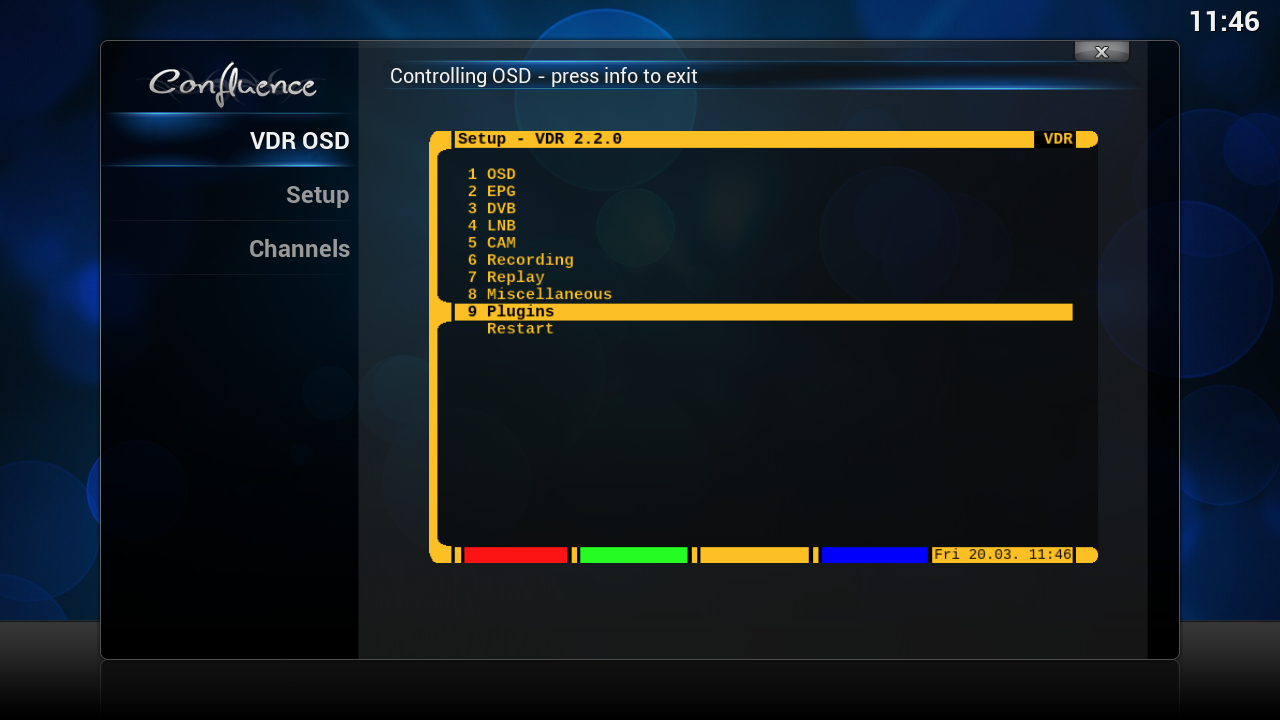
    [LNB]

    press [enter]


    click on [right arrow key] then NO turns in YES


    click on [right arrow key] then NO turns in YES


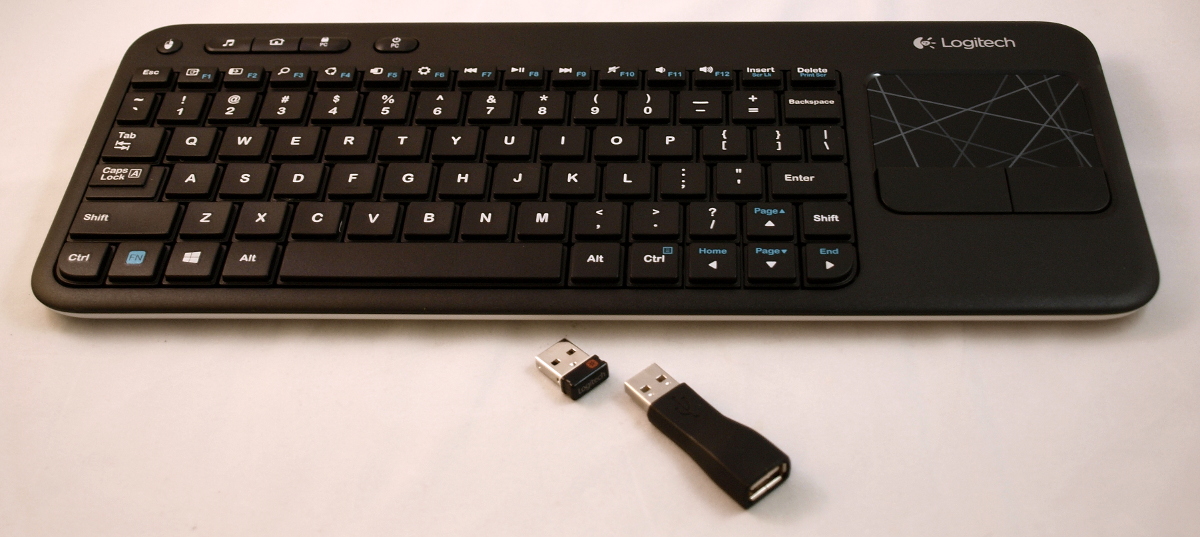
    to find your possition you can use this site http://www.dishpointer.com/blog/page/2/ or a satfind app on your phone, to change your coordinates hold up or down arrow key on the RCU or enter the value with the number buttons


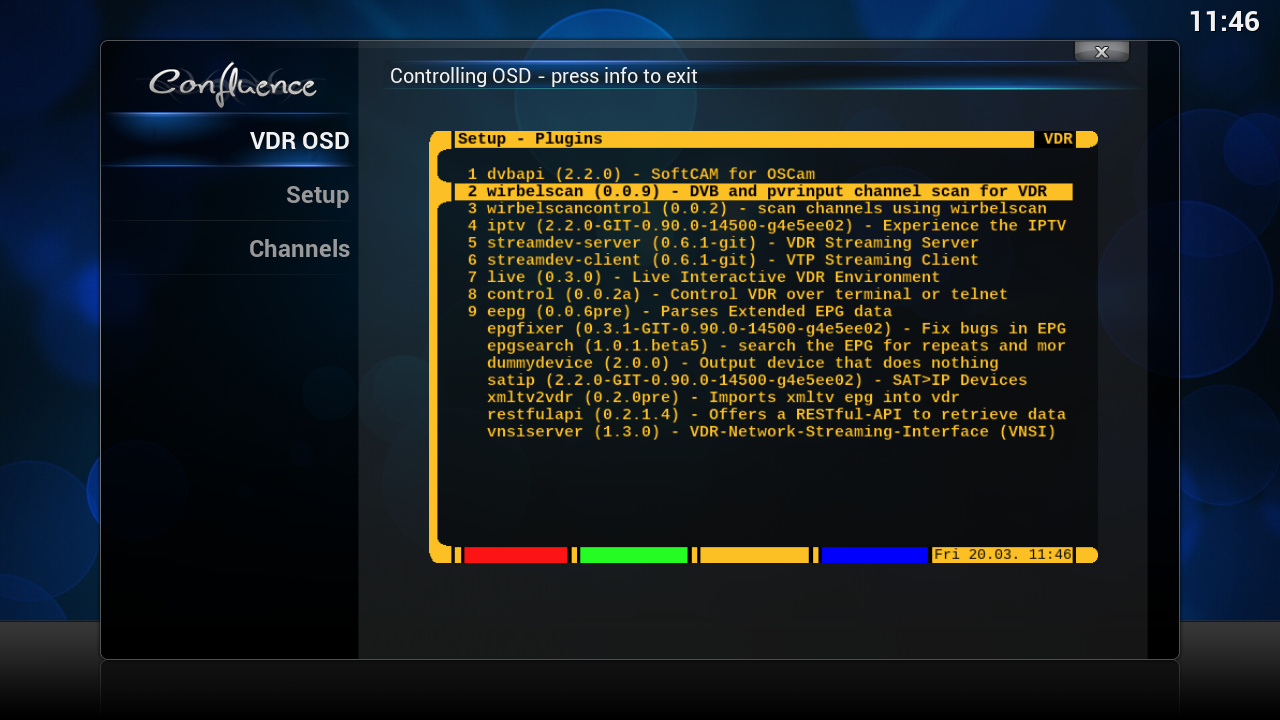
    [PLUGINS]


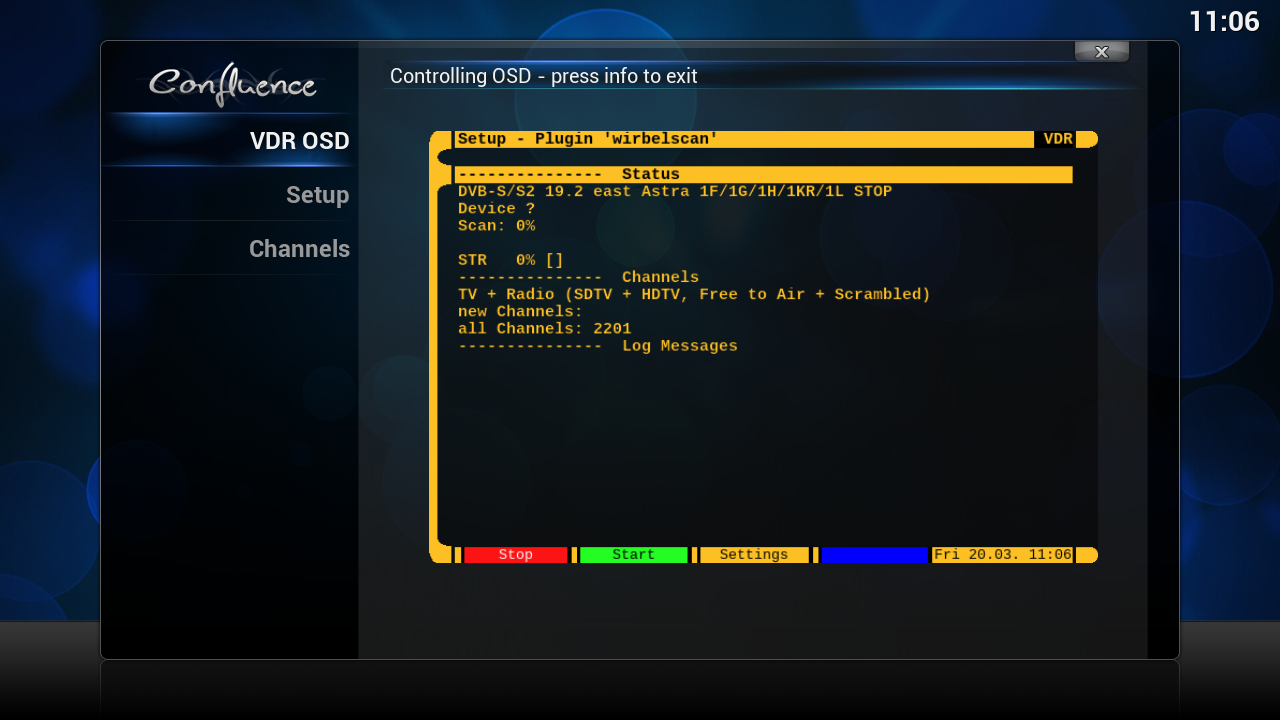
    press [F3] for settings


    press [enter] when your done here and then press [F2] for scan


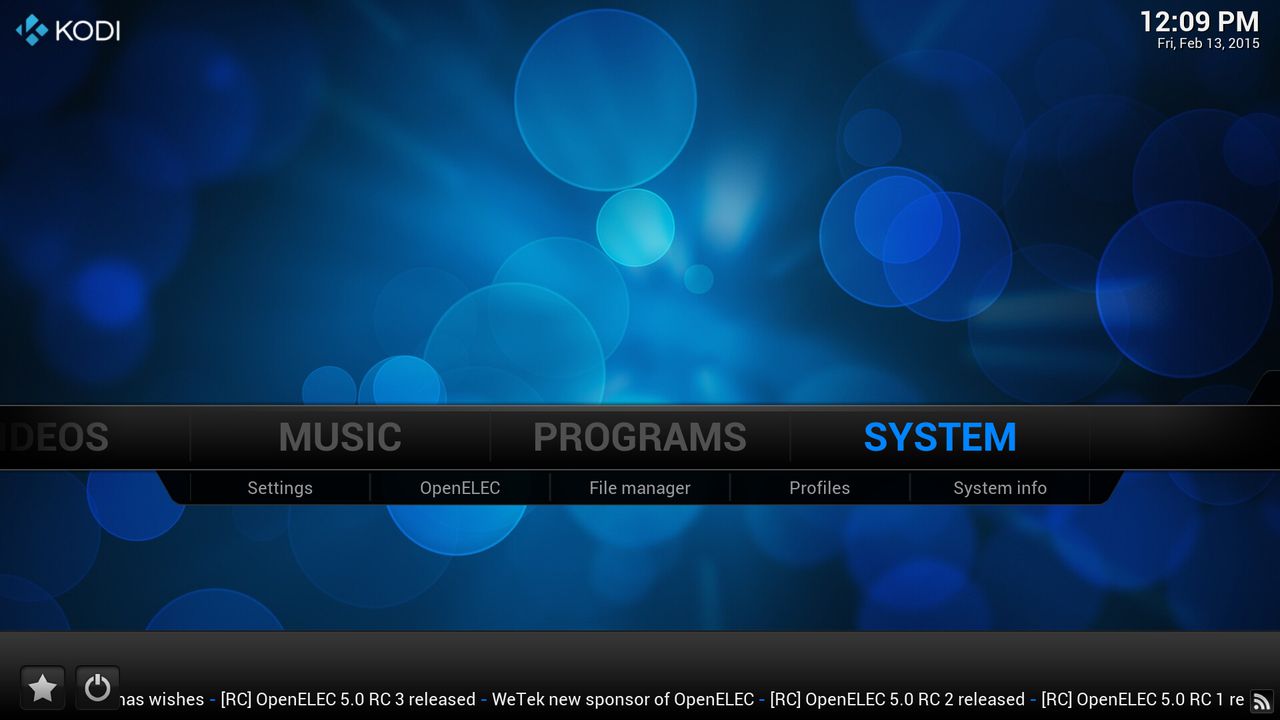
    click on "Syestem"


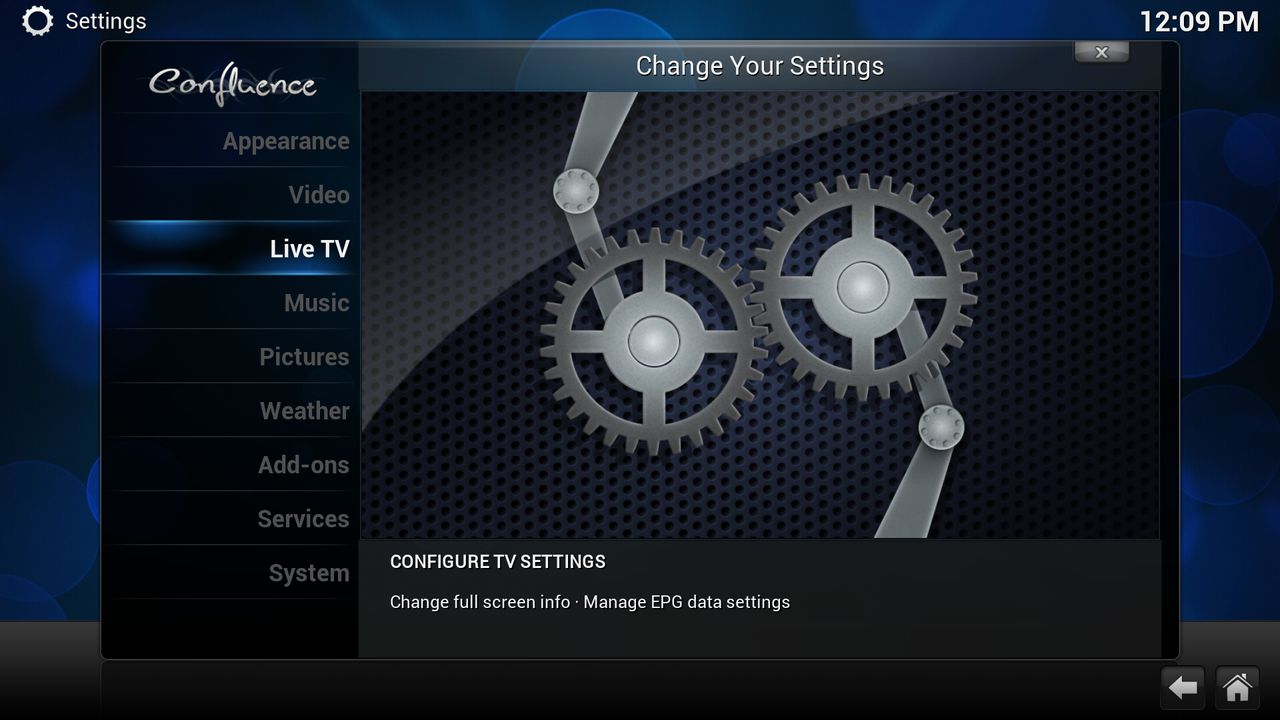
    click on "Live TV"


    [01] General Settings
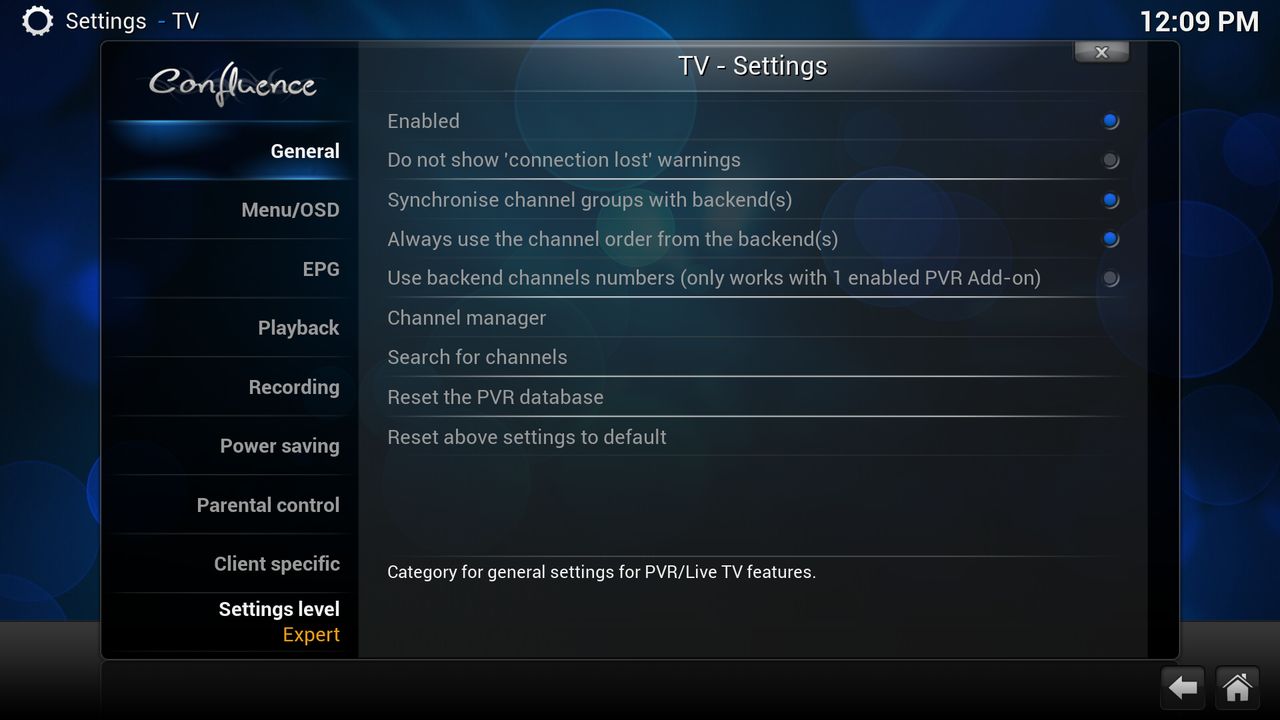

    Enabled

    Quote

    Enable the Personal Video Recorder (PVR) features in KODI. This requires that at least one PVR add-on is installed.


    Do not show 'connection lost' warnings

    Quote

    Hide the warning if KODI lost the connection to the backend (for example: if the backend service died)


    Synchronize channel groups with backends

    Quote

    Imports channel groups from the backend (if supported by the add-on and backend). Will delete user created groups if they're not found on the backends.


    Always use the channel order from the backend(s)

    Quote

    Sorts the channels by channel number on the server, but uses KODI's own numbering for channels.


    Use backend channels numbers (only works with 1 enabled PVR add-on)

    Quote

    Use numbering from the backend, instead of configuring them manually over KODI.


    Channel manager

    Quote

    Opens the channel manager, which allows modifying the channel order, channel name, icon, etc.


    Search for channels

    Quote

    Instruct the backend to search for channels (if supported by the add-on and backend)


    Reset the PVR database

    Quote

    Delete channel/epg database and reimport the data from backend afterwards


    [02] Menu/OSD


    Show channel information when switching channels


    Close channel OSD after switching channels

    Quote

    Automatically close the channel OSD after selecting a channel in that OSD.


    Folder with channel icons

    Quote

    Location where the tv logos ( http://forum.kodi.tv/showthread.php?tid=86047 ) are stored


    Scan for missing icons

    Quote

    Look for missing icons and link icons to channels so they appear in the "Live TV" channel section


    [03] EPG
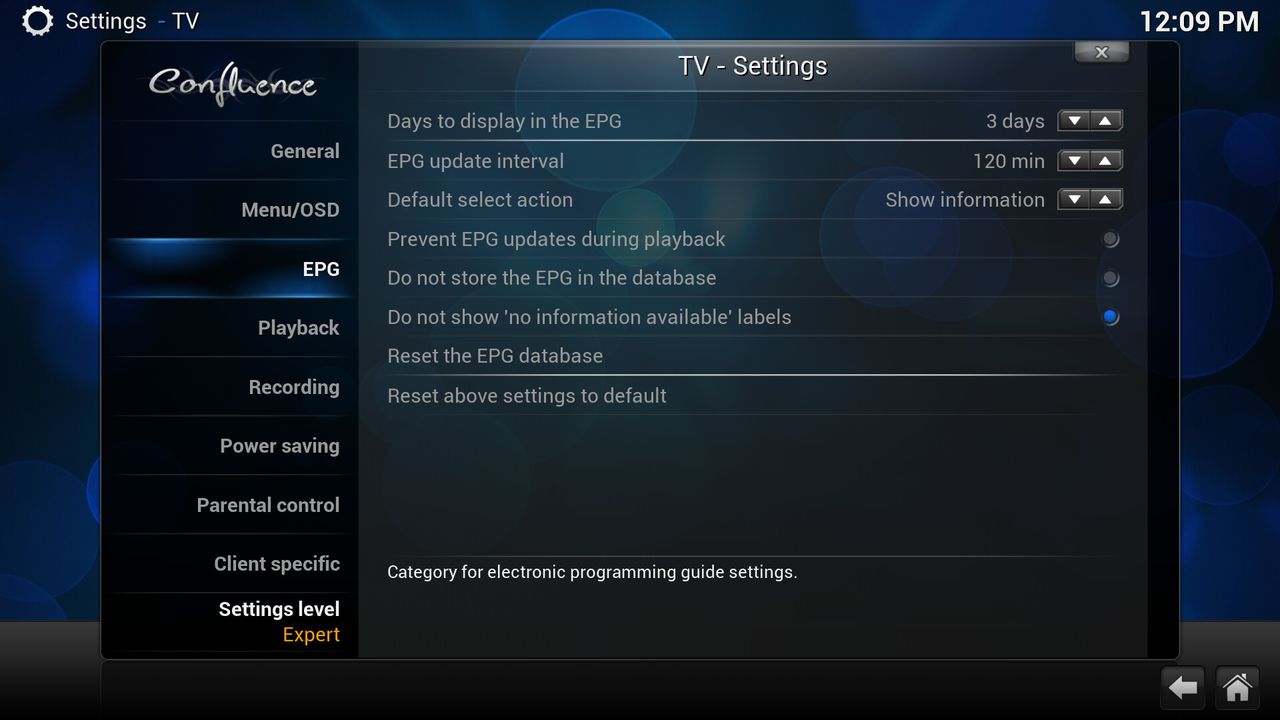

    Days to display in the EPG

    Quote

    Number of days of EPG data to import from backends. Defaults to 3 days.


    EPG update interval

    Quote

    Time between EPG data imports from backends. Defaults to 120 minutes.


    Default select action

    Prevent EPG updates during playback

    Quote

    Do not import EPG data while playing TV, to minimise CPU usage.


    Do not store the EPG in the database

    Quote

    EPG data is stored in a local database by default, to speed up EPG importing when KODI is restarted. Enabling this option will prevent that.


    Do not show 'no information available' labels

    Quote

    Hides "no information available" labels when no EPG data could be retrieved for a channel.


    Reset the EPG database

    Quote

    Delete the EPG database in xbmc and reimport the data afterwards from the backend


    [04] Playback
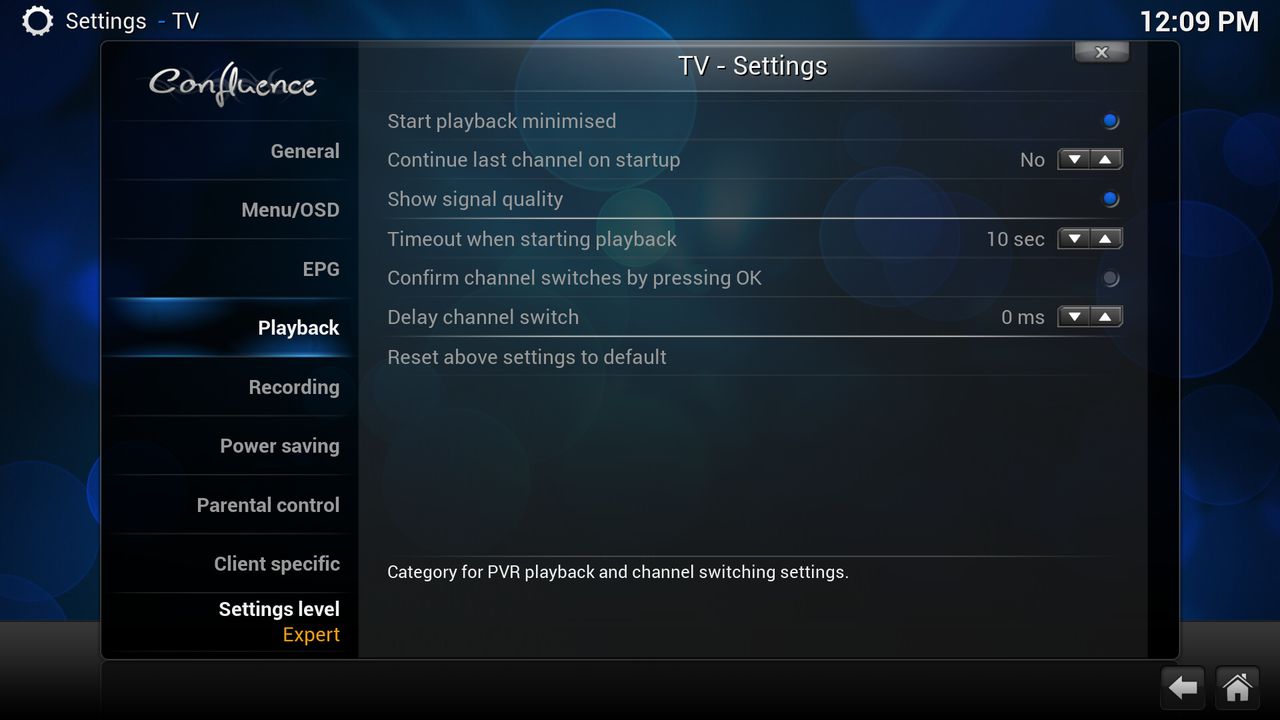

    Start playback minimized

    Quote

    Display stream of selected channel in a small box instead of fullscreen (Defaults: yes)


    Continue last channel on startup

    Quote

    Shows the last seen channel if switching to live tv (Defaults: no)


    Show signal quality

    Quote

    True to display signal quality information in the codec information window (if supported by the add-on and backend)


    Timeout when starting playback

    Quote

    Return to the previous window and stop playback if the channel stream doesn't start within this timeout. Defaults to 15 seconds.


    Confirm channel switches by pressing OK

    Quote

    When this option is enabled, pressing a number button in full screen mode will automatically switch to the channel number that was entered after 1 second. When disabled, you need to confirm the switch by pressing ok.


    Deplay channel switch

    Quote

    When pressing channel up or down, the actual channel switch is delayed. Defaults to 0 milliseconds.


    [05] Recording
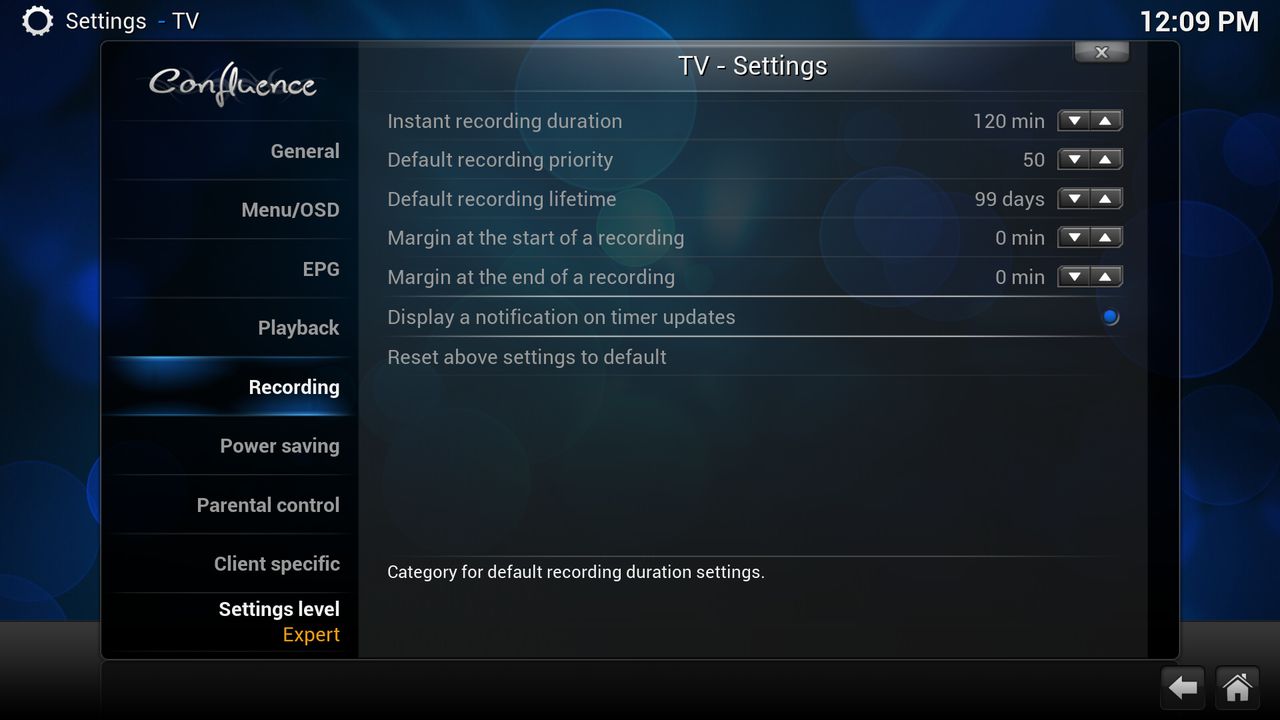

    Instant recording duration

    Quote

    Duration of the recording when pressing the record button, or when creating a new manual timer. Defaults to 120 minutes.


    Default recording priority

    Quote

    Priority of the recording, between 0 and 100. Higher number means higher priority. Defaults to 50. Not supported by all add-ons and backends.


    Default recording lifetime

    Quote

    Delete recording after this time. Defaults to 99 days. Not supported by all add-ons and backends.


    Margin at starting of a recording

    Quote

    Start recordings before the actual time. Not supported by all add-ons and backends.
    Margin at end of a recording


    Quote

    End recordings after the actual time. Not supported by all add-ons and backends.


    Display a notification on timer updates

    Quote

    Displays a notification when timers are added, finished or removed by the backend.


    [06] Power saving


    Enabled

    Quote

    Enabling this option will execute the "wakeup command" below when KODI exits or is going into hibernation mode. The timestamp of the next scheduled recording is passed as parameter.


    Backend idle time

    Quote

    The command will not be executed when a recording will be started within this timeout. Defaults to 15 minutes.


    Set wakeup command (cmd[timestamp])

    Quote

    The command to execute. Defaults to '/usr/bin/setwakeup.sh'.


    Wakeup before recording

    Quote

    Time to substract from the start time of the next scheduled recording. Defaults to 15 minutes.


    Daily wakeup

    Quote

    Execute the wake up command every day at the given time


    Daily wakeup time (HH:MM:SS)

    Quote

    When to execute the daily wake up command


    [07] Parental control
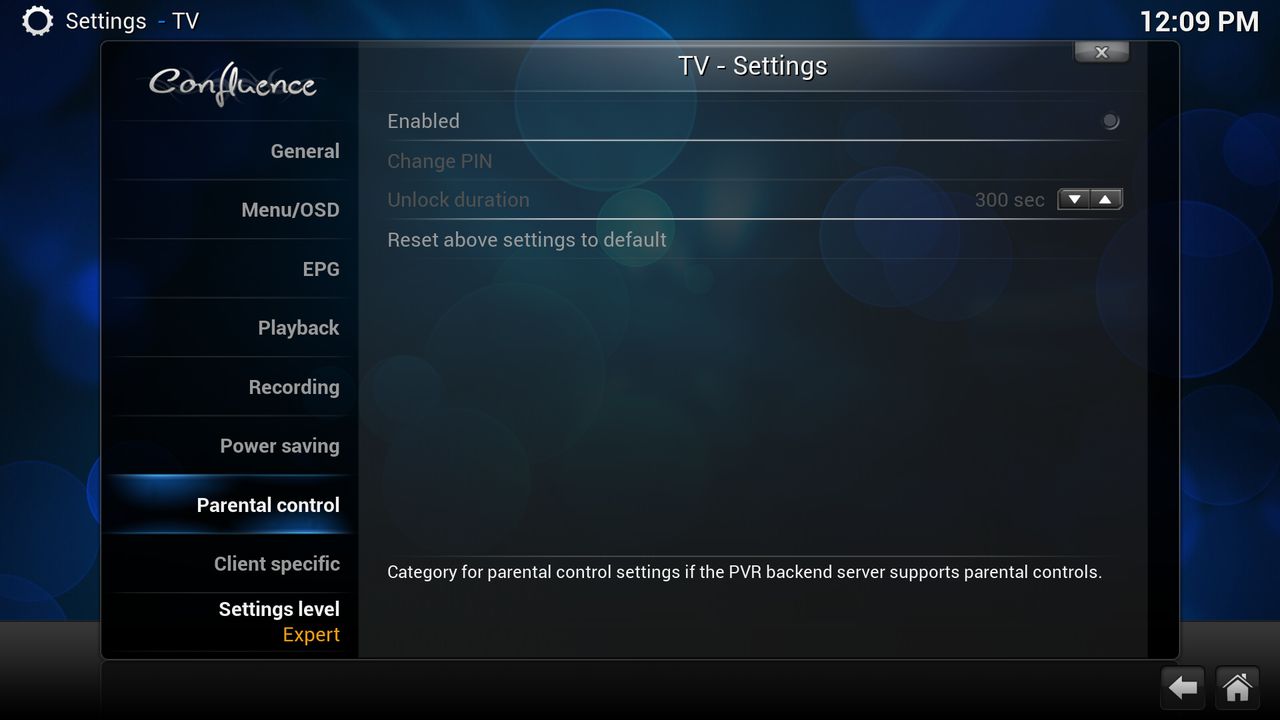

    Enabled

    Quote

    Will ask for a pin code to access parental locked channels. Channels can be marked as locked in the channels editor on the general tab. Parental locked channels can not be played or recorded without entering a pin code, and the EPG information is hidden for those channels.


    Change PIN

    Quote

    Enter a new pin code to unlock parental locked channels.


    Unlock duration

    Quote

    Ask for the pin code again when trying to access a parental locked channel and the code hasn't been asked for this duration. Defaults to 300 seconds.


    [08] Client specific


    Client specific settings

    Quote

    This option will bring you to any specific settings for your PVR backend, if the PVR backend supports changing those settings in KODI

    .


    Quote

    We are proud to announce the release candidate of Kodi 14.2 in which we further try to improve stability. As you may all know by now, we have a new name, a new logo, and a wide variety of new features, but underneath the new coat of paint remains the same software we all love. 14.2 will become the the second and final bug-fix release in the Helix range. As we have mentioned in our Kodi 14.0 release announcement, we will be releasing these extra releases to squash down any issues left after the first big release. Below you will find a list of fixes so far. In the Kodi 14.1 release announcement you can find the sum up of previous fixes done in the Helix range.

    Fixes so far


    this version have the new build openelec 5.0.6 for the Wetek too


    read more

    WeTek team is proud to announce the next stable release of OpenELEC for WeTek Play - OpenELEC 5.0.6.


    New in this release:

    Quote

    - Fixed an issue when HDMI CEC stops working after a while
    - Fixed RCU infinite button presses auto-repeat
    - Wi-Fi and LAN LEDs on the from panel are working now as intended
    - Other bug fixes and enhancements


    To install OpenELEC to WeTek Play you don't need to overwrite your Android installation. Just write OpenELEC to an SD-card, and enjoy both of the worlds at the same time with dual boot.


    Downloads


    SD-card image for new installations:


    SD-card image for new installations:

    Quote

    OpenELEC 5.0.6 .img file for fresh installation on microSD card


    To install, unzip the provided archive and use a tool, such as Win32DiskImager ( http://sourceforge.net/projects/win32diskimager/) to create a bootable SD-card. Turn off your WeTek Play, insert the SD-card, turn on the box again and enjoy OpenELEC. If you want to boot Android, just turn off the box, eject SD-card, turn on the box again, and you'll see Android booting.


    Or you can use WeTek OpenELEC Installer app, which will download latest OpenELEC release and burn it to MicroSD:


    For updating the existing SD-card installations (Do not use this for updating NAND installations!!!):


    Image for for new installations into NAND memory:

    Quote

    OpenELEC 5.0.6 .zip file for installation to NAND Flash


    Just unpack the provided ZIP archive onto SD-card, insert it into the box, and enter recovery using toothpick. Installation should start automatically.


    For updating the existing NAND installations (Do not use this for updating SD-card installations!!!):

    Quote