

..:: CiefpSatelliteAnalyzer ::..
CiefpSatelliteAnalyzer is a plugin for the Enigma2 platform that provides a detailed display of information about the current TV channel and satellite signal.
It is designed for users who want comprehensive technical data about the broadcast, including signal parameters and channel specifications,
in a user-friendly interface.
What can be monitored on the plugin screen:
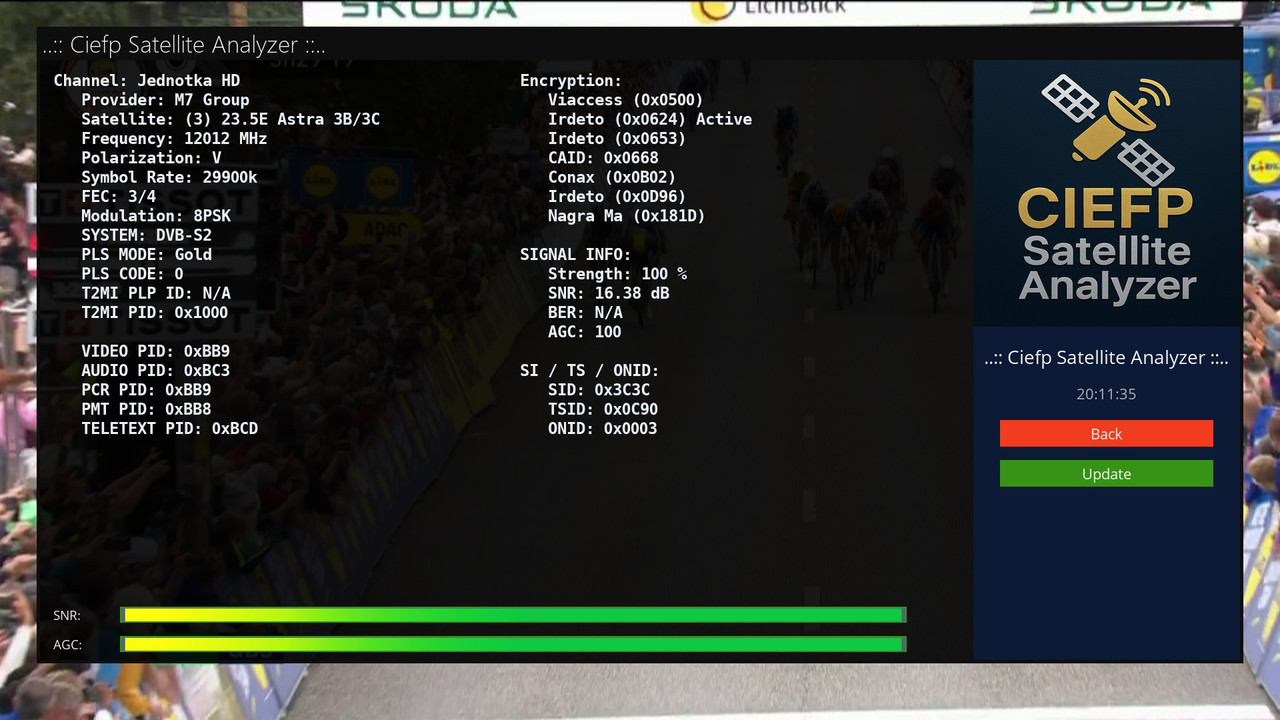
### Basic information (left part of the screen): ###
Channel name and provider.
Satellite (name and orbital position, e.g. 19.2E).
Frequency (in MHz), polarization (H/V/L/R), symbol rate (in kS/s).
FEC (Forward Error Correction),
modulation (e.g. QPSK, 8PSK),
system (DVB-S/S2, DVB-T/T2, DVB-C/C2).
PLS mode and code, T2MI PLP ID and PID (if present).
Video PID, Audio PID, PCR PID, PMT PID, Teletext PID.
For DVB-T/T2: Bandwidth, Code Rate (HP/LP),
Constellation, Transmission Mode, Guard Interval, Hierarchy.
### Advanced Information (middle of screen): ###
Encoding Status: List of CAIDs (e.g. Viaccess, Nagravision) with active CAID flag.
Signal Information:
Signal Strength (%),
SNR (in dB),
BER (Bit Error Rate),
AGC (Automatic Gain Control).
SI/TS/ONID:
SID (Service ID),
TSID (Transport Stream ID),
ONID (Original Network ID)
in hexadecimal format.
### Signal Bars (bottom of screen): ###
SNR Bar: Shows the signal quality in percent.
AGC Bar: Shows the signal strength in percent.
### Additional features: ###
Time: Displays the current time, updated every second.
Interactive options: Back (red) buttons to exit and Refresh (green) buttons to refresh data.
Data update: Automatically refresh signal information every 5 seconds.
..:: CiefpSettings ::..


-
Version 1.5
- ciefp
- 17.58 kB
- 80 Downloads
**Ciefp Satellite Analyzer – Release Notes v1.5**
*(upgrade from GitHub version 1.4)*
New features and most important changes:
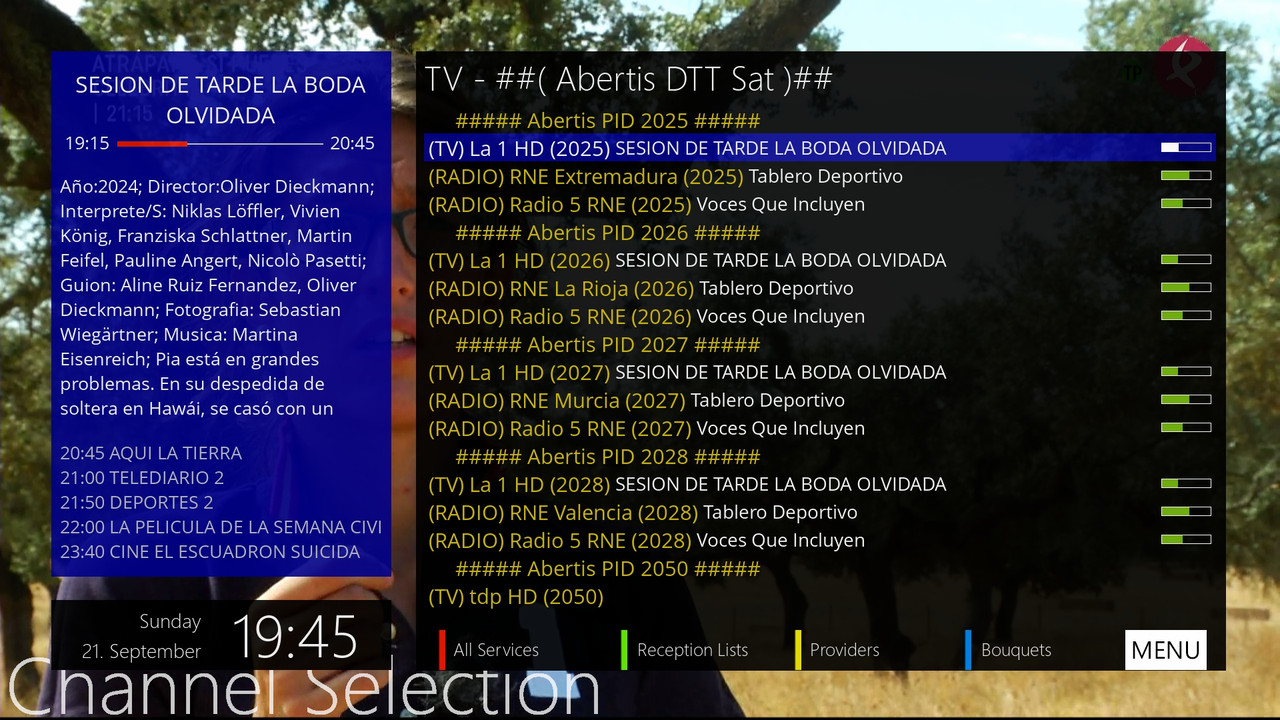
1. Full Abertis support
- Special screen for Abertis analysis
- Direct analysis over 37 most common Abertis PIDs
- Automatic creation/update of bouquet userbouquet.buket_abertis.tv
- Delete and view Abertis logs
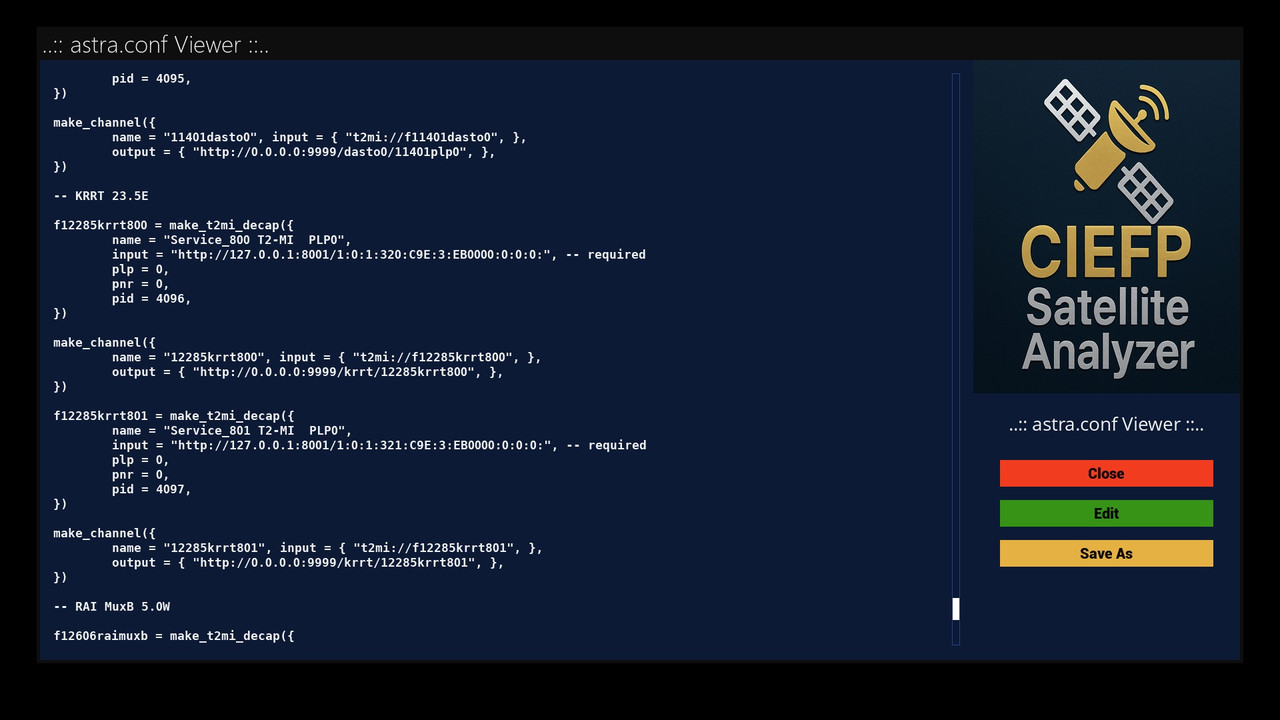
2. New configurator for astra.conf (without manual editing)
- Add T2MI decap block – all via graphical interface (Green → Astra.conf → Add T2MI decap block)
- View and edit the entire astra.conf file in the plugin
- Create a blank astra.conf file with one click
- Automatic replacement of localhost → 127.0.0.1 in URLs
3. Smart log storage
- T2MI logs: t2mi_Provider_Satelit_Datum_PID.log
- Abertis logs: abertis_Provider_Satelit_Datum_PID.log
- Automatically add number if file already exists
4. Bouquet improvements
- Userbouquet.buket_t2mi.tv and userbouquet.buket_abertis.tv are created
- Automatically add a nice marker with provider, satellite and PID
- Correct encoding of URLs for Abertis
- Automatic reload of bouquet after creation
5. Better cleaning and stability
- Safely stop astra process (yellow button or exit)
- Restart streamrelay and astra-sm service after analysis
- Reset tuner and free up resources
6. Minor improvements
- Display current clock in main screen
- Better display of PLS Mode/Code and T2MI info
- Reboot system with confirmation after saving astra.conf
- Bug fixes from version 1.4
The plugin is now much easier to use – especially for anyone using T2MI and Abertis feeds on Astra-SM.
Thanks everyone for your support!
Ciefp – November 2025
..:: CiefpSettings ::..
-
Version 1.4
- ciefp
- 13.91 kB
- 51 Downloads
..:: CiefpSatelliteAnalyzer ::..
CiefpSatelliteAnalyzer is an Enigma2 plugin designed for satellite signal analysis and processing of T2MI (T2-MI) and Abertis streams on satellite receivers.
This plugin provides detailed signal information, enables stream analysis via the astra-sm tool,
and creates and manages bouquets (channel lists) based on the analysis results. It is intended for advanced users who want detailed insight into the technical parameters of
satellite services and automation of channel management.
---- Main plugin functions: ----
### Satellite signal analysis: ###
Displays basic information about the current service (channel): name, provider, satellite, frequency, polarization, symbol rate, FEC, modulation, etc.
Displays advanced information: encryption (CAID), SNR, AGC, BER, SID, TSID, ONID, and service reference.
Visualizes SNR and AGC values through progress bars in real time.
#### Astra-SM Analysis (T2MI): ###
Allows you to run analysis of T2MI streams using the astra-sm tool.
Supports different T2MI PIDs (e.g. 4095, 4096, 4097, etc.) defined in the options.
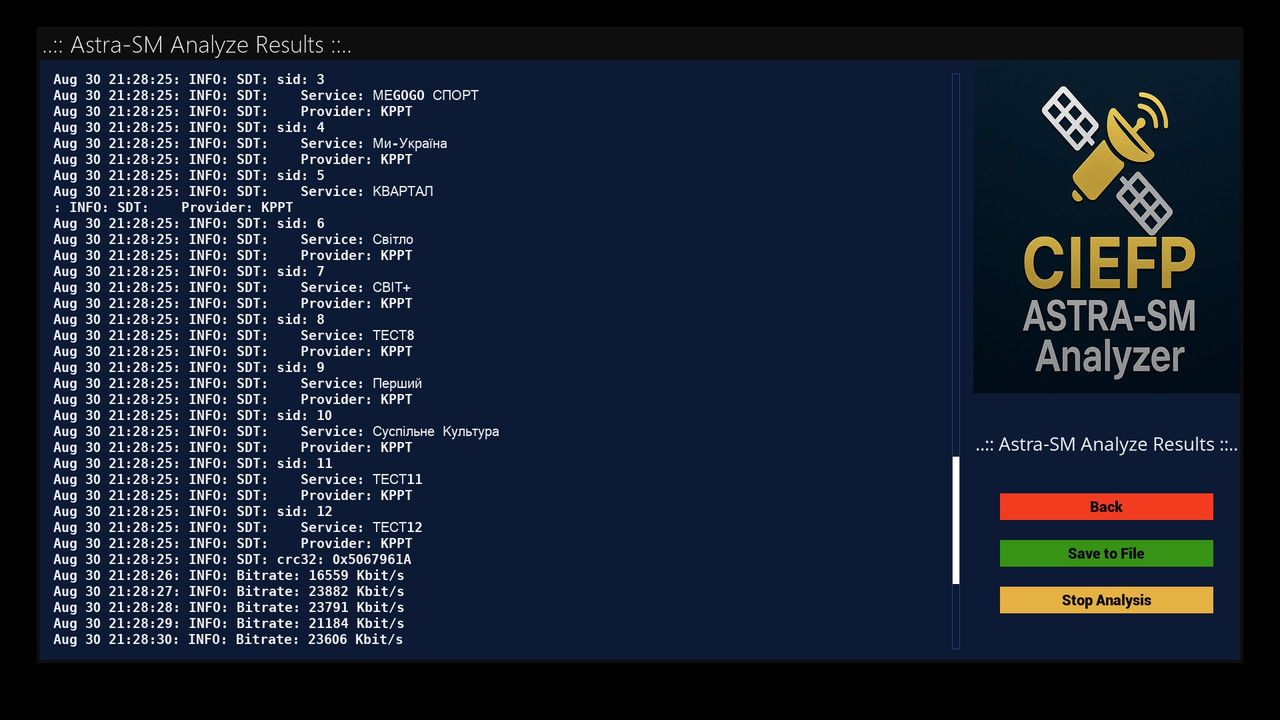
Displays the analysis results in a separate screen (AstraAnalyzeScreen) and allows saving the results to a log file (e.g. /tmp/CiefpSatelliteAnalyzer/astra_analyze_*.log).
### Abertis Analysis: ###
Similar to T2MI analysis, but specific to Abertis streams.
Supports a wide range of PIDs (e.g. 301, 702, 8000, etc.).
Results are displayed in a separate screen (AbertisAnalyzeScreen) and can be saved to a log file.
### Bouquet Creation: ###
Allows you to create or update a bouquet (TV or radio) based on the analysis results from the log files.
Channels are grouped by PID, with support for automatic TV and radio channel differentiation.
Bouquets are saved in /etc/enigma2/userbouquet.buket_t2mi.tv or /etc/enigma2/userbouquet.buket_abertis.tv and are automatically added to bouquets.tv for integration with the Enigma2 system.
### Resource Management: ###
Automatically manages tuner and stream resources (e.g. stopping and restarting streamrelay and astra-sm services).
Ensures proper cleanup after analysis to avoid conflicts with other processes.
### User Interface: ###
Intuitive GUI with three screens: main (SatelliteAnalyzer), T2MI analysis (AstraAnalyzeScreen) and Abertis analysis (AbertisAnalyzeScreen).
Supports navigation (up/down), closing, saving results and stopping analysis via colored buttons (red, green, yellow, blue).
### Support for advanced features: ###
Parses astra.conf to extract T2MI and Abertis configurations.
Adapts satellite names from /etc/tuxbox/satellites.xml and formats orbital positions (e.g. 19.2E, 13.0W).
Supports different encryption types (Viaccess, Nagravision, Irdeto, etc.) and displays CAID details.
### Applications: ###
The plugin is particularly useful for users who want to analyze satellite signals in detail, especially T2MI and Abertis streams,
and automate the process of creating bouquets for specific satellite services (e.g. Spanish Abertis DTT channels).
Suitable for technically oriented users and enthusiasts using Enigma2 receivers.
### Note: ###
Requires the astra-sm tool (/usr/bin/astra) to be installed and the satellite receiver to be properly configured.
Log files are saved in /tmp/CiefpSatelliteAnalyzer/ for further processing.
The plugin is optimized to work on the Enigma2 platform and uses specific Enigma2 components (eDVBDB, eConsoleAppContainer, etc.).
-
Version 1.3
- ciefp
- 11.17 kB
- 20 Downloads
CiefpSatelliteAnalyzer 1.3
Instructions for use
Switch to the desired satellite and start the data channel or sid channel
Start the plugin
press the yellow button - Astra Analyze
leave it for a while and follow the events on the screen
you can move up and down with the arrows for a better view
when the INFO SDT appears on the screen: this part contains the channel names
click on the green button - Save to File
exit button return to the scanning screen
stop the analysis this is very important to do
Stop the analysis on the yellow button - Stop Analiysis
(Very important to stop the analysis)
(if you accidentally forget to stop, start the analysis again and stop)
(Only in case you forget to stop the analysis, restart the enigma is required)
(if you follow the rules, restart is not required in any case)
Now that we have scanned and saved the results in the log file
it is necessary to create a bouquet
Green button - Create Bouquet
A selection with a list of logs opens
select the log file you scanned and saved
astra_analyze_Dasto_Semtel_16.0E_20250920_pid4095.log
a new selection of blocks from the astra.conf file opens
The blocks are part of the astra.conf file that contain the decap and make channel for each channel
it is necessary to choose the right one, usually the names are the same or similar to the names of the data channels
Let's say:
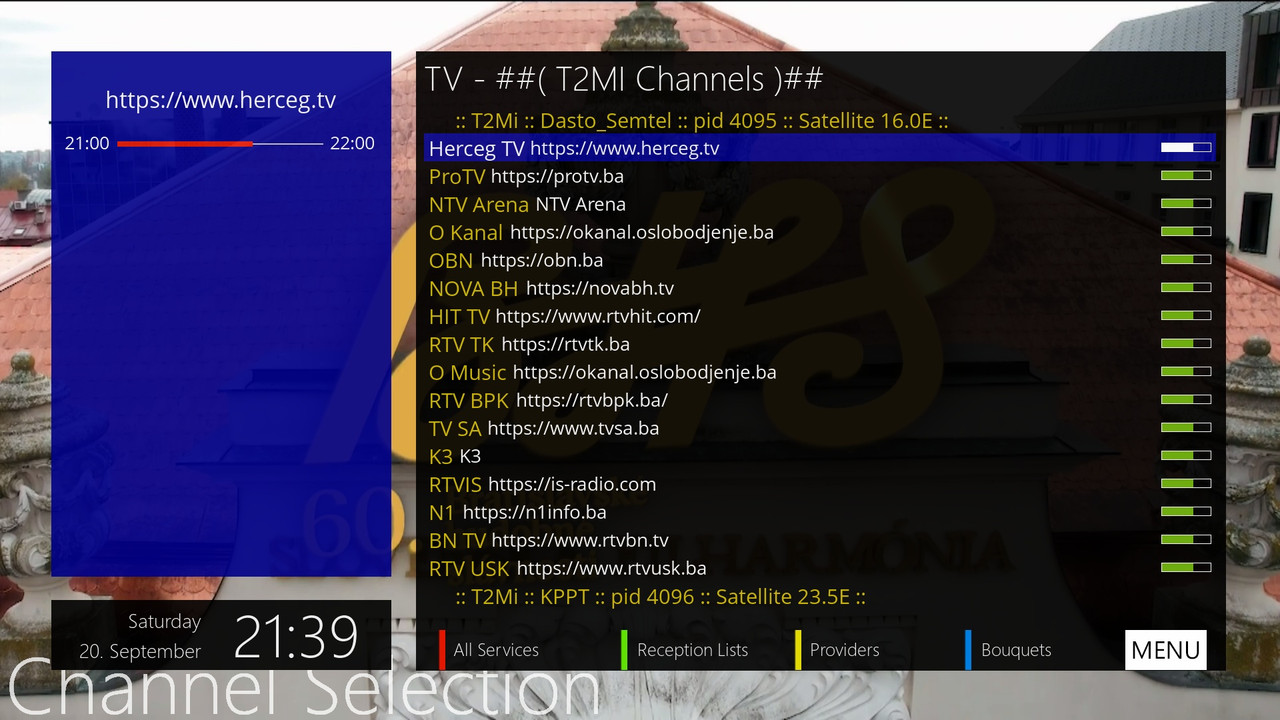
Dasto Semtel - 11401V T2-MI PLP0 (pid 4095)
KRRT 23.5E - Service_800 T2-MI PLP0 (pid 4096), Service_801 T2-MI PLP0 (pid 4097)
KRRT 4.8E - KRRT MX-800 (pid 4096),KRRT MX-801 (pid 4097)
RAI 5.0W - 12606V SID 0x320 T2-MI PLP0 (pid 4096)
when you select a block the whole process is finished very quickly
If the bouquet does not exist in the list, a new bouquet is created and its name is ##( T2MI Channels )##
Since t2mi channels are on multiple satellites, each new creation is just added to the already existing bouquet.
..:: CiefpSettings ::..
-
Version 1.1
- ciefp
- 6.41 kB
- 23 Downloads
Version 1.1
### Astra-sm analysis ###
Enables detailed stream analysis using the astra-sm tool.
Options include different T2MI PIDs (eg 4095, 4096, 4097, etc.) or analysis without T2MI.
The results are displayed in a separate window (AstraAnalyzeScreen),
with the option of saving to a file (/tmp/astra_analyze_[date].log).
How to use:
from the channel list, start the data channel
astra 23.5E
service_krrt
Service 801
eutelsat 16.0E
11401V SID 0xfa1
astra 4a 4.8E
MX
Service 801
follow the marker, it says which pid to choose 4095,4096,4097
choose the pid, click the yellow button
the analysis process starts
the analysis takes about 20 seconds, depending on the receiver
here you can save the search to the tmp folder
you need to stop the analysis process
the yellow button stops the analysis process
It is possible to switch to satellite channels after scanning
but to return to streamrelay channels
a reboot is required
I have not solved this problem yet
after scanning, we turned off the streamrelay process
so it needs to be restarted for now only
via the reboot option.
-
Version 1.0.0
- ciefp
- 4.09 kB
- 50 Downloads
