


📷 CiefpPicturePlayer v1.0 - Quick Start
🎮 Buttons (main screen)
Button Function
◀ ▲ ▼ ▶ Scroll through the list
OK Open folder / display image in full screen
EXIT (RED) Exit plugin
FOLDER (GREEN) Open folder browser (local files)
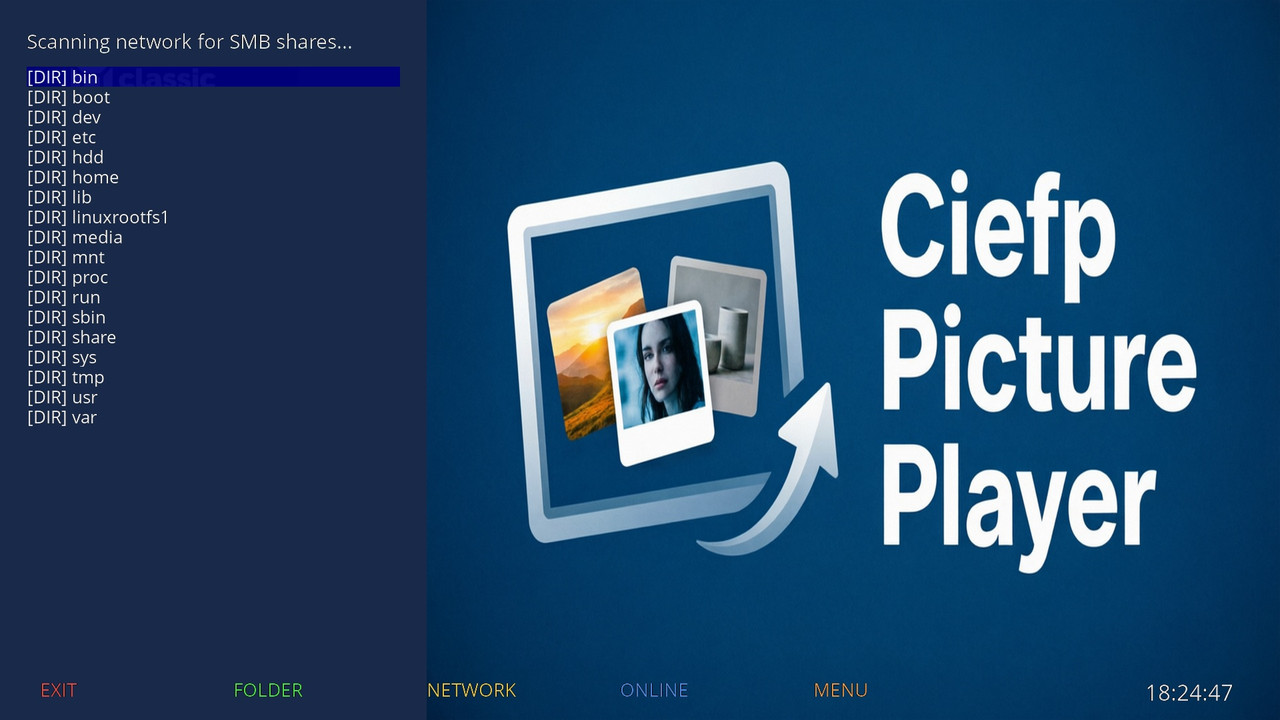
NETWORK (YELLOW) Connect to network shares (SMB)
ONLINE (BLUE) Load online images from GitHub
MENU Open Settings (clear cache, info)
🖼️ Image display
Preview – the image is displayed on the right side when scrolling through the list
Fullscreen – press OK on the image
Slideshow – in fullscreen mode press the GREEN button
Image info – in fullscreen mode press the BLUE button
Back – in fullscreen mode press the RED button
🌐 Network connection (SMB)
Press YELLOW (NETWORK) → Connect to Laptop (SMB)
Enter the IP address of the laptop (e.g. 192.168.1.100)
Enter the name of the shared folder (or leave it blank)
After successful connection, you will be transferred to the folder with images
#Auto Scan
- select the IP of the device
- enter the name of the shared folder
📡 Online content
Press BLUE (ONLINE)
Select a .tv file from the list
The plugin will download and display images from that file
⚙️ Settings (MENU button)
Option Function
Clear Image Cache Deletes cached images (frees up space in /tmp)
Cache Info Displays the size and number of files in the cache
Language / Language Change the language (prepared for future versions)
Theme / Theme Change the theme (prepared for future versions)
📁 Supported image formats
.jpg / .JPG / .jpeg / .JPEG
.png / .PNG
.gif / .GIF
.bmp / .BMP
.webp / .WEBP
⚠️ Known issues
Problem Solution
Network mount does not work on OpenPLi Install cifs-utils: opkg install cifs-utils
Slow loading of large images Images are scaled automatically, wait a few seconds
.JPG is not displayed Already fixed in v1.0 – uses os.path.splitext
📝 Version 1.0 – what it does
✅ Local folders and images
✅ Network SMB shares
✅ Online content (GitHub .tv files)
✅ Preview with ePicLoad scaling
✅ Fullscreen preview
✅ Slideshow (5 seconds)
✅ Aspect ratio (scale="aspect")
✅ Clear cache
Author: Ciefp
...:: CiefpSettings ::...


-
Version 1.1
- ciefp
- 9.01 kB
- 21 Downloads
.... CiefpPicturePlayer v1.1 .....
This version brings significant improvements in system stability,
easier access to files and better display organization.
## Android Integration (Beta): A support for connecting to Android devices has been prepared,
which allows easier transfer and viewing of images directly from mobile phones to your receiver.
## Auto-Clear Cache Protection: A protection system has been added that prevents the receiver's memory from overflowing.
Now you can set a limit (e.g. 500MB) after which the plugin will automatically delete old cached images so that the system always works smoothly.
## Advanced image sorting: Images are now organized more logically - the most recently added images are displayed at the top of the list,
which makes it easier to navigate through large albums without the need for long scrolling.
## Performance optimization: Improved loading of thumbnails and more stable handling of network paths (SMB/CIFS).
## Recommendation: After installation, go to Settings (MENU)
and set the desired Auto-Limit for cache memory according to the free space on your device.
How to use:
Settings on the phone:
- start File Manager (I use the system one)
Settings in the file manager:
- set the port to 2121
- set the login user:root passw:user1 (put your own password)
Starting FTP
FTP - Start
The ftp address is displayed on the screen, for example:
192:168:1:10:2121
On the receiver, open the CiefpPicturePlayer plugin
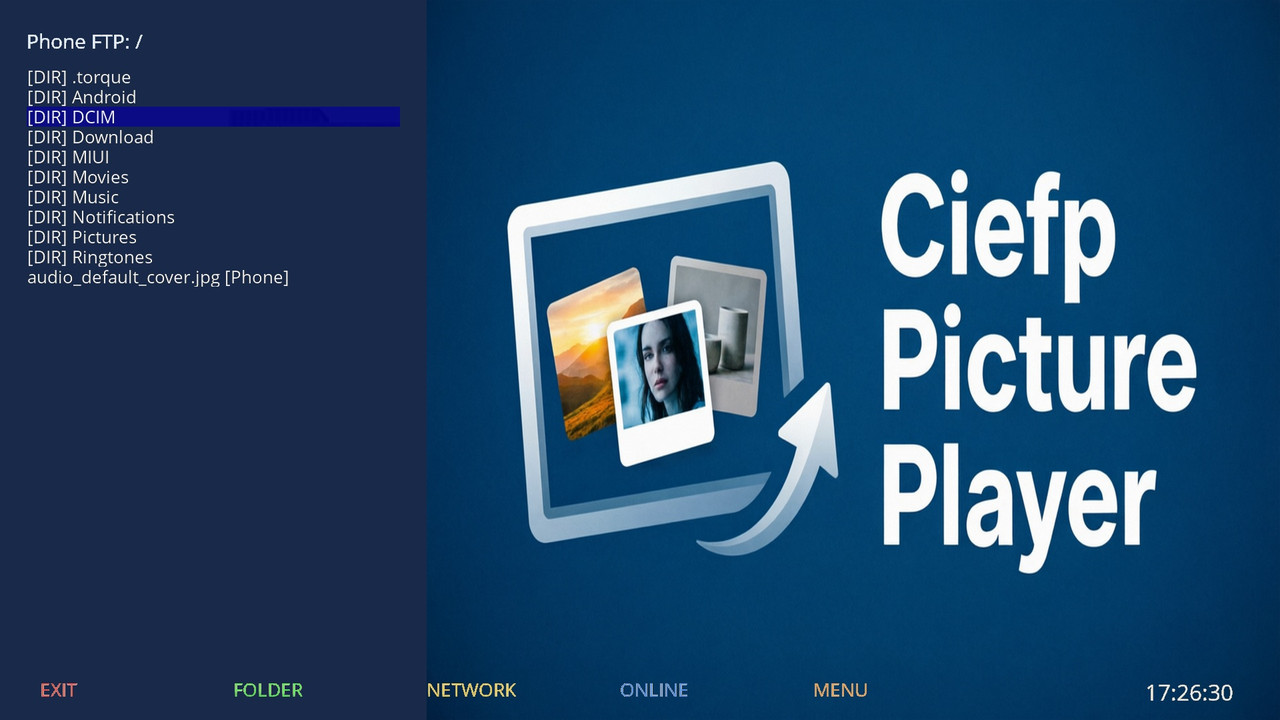
yellow button Network select the option:
Connect to Phone (Android FTP)
The virtual keyboard starts (I recommend the NewVirtualKeybord plugin)
The order of entry is as follows:
ip address - enter the ip address without the port, click on green to continue
port - here enter only the port 2121 green to continue
username - enter the username you entered in the file manager green to continue
password - enter the password you entered in the file manager green to confirm
if the connection is successful, the files from the phone are displayed
...:: CiefpSettings ::...
-
Version 1.0
- ciefp
- 4.93 kB
- 31 Downloads
