


Introduction:
WeTek Play is Android TV device, which beside of Android, support booting of Linux based XBMC and OpenELEC
from NAND flash and Micro SD too.
Basically, if you are going to install Linux XBMC or OpenELEC to MicroSD, it means that you can always have
Android running on NAND flash, and Linux XBMC or OpenELEC running from MicroSD.
Prerequisites:
- WeTek Play
- Micro SD (minimum 4 GB)
- PC/Mac
Software and Tools:
- OpenELEC for WeTek Play - http://goo.gl/NgFSOM
- Win32 Disk Imagger - http://sourceforge.net/projects/win3...atest/download
- SD Formatter 4.0 for SD/SDHC/SDXC- https://www.sdcard.org/downloads/formatter_4/
- Free Winrar - http://freedownloadwinrar.net/all-languages
Installation:
1. Download SD Formatter 4.0 for SD/SDHC/SDXC
click on this link -> https://www.sdcard.org/downloads/formatter_4/
scroll down the page and click on this button
 then click on

click on save
id it done you see in the left under corner this

click on it
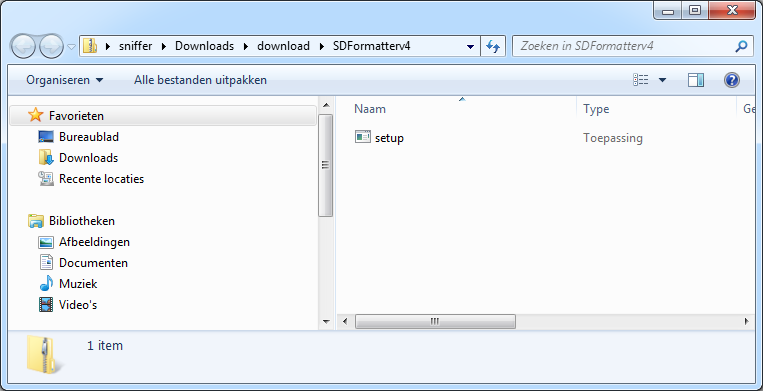
click on setup
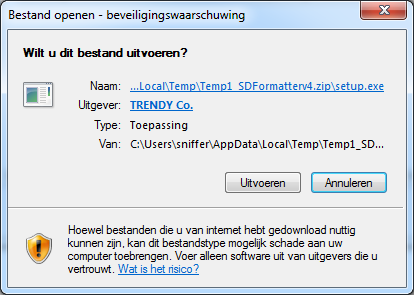
clicj the left button
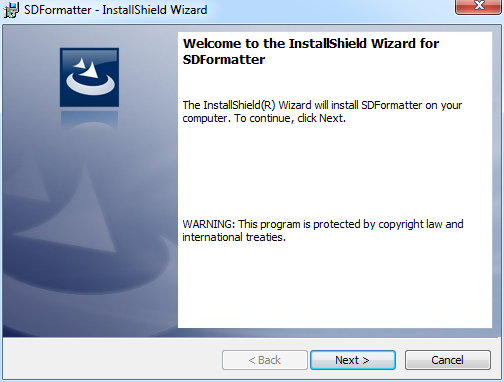
click next

click on next
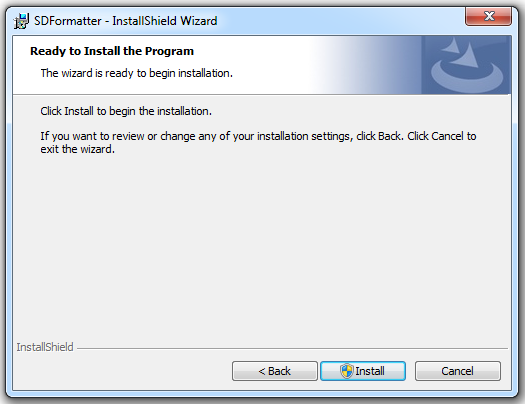
click on install
you get now a popop window click on yes


click on Finish

click on the icon on you desktop
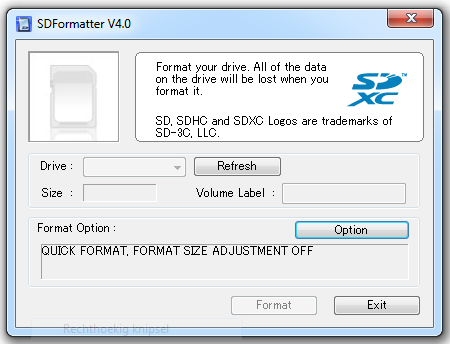
if you this get you have no card in your reader so put a card in your reader and clcik on Refresh
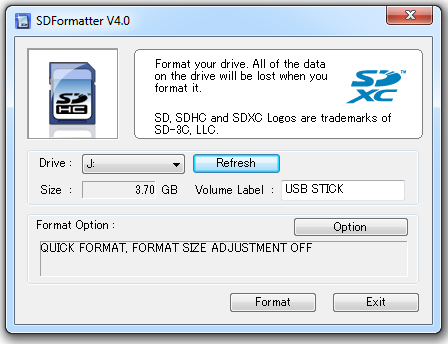
click on format
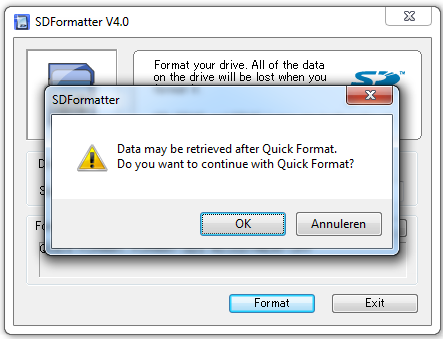
click on OK
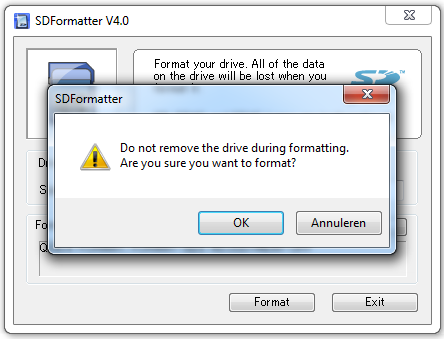
click on OK
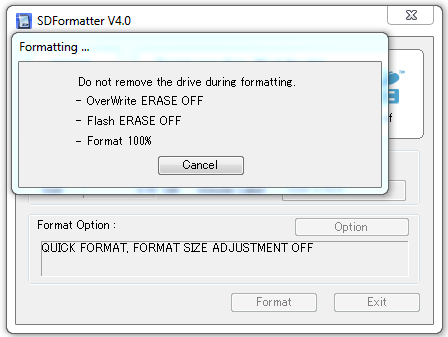

click on OK
now is your sd card Ready
2. Download OpenELEC for WeTek from link above <<-- click here
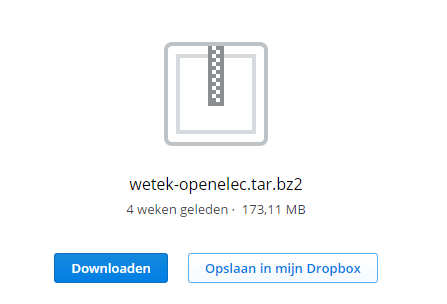
click Download
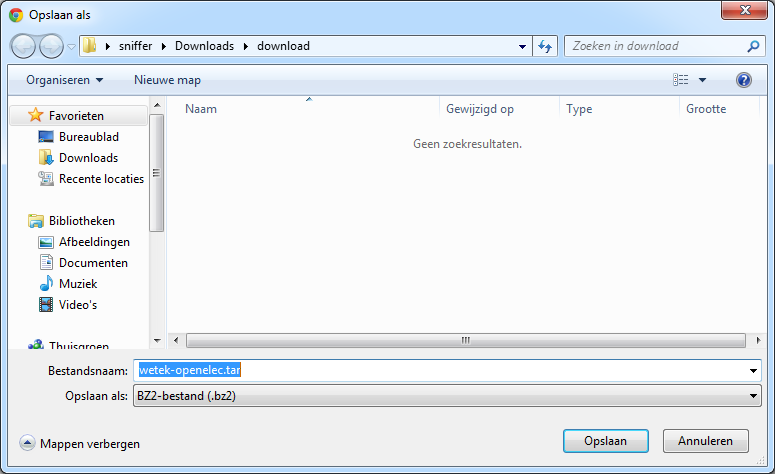
Click save (left tab)
on the left bottem corner you see this if you use google chrome

click on it
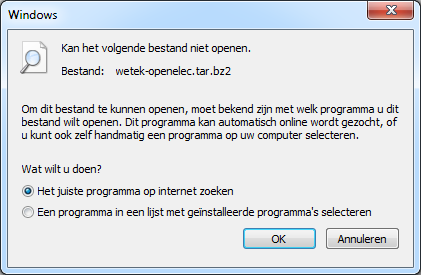
if you get this wondow it means you have no unpack programm for the tar.br2
so you need to install winzip or winrar we use the free version from winrar
Download http://freedownloadwinrar.net/all-languages
choose your language and click on it Example English (64 bit)
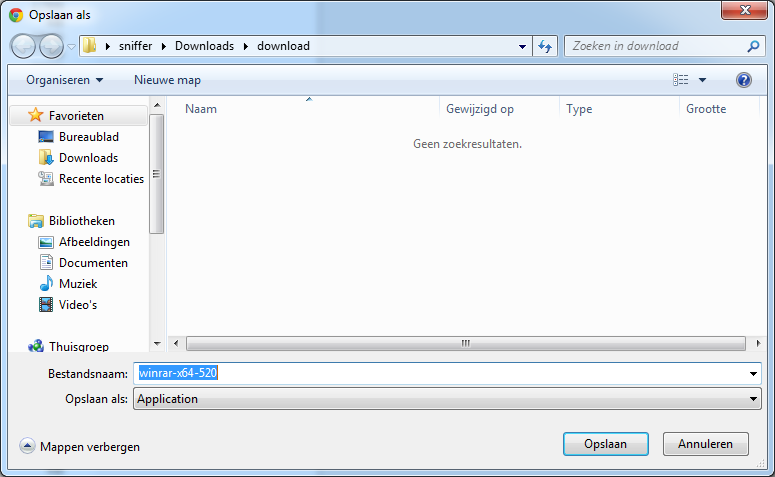
Click on Save

this you see on the bottem from your browser, click on it
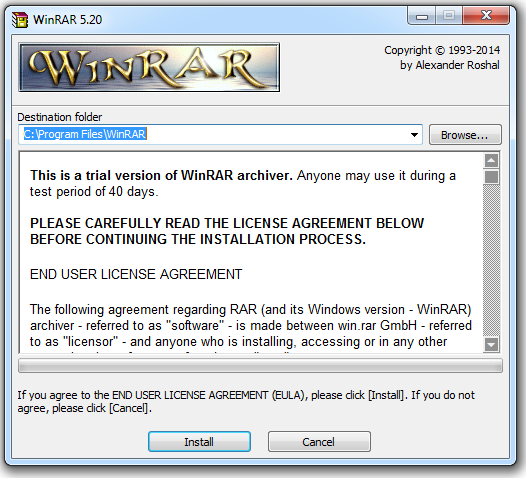
click on Install
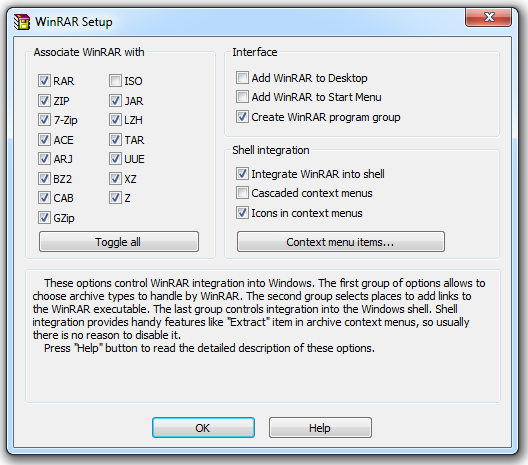
click on OK

click on Done
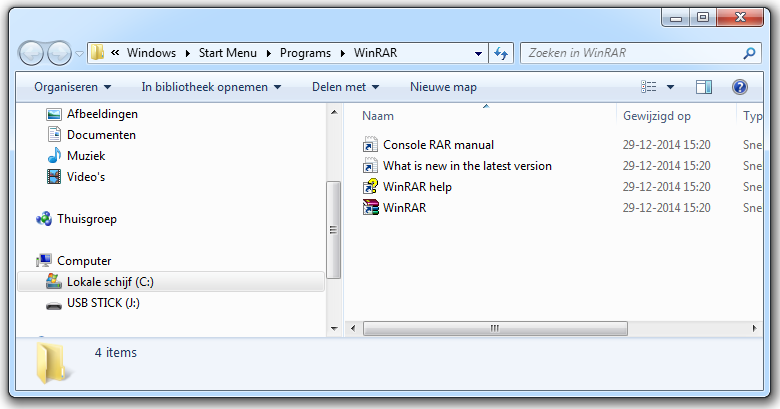
this window open automatic
browse to wetek-openelec.tar.bz2
browse to the place you have download the wetek-openelec.tar.bz2 file
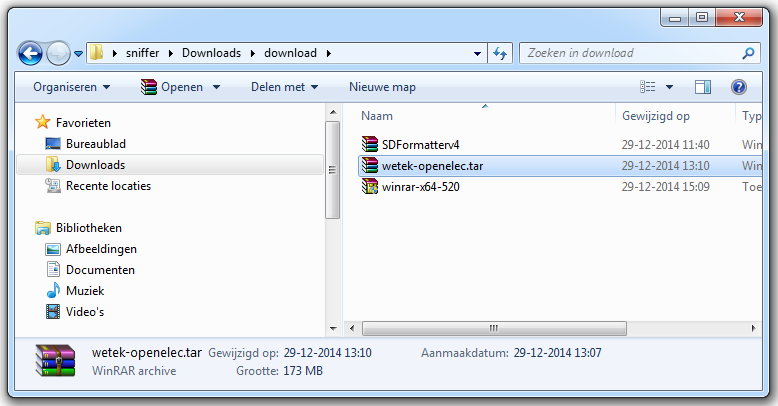
click with the recht mouse button and choose out the menu "Extract here"
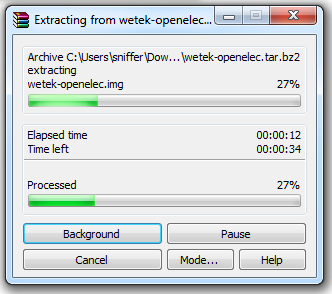
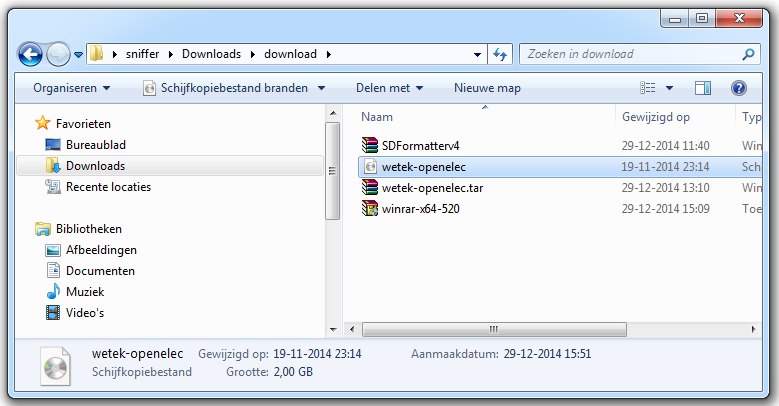
keep in mind location where you extracted this archive.
3. Doawload Win32 Disk Imagger - http://sourceforge.net/projects/win3...atest/download
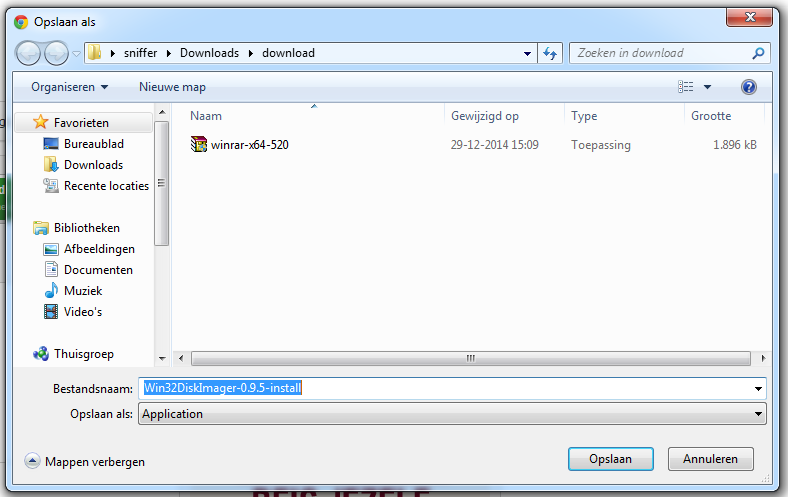
click on save

on the bottem from your browser you see this click on it
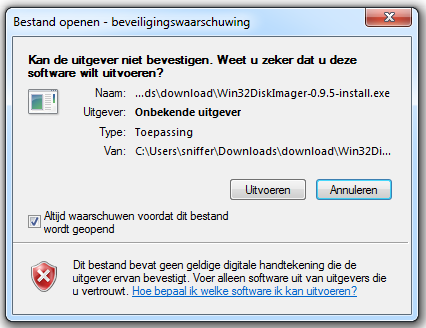
click on run then yes

click on next

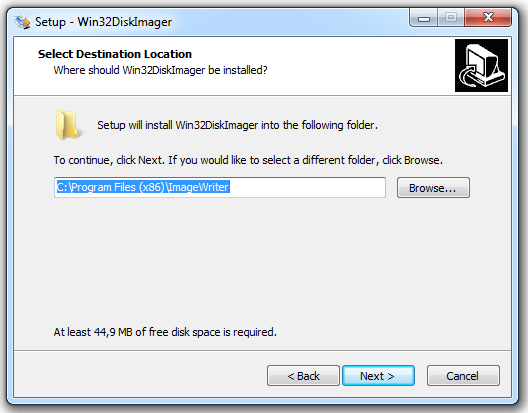
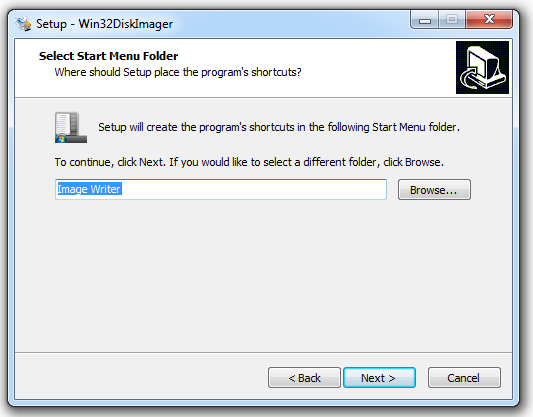
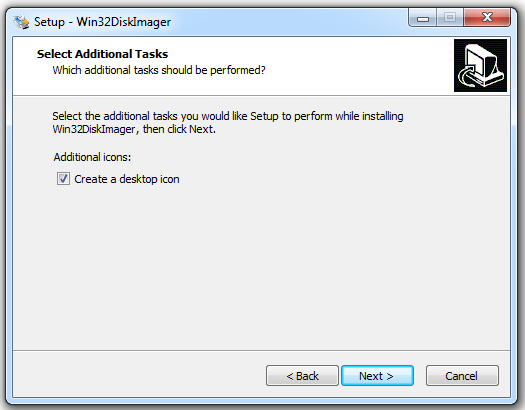
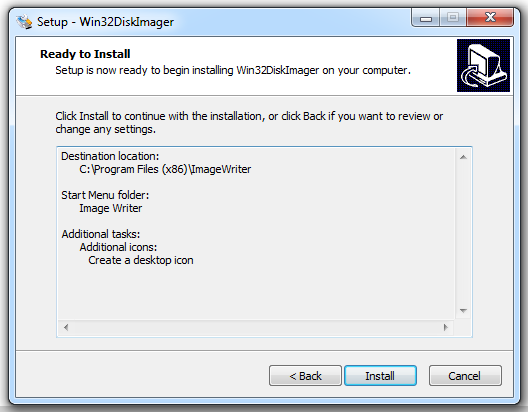

oops dont check launch win32Diskimage it dont works si i need admin rights

Right-click on app icon and select Run as Administrator)
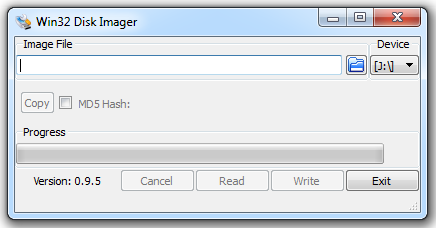
Note: After installation Win32 Disk Imager application is located at:
Windows 64 bit: C:\Program Files (x86)\ImageWriter
Windows 32 bit: C:\Program Files\ImageWriter
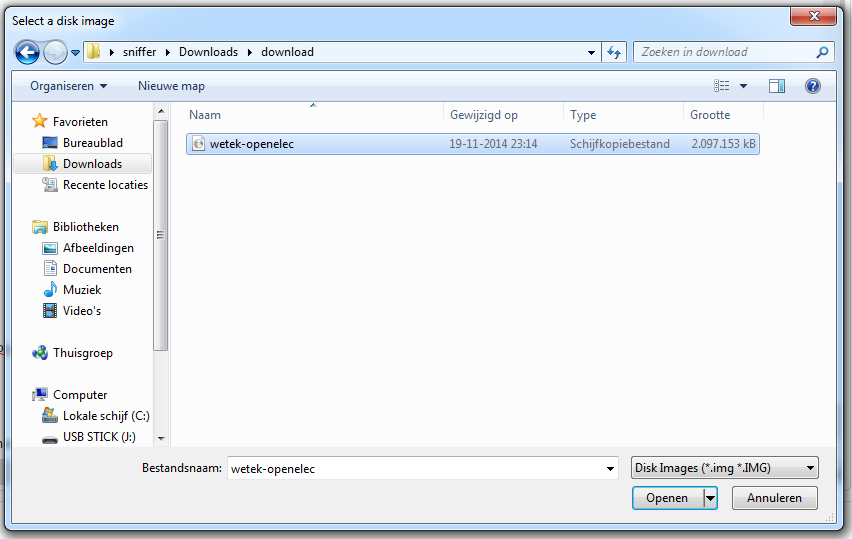
Click on blue Folder icon and browse for wetek-openelec folder, where inside you will find .img file, and select it.
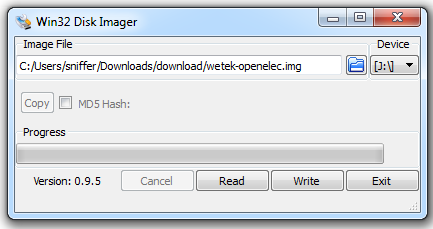
Now, you should select from Devices dropdown menu, letter which represents inserted Micro SD card
Once when You selected Micro SD card, click on Write, confirm everything what Image Wrier may ask
you and wait that application burn .img file to Micro SD
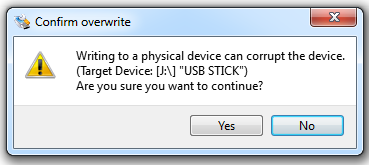
click on yes
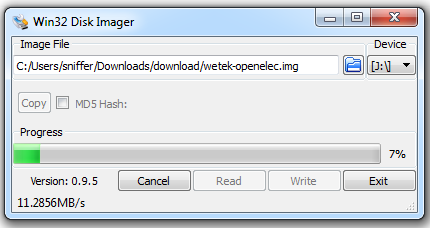

8. Once when burning process is done, remove Micro SD from PC, and insert it in WeTek Play
9. Reboot or turn ON WeTek Play and it will boot directly in OpenELEC.
10. In case you want to return to Android, just remove Micro SD, and reboot WeTek Play.



