How to Create Your Own Youtube API Key, ID and Secret
MJD on Feb 26, 2020 0 Comments Comments
WARNING - THIS IS A LONG GUIDE. BUT HAVE A BIT OF PATIENCE AND YOU'LL GET THROUGH IT
Below is a guide for creating your own Youtube API Key with ID and Secret. The reason for doing this is to eliminate any YouTube over quota limit messages you may get in Kodi and also allow access to your subscriptions etc.
Go to developers.google.com & login to your Google account (you probably already will be but this step is added just to ensure you are)
Now go to console.developers.google.com
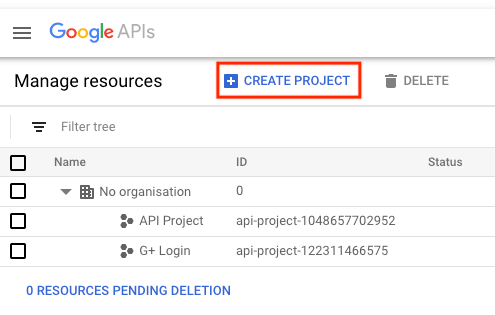
Click on Create Project in the top left
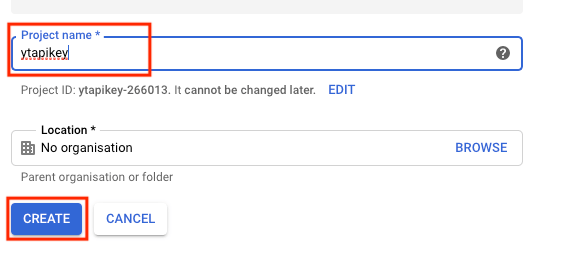
You will now see a box labelled Project name. Give it a simple name you can easily recognise and then click Create
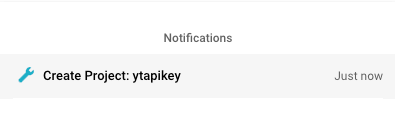
Wait for the notification (top right) saying the project has been created
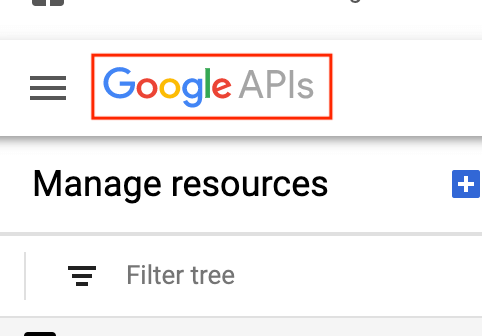
Now click on the Google APIs logo in the top left
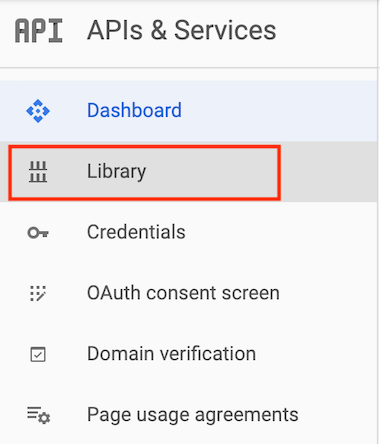
Select Library from the left hand menu
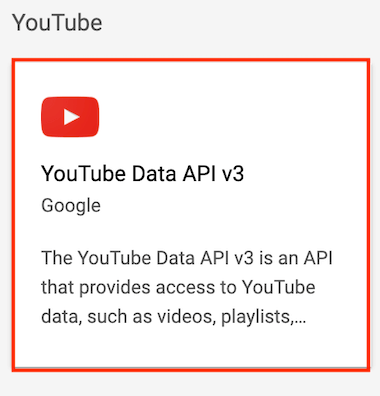
Scroll down and select YouTube Data API vX
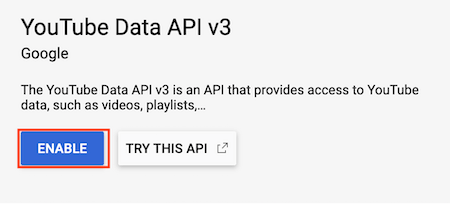
Select Enable on the next screen
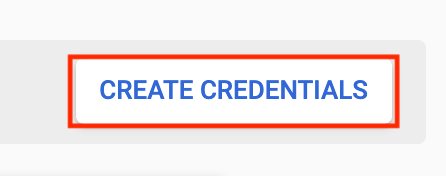
Select Create Credentials on the right hand side of the screen
Click on the Dropdown Box
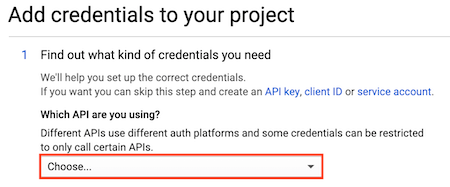
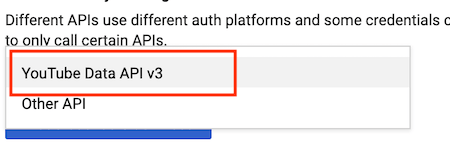
Select YouTube Data API vX
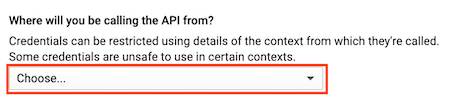
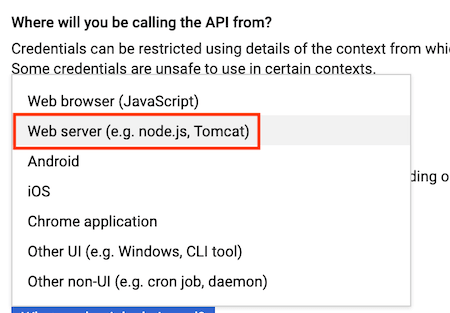
Now click on the Where will you be calling the API from dropdown box
Select Web Server
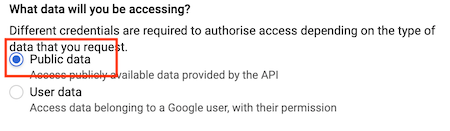
In the What data will you be accessing box check Public Data
Now click on What credentials do I need?
You will now see your API key. Click on Copy on the right hand side and then click done

Now you have it copied save it to a text file as we need to now get the ID & secret
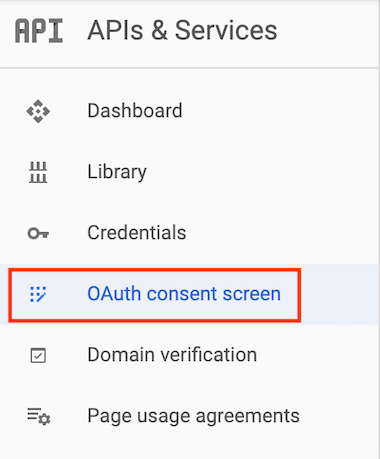
After clicking done you will be back at the screen where we clicked on Library. Look on the left hand side again and click on OAuth consent screen
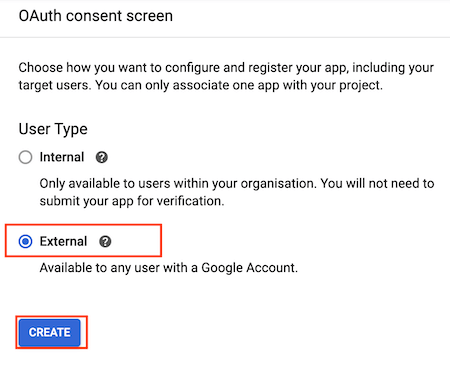
Click External and then Create
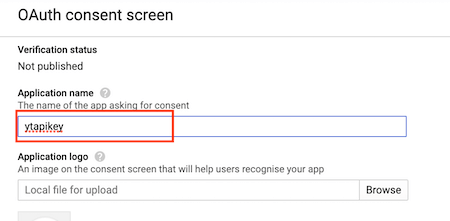
Enter a name (just use the same name as you did at the beginning)
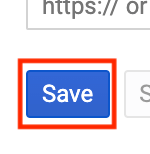
Scroll to the bottom and click Save
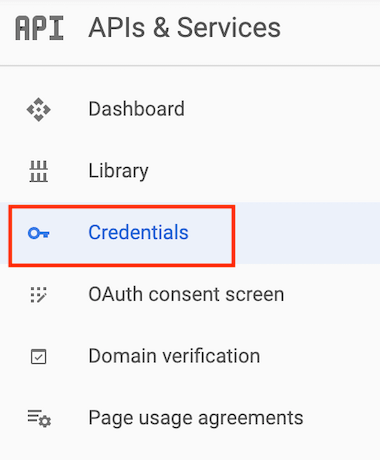
Now click on Credentials in the left hand menu
Now click Create Credentials in the top left

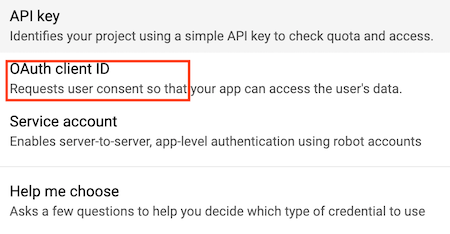
Select OAuth Client ID
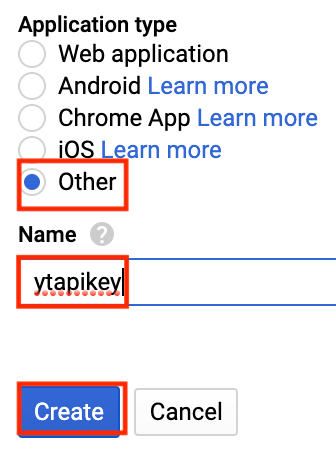
Select Other give it a Name (use the same name as we did before) and click Create
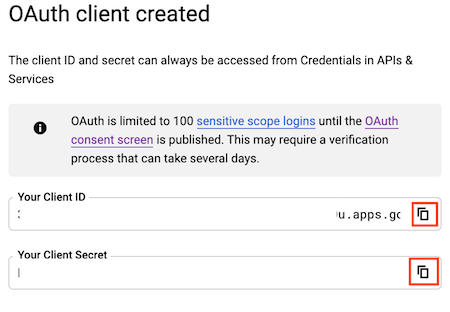
You will now see a box with your Client ID and Secret. Copy both and add to the text file where we saved the API key before
Now open YouTube on Kodi
Scroll down to Settings
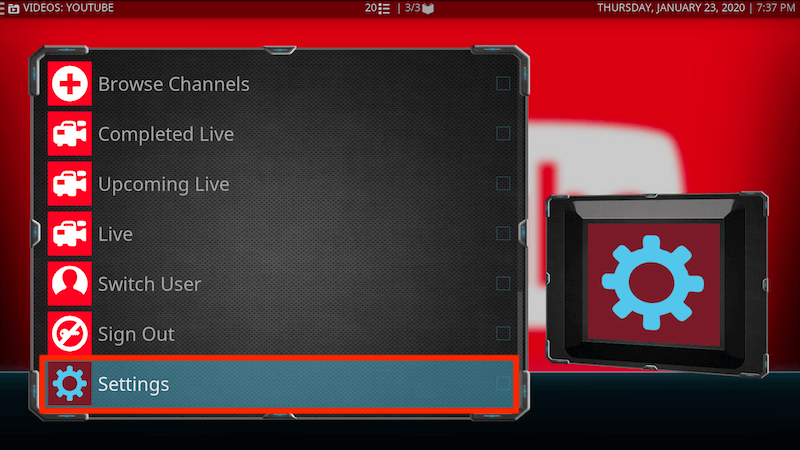
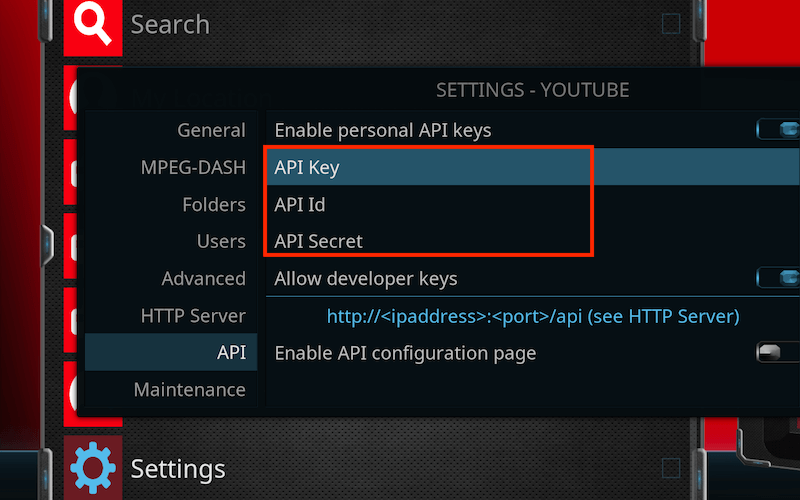
Highlight API in the left hand menu
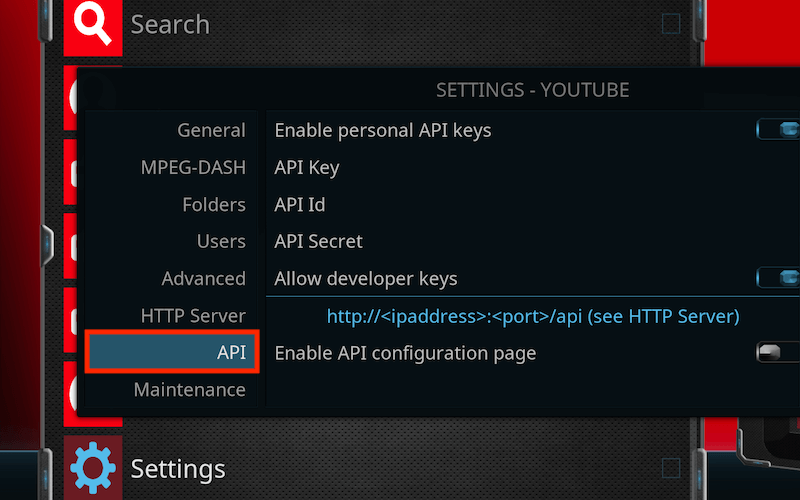
Now paste your API, Client ID and Secret in the corresponding boxes on the right and then click OK
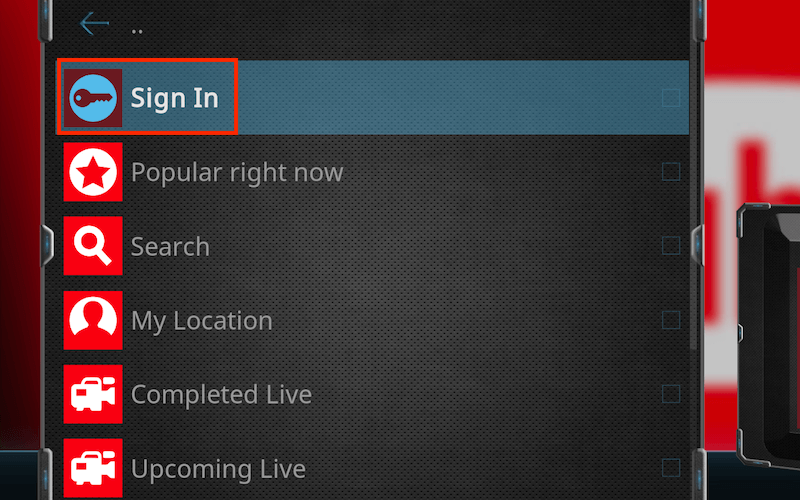
Now click on Sign In in the YouTube app on Kodi
You will now see a message saying you need to sign in twice to your Google account
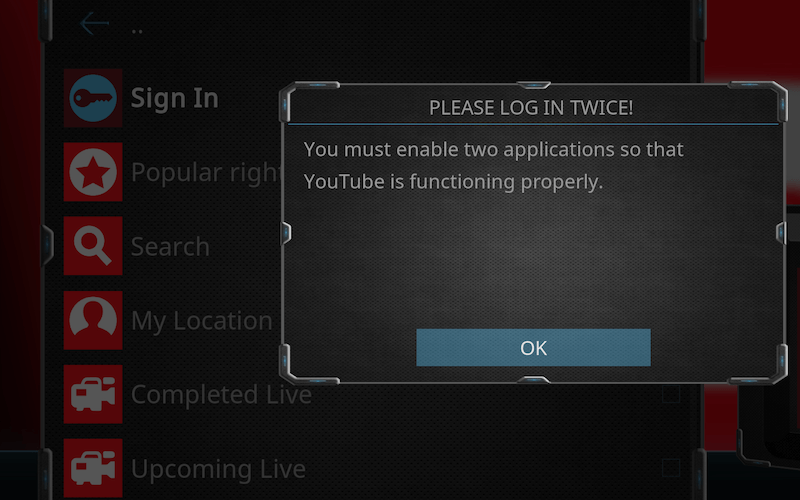
Click ok and it will give you a code. Go google.com/device and enter the code. Then click on your account and verify it.
A new code will then appear in the YouTube app so repeat the process
When you enter the second it will say you cannot do this as the app is not verified. But it is you who created this so you can trust it. So in your browser (I'm using Chrome) click on Advanced
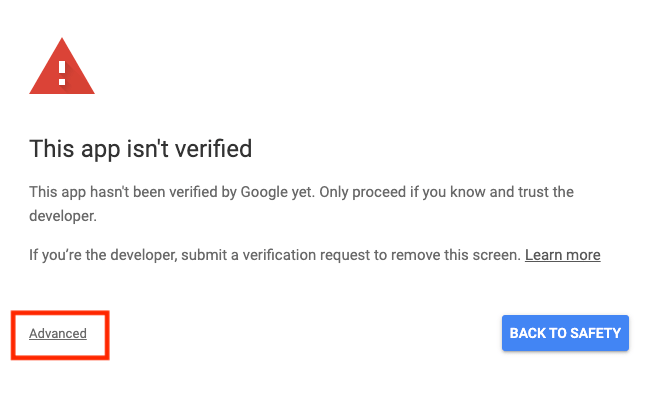
Now click on Go to 'nameofkey' and allow your API access
You will now be signed into YouTube and be able to access all your lists/likes etc.



 Quote from RazeDisplay More
 :thumbup:
 It gave up...


