Posts by biko

    The root account is the ultimate account on a Linux and other Unix-like operating systems. This account has access to all commands and files on a system with full read, write and execute permissions. It is used to perform any kind of task on a system; to create/update/access/delete other users’ accounts, install/remove/upgrade software packages, and so much more.

    Because the root user has absolute powers, any actions he/she performs are critical on a system. In this regard, any errors by the root user may have huge implications on the normal operation of a system. In addition, this account may also be abused by using it improperly or inappropriately either accidentally, maliciously, or through contrived ignorance of policies.

    Therefore, it is advisable to disable the root access in your Linux server, instead, create an administrative account which should be configured to gain root user privileges using the sudo command, to perform critical tasks on the server.

    In this article, we will explain four ways to disable root user account login in Linux.

    Attention: Before you block access to the root account, make sure you have created an administrative account, capable of using sudo command to gain root user privileges, with the useradd command and give this user account a strong password. The flag -m means create user’s home directory and -c allows to specify a comment:

    Code
    # useradd -m -c "Admin User" admin
    # passwd admin

    Next, add this user to the appropriate group of system administrators using the usermod command, where the switch -a means append user account and -G specifies a group to add the user in (wheel or sudo depending on your Linux distribution):

    Code
    # usermod -aG wheel admin    #CentOS/RHEL
    # usermod -aG sudo admin     #Debian/Ubuntu 

    Once you have created a user with administrative privileges, switch to that account in order to block root access.

    Code
    # su admin

    1. Change root User’s Shell

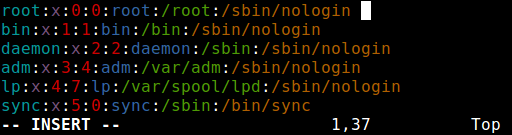
    The simplest method to disable root user login is to change its shell from /bin/bash or /bin/bash (or any other shell that permits user login) to /sbin/nologin, in the /etc/passwd file, which you can open for editing using any of your favorite command line editors as shown.

    Code
      $ sudo vim /etc/passwd

    Change the line:

    Code
    root:x:0:0:root:/root:/bin/bash
    to
    root:x:0:0:root:/root:/sbin/nologin


    Change root User Shell

    Change root User Shell

    Save the file and close it.

    From now on, when root user logs in, he/she will get the message “This account is currently not available.” This is the default message, but, you can change it and set a custom message in the the file /etc/nologin.txt.

    This method is only effective with programs that require a shell for user login, otherwise, sudo, ftp and email clients can access the root account.


    2. Disable root Login via Console Device (TTY)

    The second method uses a PAM module called pam_securetty, which permits root access only if the user is logging in on a “secure” TTY, as defined by the listing in /etc/securetty.

    The above file allows you to specify which TTY devices the root user is allowed to login on, emptying this file prevents root login on any devices attached to the computer system.

    To create an empty file, run.

    Code
    $ sudo mv /etc/securetty /etc/securetty.orig
    $ sudo touch /etc/securetty
    $ sudo chmod 600 /etc/securetty

    This method has some limitations, it only affects programs such as login, display managers (i.e gdm, kdm and xdm) and other network services that launch a TTY. Programs such as su, sudo, ssh, and other related openssh tools will have access to the root account.


    3. Disabl SSH Root Login

    The commonest way of accessing remote servers or VPSs is via SSH and to block root user login under it, you need to edit the /etc/ssh/sshd_config file.

    Code
    $ sudo vim /etc/ssh/sshd_config

    Then uncomment (if it is commented) the directive PermitRootLogin and set its value to no as shown in the screenshot.
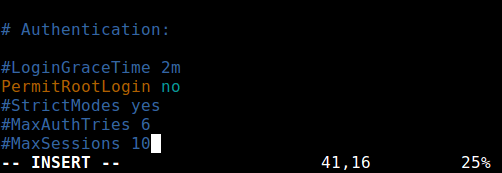

    Disable Root Login in SSh

    Disable Root Login in SSh

    Once you are done, save and close the file. Then restart the sshd service to apply the recent change in configurations.

    Code
    $ sudo systemctl restart sshd OR
    $ sudo service sshd restart 

    As you may already know, this method only affects openssh tools set, programs such as ssh, scp, sftp will be blocked from accessing the root account.


    4. Restrict root Acess to Services Via PAM

    Pluggable Authentication Modules (PAM in short) is a centralized, pluggable, modular, and flexible method of authentication on Linux systems. PAM, through the /lib/security/pam_listfile.so module, allows great flexibility in limiting the privileges of specific accounts.

    The above module can be used to reference a list of users who are not allowed to log in via some target services such as login, ssh and any PAM aware programs.

    In this case, we want to disable root user access to a system, by restricting access to login and sshd services. First open and edit the file for the target service in the /etc/pam.d/ directory as shown.

    Code
    $ sudo vim /etc/pam.d/login
    OR
    sudo vim /etc/pam.d/sshd

    Next, add the configuration below in both files.

    Code
    auth    required       pam_listfile.so \        onerr=succeed  item=user  sense=deny  file=/etc/ssh/deniedusers

    When you are done, save and close each file. Then create the plain file /etc/ssh/deniedusers which should contain one item per line and not world readable.

    Add the name root in it, then save and close it.

    Code
    $ sudo vim /etc/ssh/deniedusers

    Also set the required permissions on this.

    Code
    $ sudo chmod 600 /etc/ssh/deniedusers

    This method only affect programs and services that are PAM aware. You can block root access to the system via ftp and email clients and more.

    For more information, consult the relevant man pages.

    Code
    $ man pam_securetty
    $ man sshd_config
    $ man pam

    That’s all! In this article, we have explained four ways of disabling the root user login (or account) in Linux. Do you have any comments, suggestions or questions, feel free to reach us via the feedback form below.


    option - Change "only specific bouquet" refernces to unique code - dont need change ALL iptv bouquet,

    bouquet (pluto tv) have own reference ,epg working, who wanna change them


    please add option to choosing with bouquet will be change to unique reference

    What you need (and more) is available in:

    IPTV >> Local IPTV Services.


    This table will list all the IPTV service. You can use the Filter (Blue Button) which is rich of filters scenarios.


    Filter the required bouquet and use Options (Yellow Button) to change the References.

    a-

    We currently start with DVB (as source) then IPTV (as destination). As if we are copying the reference from DVB to IPTV channel.


    b- & c-

    Will add some filtering in the future.

    The weather in the skin,,, how did u do that

    VWeather : If you come from another skin with VWeather , you have to rewrite the converter in the VWeather plugin.

    Under VTI settings-GUI activate picture in graphics (PiG).

    Then you have a full TV picture in the weather screen.


    VWeather3 Weather Plugin

    VWeather3 is a plugin that provides a converter for using weather information in skins.

    Currently the plugin supports the following weather services.

    1. OpenWeatherMap

    2. darksky

    3. Weatherbit.io

    4. German weather service DWD

    5. Meteoalarm for weather warnings Austria


    For the services OpenWeatherMap and darksky you need an API-KEY which you can get here for free.

    Link for OpenWeatherMap -> home.openweathermap.org/users/sign_up

    Link for darksky -> darksky.net/dev/register

    Link for Weatherbit.io -> weatherbit.io/pricing Voice output for the 


    Installation

    Makes an image backup in case something goes wrong!
    Installs the attached enigma2-plugin-extensions-vweather3_1.0r39_all.ipk.
    Restart the box and start VWeather3 under Extensions and make the settings described below.
    When exiting the plugin with "Red", a suitable converter for the supported skins is automatically created.
    Exit leaves the plugin without saving the settings or creating the converter.


    Settings in the plugin

    Skin CerxFHDMod Nightfall - AEL Edition 19.08.2021 - Update 2.7.1

    Update: 2.7.1 - Fix for GMEPG

    Update: 2.7.0


    • AEL Trailer intrigues for all AEL Skinparts, EventView, as well as the standard EPG list. A complete search run with the latest AEL version must be started before the trailer symbol is displayed .
    • If a trailer is available for a show, a play button appears on the screen (see image "Trailer"), the trailer is then started by pressing the play button on the remote control.
    • Minor bug fixes

    Installation:

    • Install AEL from r120 - GUI restart
    • Install CerxFHDMod 2.7.0 - GUI restart (can be installed over old versions)
    • Activate desired skin parts - GUI restart
    • The latest vWeatherPlugin must be installed for vWeather

    Instructions for .ipk installation via the VTI panel

    Manual installation of packages

    Instructions for activating the skin parts (especially for newcomers)


    Below Menu button --> VTI --> Settings - CerXFHD Mod - Activate CerXFHD Mod with the OK button, yellow buttonare the skin parts that you can also activate, it is graded according to categories, only one skin part can be used for the respective screen be activated, e.g. either AEL ChannelSelection v1, or v2 or v3. Styles, fonts and the PrimeTime time can also be set in the same menu.

    Pay attention to the preview images and the text underneath.
    The GUI must be restarted after each skin part activation.
    Don't do too much at once, there are already many skin parts included in the standard version.


    The AEL main menu as well as the standard views for the Movie Wall, Prime/Series Start Planner have been integrated into the skin.

    You can change the views in the respective views with the TXT button. Or select a start view in the menu,
    there are different skin parts for these views, depending on taste, these must still be selected separately under AEL skin parts.
    Both new AEL features, AEL Media Hub and AEL Channel List can be put on one shortcut with MultiQuickButton.

    AEL skin parts:

    For the AEL skin parts there is the "AEL" section under skin parts, there you will find the wall, lists, planners, channel lists, etc. There are preview images for each skin part where you can see what they do.
    - After skin update to v.2.6.0, your previous skin parts need to be activated again.
    - For backdrops skinparts in the TMdB plugin, the latest TMdB plugin must be installed from attached, not from the feed.


    Simply install over the old CerxFHDMod version - restart the GUI and reactivate the skin parts.


    some collected screen shoot from my stb


    1.1.jpg


    2.7.jpg


    2.4.jpg


    2.3.jpg


    C1.jpg

    It seems that double emu has been confused with multiple subscriptions from different service providers

    What you mentioned was not clear to you.

    Dual emus, which are our topic here, are subscriptions that combine different operating methods for different subscriptions through subscription patches that do not contain a user, password, host and port

    As for what you are talking about now is running subscriptions through several READER

    And here the topic is different ... You need to read and learn about the LOAD BALANCE feature, which enables to keep the reader better or faster in opening the channel -- because freezing occurs when switching between one reader and another.

    Let us agree on the different methods of subscriptions, but the channel will not be opened except by one subscription only, as Enigma will deal with it and it will not happen that the same channel is opened through different subscriptions at the same time

    For example, subscriptions made through their own blogs, such as subcam, power cam, or refcam

    Do you have a reader composed of host and port user - password

    You will find that the method that works through the Mac Address differs from the normal way of working for the sharing subscriptions to the various servers with the OSCAM file.