Posts by gorski

    OK, another option...

    VPN Manager


    1) Install the plugin manually, as per usual and restart E2...


    2) Create a folder on a USB stick/SSD/mSD card and name it whatever you want, say openvpn, so it would be here: /media/usb/openvpn


    3) Create subfolders in that folder and name them accordingly, say London, Berlin, Manchester, Sao, Frankfurt, NYC etc.: /media/usb/openvpn/London (or whatever you want to have as an option, create as many as you need)


    4) Choose .udp.ovpn files given to you by your VPN provider and move them to your newly created folders, one for each server/city into its specific folder


    5) Now, go to MENU > Plugins > VPN Manager > MENU > change the following settings:

    -Save directory config > find the main openvpn folder and press SAVE button (say, /media/usb/openvpn/)

    -OpenVPN autostart > yes

    -VPN username > (Surfshark is specific here, you need to put in the ones they gave you for manual settings)

    -VPN password > (as above)


    If Surfshark username and password are too difficult to do via RCU, then use FileZilla Client to FTP to your box and go to:

    /usr/lib/enigma2/python/Plugins/Extensions/VpnManager

    Right click on plugin.py and choose View/Edit (use Notepad++ for editing).

    Find lines 53 and 54 and copy and paste your username and password where you see XXXXXXXXXXXXXXX below:

    Code
    config.vpnmanager.username = ConfigText(default="XXXXXXXXXXXXXXXXXXXXX", fixed_size=False)
    config.vpnmanager.password = ConfigText(default="XXXXXXXXXXXXXXXXXXXX", fixed_size=False)

    Save and exit. Confirm the change, if asked. Close FZC. Restart E2.


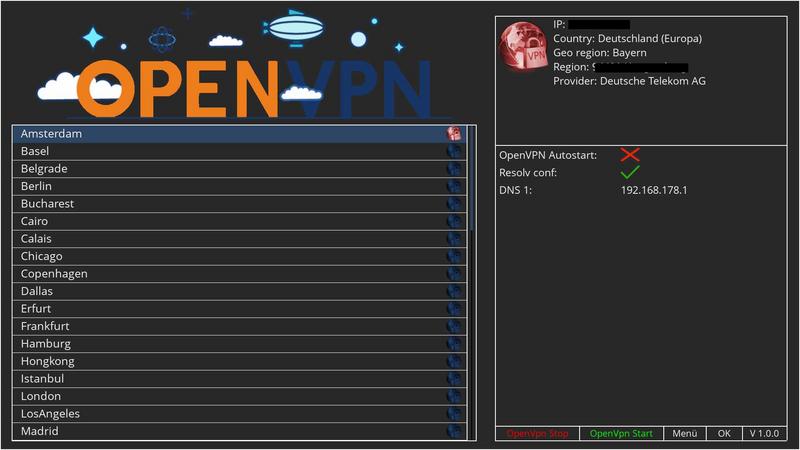
    6) Open VPN Manager and note your normal IP address, internet provider, speed etc.


    Now, choose which server you want to be on and press OK button on your RCU.


    If you wait a bit, after connecting to a VPN server, you will be able to see your new and OpenVPN encrypted IP address, speed etc.


    Alternatively, in PurE2 go to MENU > pManager > Network > General network info > see if you are on a VPN... (in Surfshark you have to have 10.x.x.x address, amongst others...)


    Also, check your speed using MENU > FNC PurE2 plugins > Speedtest-FNC > OK, then OK again...


    Voila!:cool1:
    OK, let me try...


    1) Install the plugin manually, as per usual and restart E2...


    2) Create a folder on a USB stick/SSD/mSD card and name it whatever you want, say openvpn, so it would be here, as an example: /media/usb/openvpn


    3) Create subfolders in that folder and name them accordingly, say London, Berlin, Manchester, Sao, Frankfurt, NYC etc. - for example: /media/usb/openvpn/London (or whatever you want to have as an option, create as many as you need)


    4) Choose .udp.ovpn files given to you by your VPN provider and move them to your newly created folders, one for each server/city into its specific folder


    5) Now, go to MENU > Plugins > VPN Manager > MENU > change the following settings:

    -Save directory config > find the main openvpn folder and press SAVE button (say, /media/usb/openvpn/)

    -OpenVPN autostart > yes

    -VPN username > (Surfshark is specific here, you need to put in the ones they gave you for manual settings)

    -VPN password > (as above)


    If Surfshark username and password are too difficult to do via RCU, then use FileZilla Client to FTP to your box and go to:

    /usr/lib/enigma2/python/Plugins/Extensions/VpnManager

    Right click on plugin.py and choose View/Edit (use Notepad++ for editing).

    Find lines 61 and 62 and copy and paste your username and password where you see XXXXXXXXXXXXXXX below:

    Code
    config.vpnmanager.username = ConfigText(default="XXXXXXXXXXXXXXXXXXXXX", fixed_size=False)
    config.vpnmanager.password = ConfigText(default="XXXXXXXXXXXXXXXXXXXX", fixed_size=False)

    Save and exit. Confirm the change, if asked. Close FZC. Restart E2.


    6) Open VPN Manager and note your normal IP address, internet provider, speed etc.


    Now, choose which server you want to be on and press OK button on your RCU.


    If you wait a bit, after connecting to a VPN server, you will be able to see your new and OpenVPN encrypted IP address, speed etc.


    Alternatively, in PurE2 go to MENU > pManager > Network > General network info > see if you are on a VPN... (in Surfshark you have to have 10.x.x.x address, amongst others...)


    Also in PurE2, you could check your speed using MENU > FNC PurE2 plugins > Speedtest-FNC > OK, then OK again...


    OK, let me try...


    1) Install the plugin manually, as per usual and restart E2...


    2) Create a folder on a USB stick/SSD/mSD card and name it whatever you want, say openvpn, so it would be here, as an example: /media/usb/openvpn


    3) Create subfolders in that folder and name them accordingly, say London, Berlin, Manchester, Sao, Frankfurt, NYC etc. - for example: /media/usb/openvpn/London (or whatever you want to have as an option, create as many as you need)


    4) Choose .udp.ovpn files given to you by your VPN provider and move them to your newly created folders, one for each server/city into its specific folder


    5) Now, go to MENU > Plugins > VPN Manager > MENU > change the following settings:

    -Save directory config > find the main openvpn folder and press SAVE button (say, /media/usb/openvpn/)

    -OpenVPN autostart > yes

    -VPN username > (Surfshark is specific here, you need to put in the ones they gave you for manual settings)

    -VPN password > (as above)


    If Surfshark username and password are too difficult to do via RCU, then use FileZilla Client to FTP to your box and go to:

    /usr/lib/enigma2/python/Plugins/Extensions/VpnManager

    Right click on plugin.py and choose View/Edit (use Notepad++ for editing).

    Find lines 61 and 62 and copy and paste your username and password where you see XXXXXXXXXXXXXXX below:

    Code
    config.vpnmanager.username = ConfigText(default="XXXXXXXXXXXXXXXXXXXXX", fixed_size=False)
    config.vpnmanager.password = ConfigText(default="XXXXXXXXXXXXXXXXXXXX", fixed_size=False)

    Save and exit. Confirm the change, if asked. Close FZC. Restart E2.


    6) Open VPN Manager and note your normal IP address, internet provider, speed etc.


    Now, choose which server you want to be on and press OK button on your RCU.


    If you wait a bit, after connecting to a VPN server, you will be able to see your new and OpenVPN encrypted IP address, speed etc.


    Alternatively, in PurE2 go to MENU > pManager > Network > General network info > see if you are on a VPN... (in Surfshark you have to have 10.x.x.x address, amongst others...)


    Also in PurE2, you could check your speed using MENU > FNC PurE2 plugins > Speedtest-FNC > OK, then OK again...


    OK, let me try...


    1) Install the plugin manually, as per usual and restart E2...


    2) Create a folder on a USB stick/SSD/mSD card and name it whatever you want, say openvpn, so it would be here, as an example: /media/usb/openvpn


    3) Create subfolders in that folder and name them accordingly, say London, Berlin, Manchester, Sao, Frankfurt, NYC etc. - for example: /media/usb/openvpn/London (or whatever you want to have as an option, create as many as you need)


    4) Choose .udp.ovpn files given to you by your VPN provider and move them to your newly created folders, one for each server/city into its specific folder


    5) Now, go to MENU > Plugins > VPN Manager > MENU > change the following settings:

    -Save directory config > find the main openvpn folder and press SAVE button (say, /media/usb/openvpn/)

    -OpenVPN autostart > yes

    -VPN username > (Surfshark is specific here, you need to put in the ones they gave you for manual settings)

    -VPN password > (as above)


    If Surfshark username and password are too difficult to do via RCU, then use FileZilla Client to FTP to your box and go to:

    /usr/lib/enigma2/python/Plugins/Extensions/VpnManager

    Right click on plugin.py and choose View/Edit (use Notepad++ for editing).

    Find lines 61 and 62 and copy and paste your username and password where you see XXXXXXXXXXXXXXX below:

    Code
    config.vpnmanager.username = ConfigText(default="XXXXXXXXXXXXXXXXXXXXX", fixed_size=False)
    config.vpnmanager.password = ConfigText(default="XXXXXXXXXXXXXXXXXXXX", fixed_size=False)

    Save and exit. Confirm the change, if asked. Close FZC. Restart E2.


    6) Open VPN Manager and note your normal IP address, internet provider, speed etc.


    Now, choose which server you want to be on and press OK button on your RCU.


    If you wait a bit, after connecting to a VPN server, you will be able to see your new and OpenVPN encrypted IP address, speed etc.


    Alternatively, in PurE2 go to MENU > pManager > Network > General network info > see if you are on a VPN... (in Surfshark you have to have 10.x.x.x address, amongst others...)


    Also in PurE2, you could check your speed using MENU > FNC PurE2 plugins > Speedtest-FNC > OK, then OK again...


    Voila!:cool1:

    IMDb-FNC


    version 2.9


    play trailers at max resolution (1920x1080), whenever is possible.


    You can change this in cfg.cfg if you want to play auto resolution ('resolution=auto')


    StreamlordTV-FNC


    version 1.2


    add trailer resolution choice into config,


    add user msg when checking credentials,


    fix skin issue...

    Post no. 34 beps > Fabulous FNC plugins by Franc (for PurE2 users)!!!


    While installing FNC plugins from MENU > Plugins > green button > Extensions > one will automatically get several additional plugins installed, like ServiceApp, FFmpeg and SubSupport.


    Now, if one has ServiceApp installed one can choose an Enigma2 playback player: MENU > Setup > System > ServiceApp > Enigma2 playback system > gstplayer/exteplayer3/original. This is setting a priority player for streaming and playback.


    136231-9862bb7fbe6b2bcd40002-jpg


    OK?


    P.S. I do not have those (IPTV streaming VOD) services but...


    If >> and << buttons do not work, have you tried 1, 4, 7 for RW and 3, 6, 9 for FF?


    If not, have you searched for an additional plugin for this in Extensions or System?


    I tested just now, in my H9 Twin, with PurE2 v. 6.5, using Ciefp's channel list > VOD > using Exteplayer3 in ServiceApp and nothing started...


    When I tried changing from Exteplayer3 > I first got 2 BSODs but I managed to change to gstplayer... Pink Panther started but I could not use any buttons to FF or RW, sadly...


    Plugins > Extensions > Seekbar-mod > nothing happens after reboot - I can't see this plugin...

    Hi, guys!


    Anyone using MMark's picons here, on 16E?


    I find them of excellent quality and quantity, a class act for sure! ;)


    Alas, I found that the latest did not have HRT (OIV @ 16E) picons, HRT 1-4.


    Strangely, HRT 1.-4. (T-HT @ 16E) are present and OK...


    Can anyone confirm, please?


    If so, how can I contact the author - anyone knows, please?


    Cheers!:thumbup:

    Something new from Franc!!!

    Streamlord TV


    First, register here (and note down your username and password): http://www.streamlord.com/index.html


    Do the same for OpenSubtitles: https://www.opensubtitles.org/en/search/subs


    Now, DL and install this: http://www.pur-e2.club/OU/imag…Plugins/StreamlordTV-FNC/ - needless to say but - choose the one for your STB....


    When you start it, if you see a window with a message re. unrecognised credentials or so - ignore it, then go to settings of the plugin (press MENU on your RCU) and put in the details from the two sites you just registered to...


    I also change the default player to exteplayer3 and movie summary language etc. When you're done and press the green button to save it, your STB will restart...


    Now, then... Use the plugin and enjoy tons of TV stuff of all sorts...


    And all hail Franc! :)


    P.S. Don't forget to buy the man a beer!


    P.P.S. Tested in Zgemma H9 Twin and Edision+ 64b, both with PurE2 image - working their magic... ;)

    Thanx for this! Looks great! Most of it is! It's quite well organised and done with pride! I luv this shit! :) Every time I witness it! No helping it!


    Just noted that HRT 1-4 (OIV on 16E) are missing...


    HRT 1.-4. is OK (T-HT on 16E). Weird... Can anyone confirm, please? (Maybe I made some mistake...?)


    Thanx again! :)

    Probably drivers issue... Everyone waiting for a patch...


    FWIW: a post from our mother-forum (online translation from German):

    I have to say that the kodi works perfectly on sf8008, there are no crashes and receiver performance is excellent.
    Image runs very well and stably, only minor shortcomings menu tour is partly German and partly English.

    I have still one question:
    Where can you enter data for a kodi account, eg for series streams?
    It would be easiest with ftp program if this is possible.

    Oh, dear, this is really sad...


    1) This is PurE2 section, so have the decency to install PurE2 if you are asking for help in PurE2 section!!!


    2) Learn to read! The folder is:


    etc/openvpn


    ...and so on and on... ALL WRONG!!!!! IMPROVISING, INSTEAD OF DOING IT AS DESCRIBED PRECISELY!!!


    3) And that means that you are yet another guy who says he did things as I described them - but you have NOT, actually...:head banger::concerned_disapproval:


    4) So, get your thinking caps on, guys! PATIENCE and DISCIPLINE!!!:chuckle::sinner: I know, being a southerner myself, that these are the least fashionable things down South but that's what it is. Take it or leave it.


    5) And who mentioned 2 "server" files? There is no "server" file in there to begin with! Only 1 password and 1 client file!


    6) C'mon, this is getting tiresome!!! Get it done PROPERLY and you will have the desired RESULT!!!!


    (Jesus Marx wept... You have EVERYTHING SERVED ON A PLATTER AND STILL...)

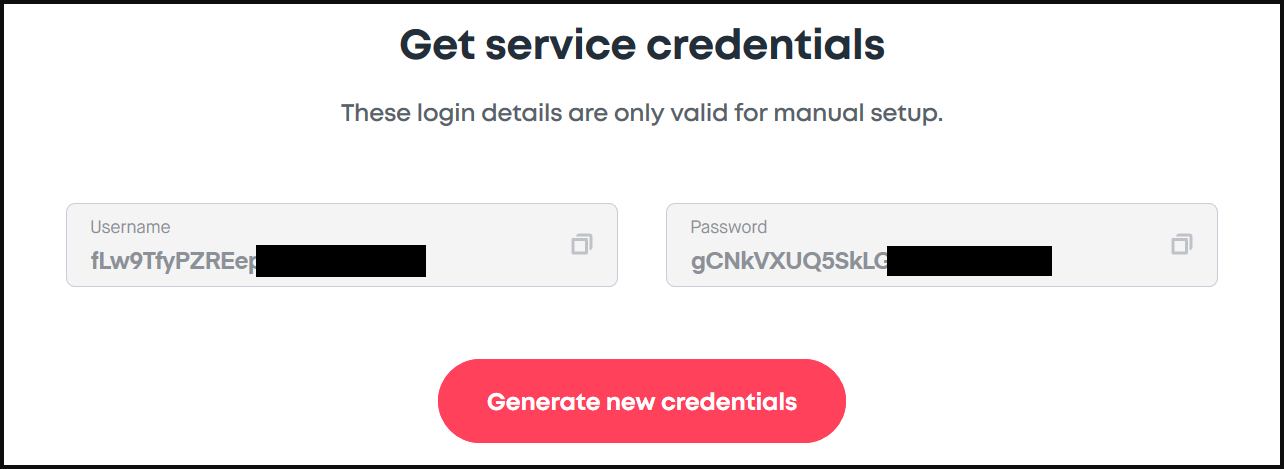
    Username and password for Surfshark's OpenVPN


    For OpenVPN one must use the ones they give you, not the ones you chose!


    You can find them in your account, at the bottom of the page!


    "...get Surfshark service credentials. Those are the credentials, different from the ones that you use to log in to our website or the app. To find them, go to the login page of our website, here https://account.surfshark.com/ and log in.

    Once you log in, go to Devices -> Manual, scroll down to the bottom of the page. You will find your service credentials there."


    sc4.png


    There is even a minimal Enigma2 setup manual on their pages now...


    https://support.surfshark.com/…nd-Zgemma-with-Surfshark-


    Good luck!

    Read my thread in the Stickies CAREFULLY, with PATIENCE and DO AS YOU READ!!!


    Username and password for Surfshark's OpenVPN are the ones they give you, not the ones you chose! You can find them in your account, at the bottom of the page!


    "...get Surfshark service credentials. Those are the credentials, different from the ones that you use to log in to our website or the app. To find them, go to the login page of our website, here https://account.surfshark.com/ and log in.

    Once you log in, go to Devices -> Manual, scroll down to the bottom of the page. You will find your service credentials there.


    sc4.png


    https://support.surfshark.com/…nd-Zgemma-with-Surfshark-


    Good luck!