
This guide explains how to change your user profile banner on the forum.
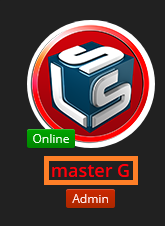
1. Go to Your Profile
You can reach your profile in any of these ways.
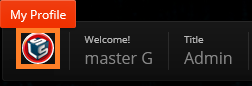
1a. Click the avatar beside your name in the upper-left corner of the page.
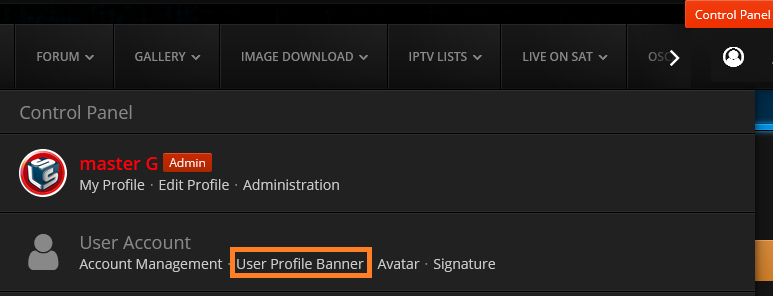
1b. Click the control panel icon in the upper-right corner of the page, then User Profile Banner.
1c. Find one of your own posts and click your username.
2. Open the Banner Settings
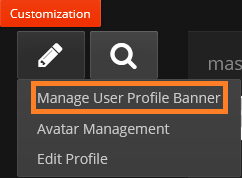
Click the Customization logo on the right side of the control panel, then Manage User Profile Banner.
3. Upload Your Banner
Click Upload, then browse to the banner image of your choice.
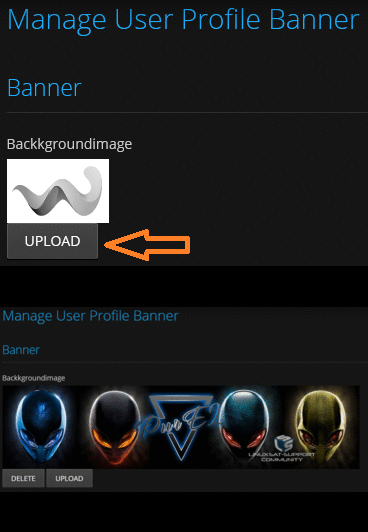
You can click Submit now, but you won't see any "about me" information within the banner.
Original user profile with about me info:

User profile banner without about me info:

User profile banner with about me info:

4. Set Text and Link Colours
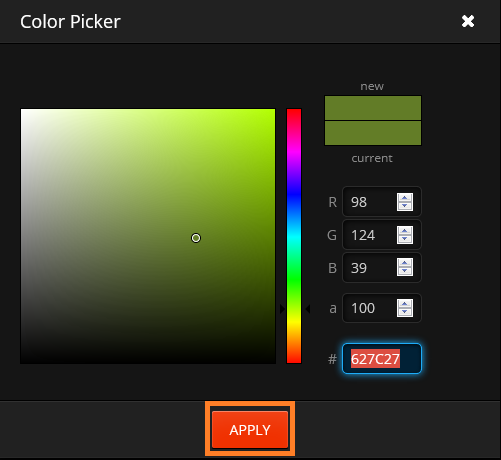
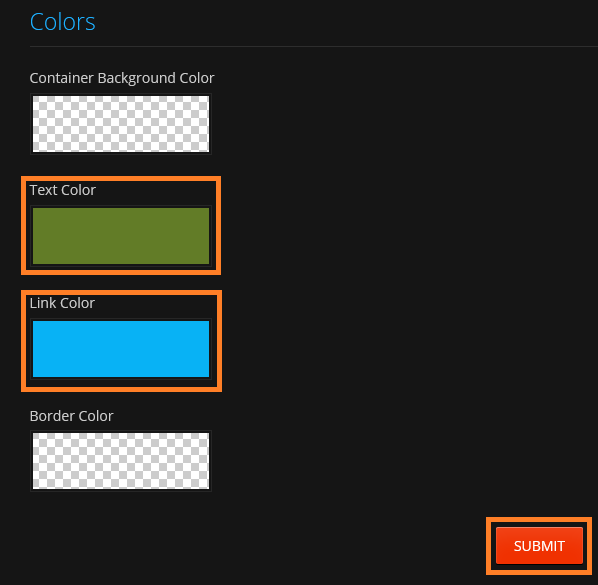
To see the "about me" information, you must set the colours for the text and links. Click the Text Colour or Link Colour box.
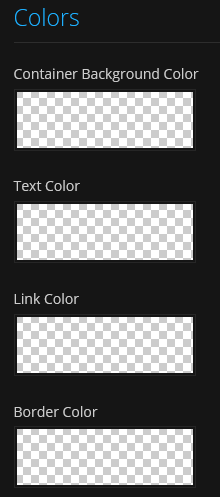
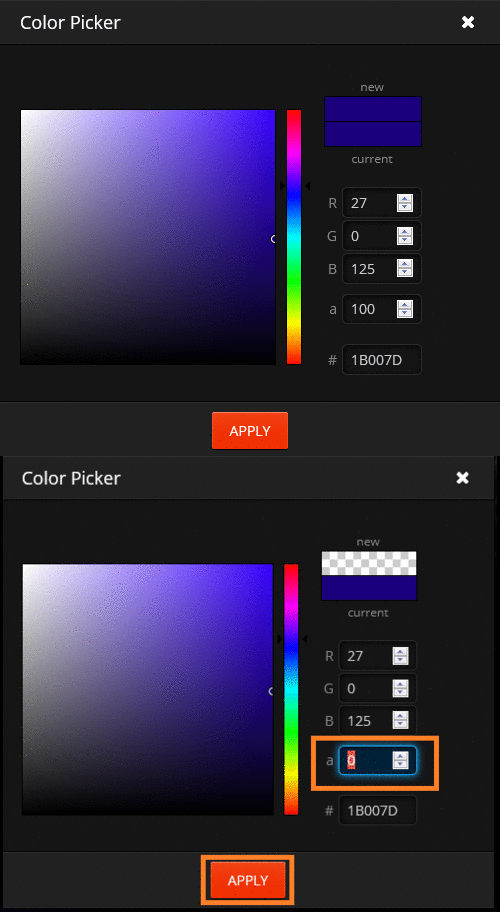
Use the colour picker, then click Apply.
You can also change the Container Background Color or Border Color if you wish. Once you have finished making changes, click Submit.
Resetting the Colours
To reset the colour changes for Container Background, Text, Link and Border colour, set the (a) value to 0, then click Apply.