


Most images now include OpenWebIF, which makes backing up and restoring your Enigma2 settings simple — no extra software needed. (Apps like DreamboxEdit and E-Channelizer work too, but OpenWebIF is built in and beginner-friendly.) This guide covers both backup and restore.
What you need
- The IP address (or hostname) of your receiver
- A web browser (Firefox, Chrome, Edge, etc.)
To find your receiver's IP address, go to MENU > Information on the box.
Backing up your settings
Open your browser and enter your receiver's address in the address bar: http://stb_ipadress or http://stb_hostname
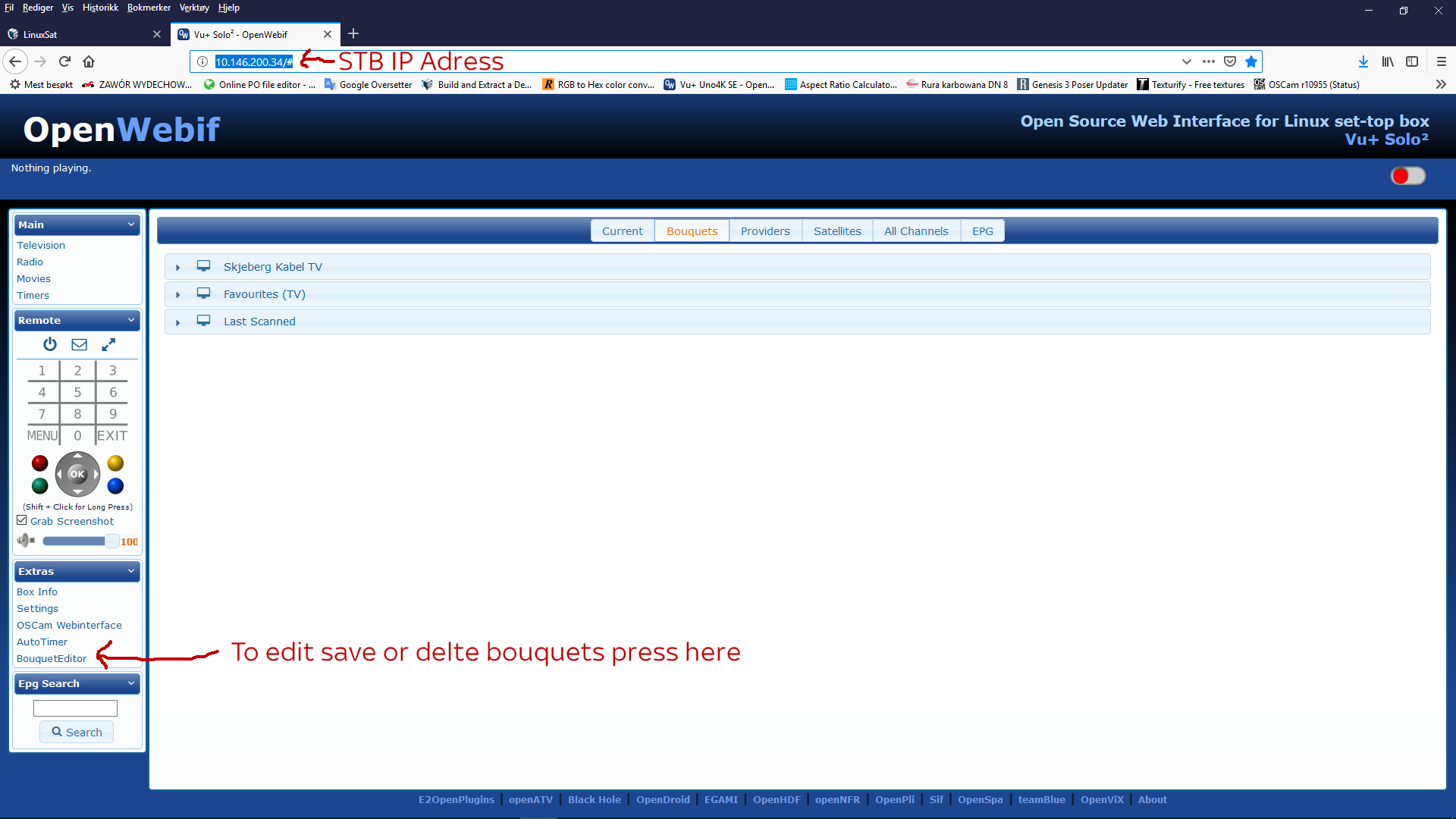
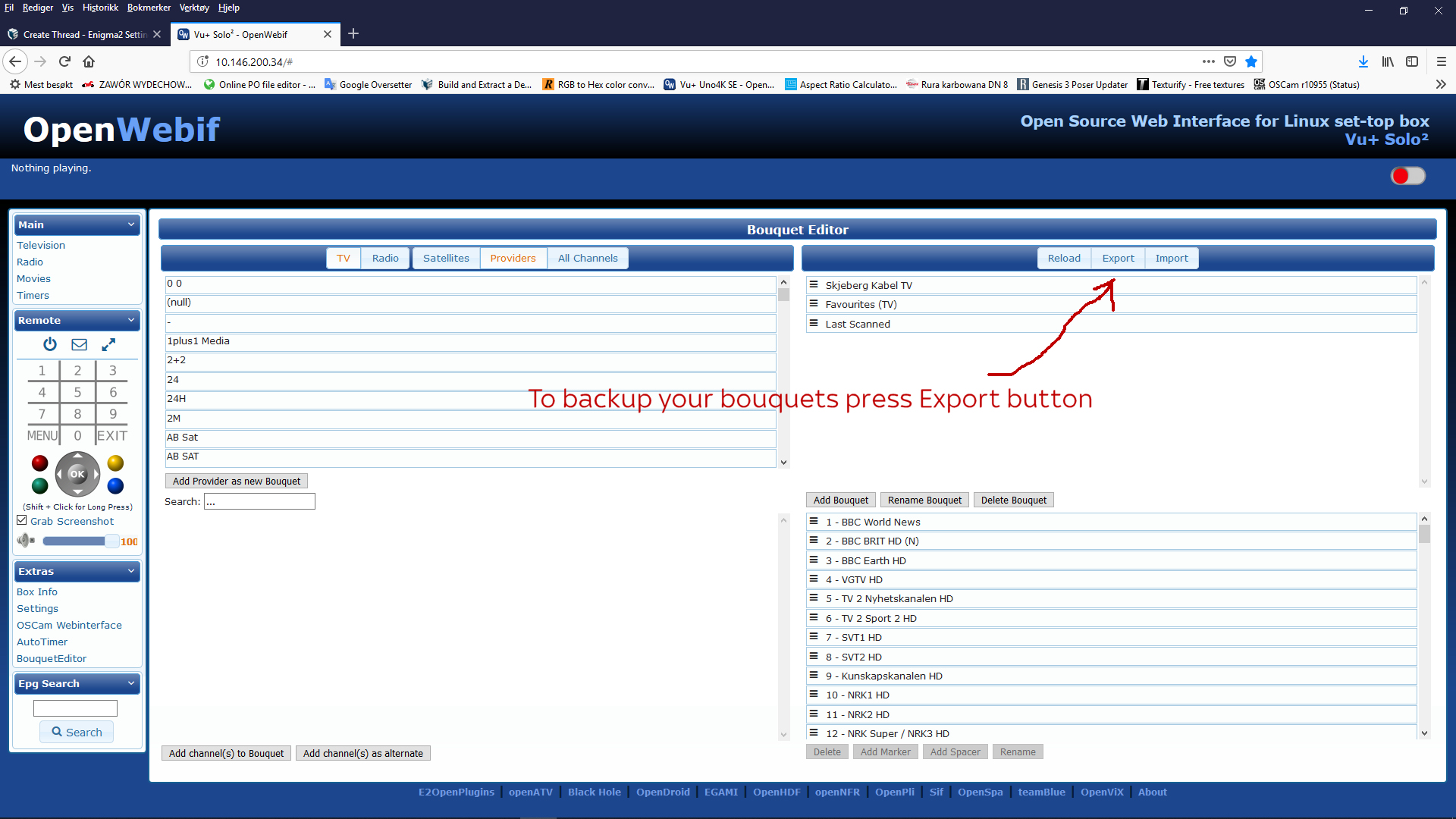
If you get an error, allow pop-up windows from this address in your browser, then try again.
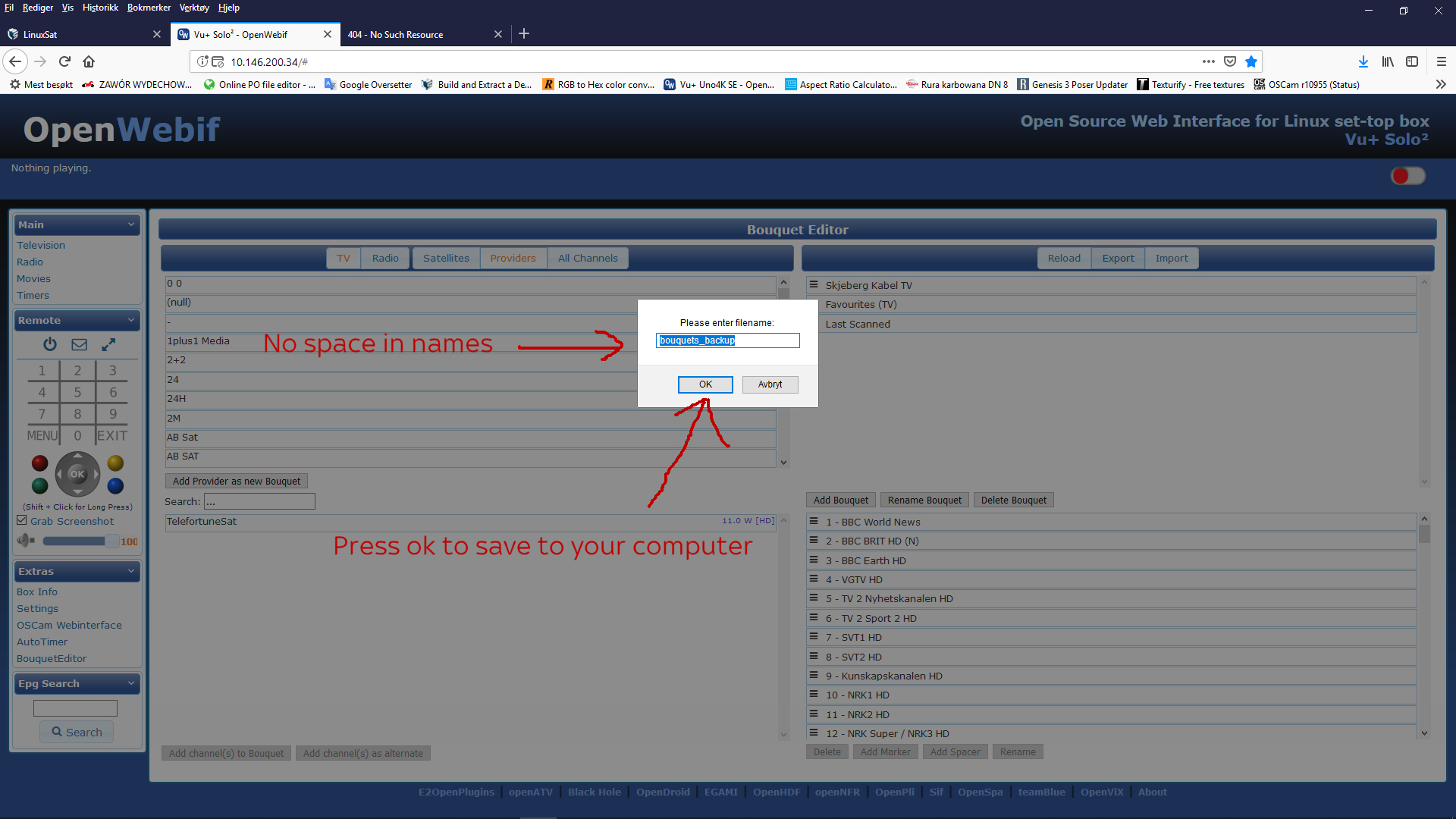
Follow the save dialog and store the backup file somewhere easy to find on your computer — you'll need it later to restore.
You can use the same backup to restore multiple receivers that share the same settings, and you can share it with friends who use the same setup.
Restoring your settings
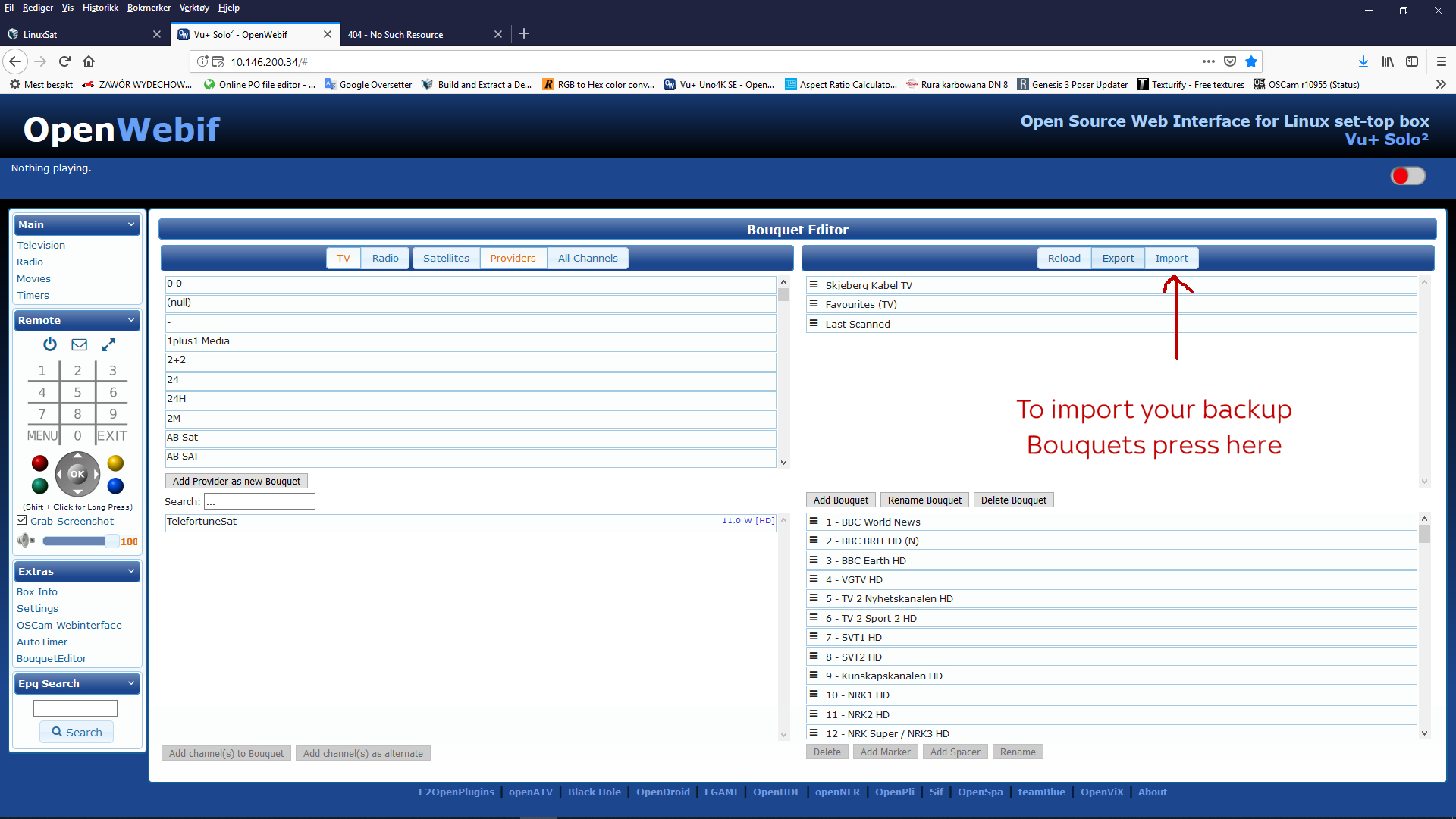
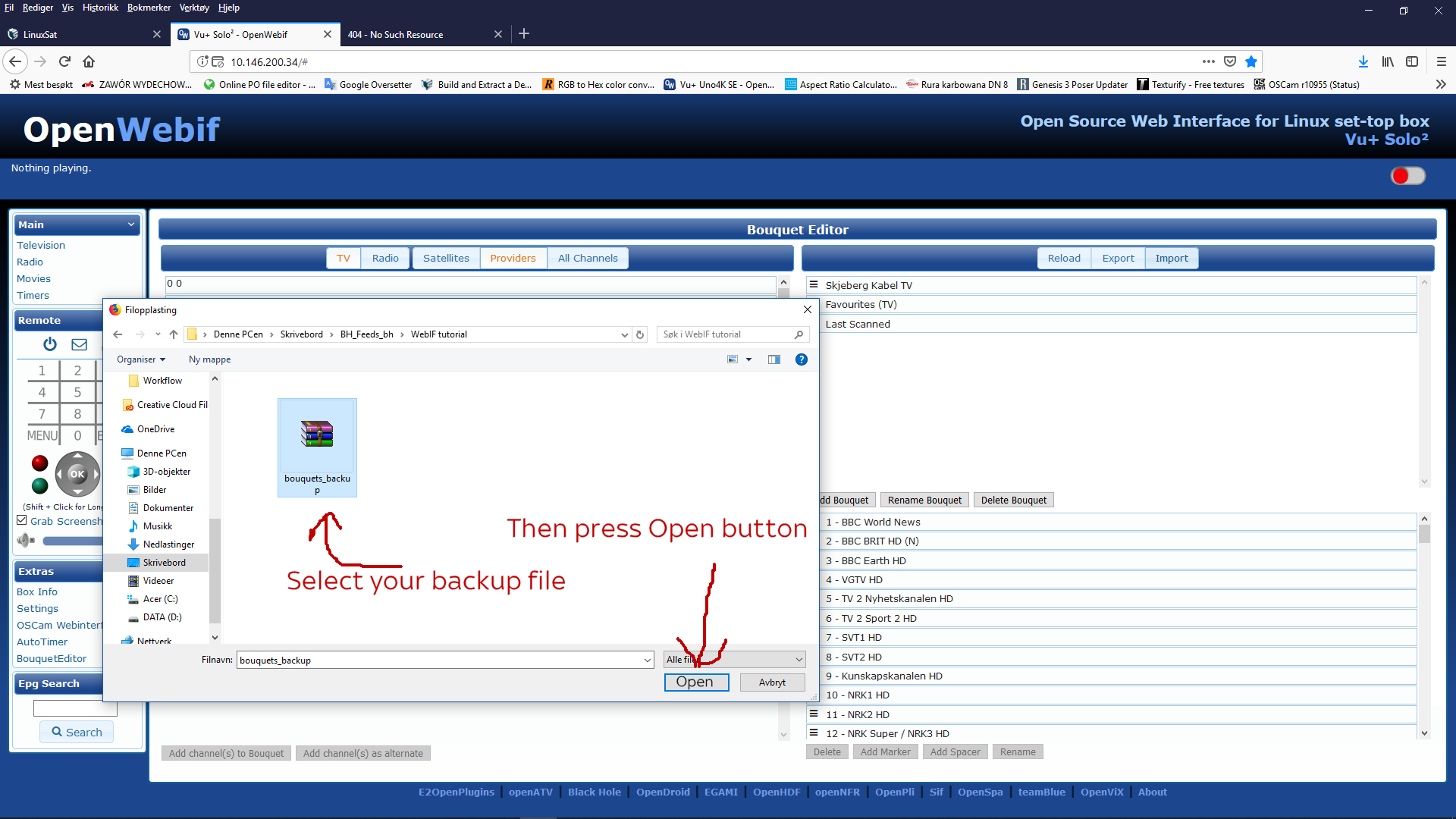
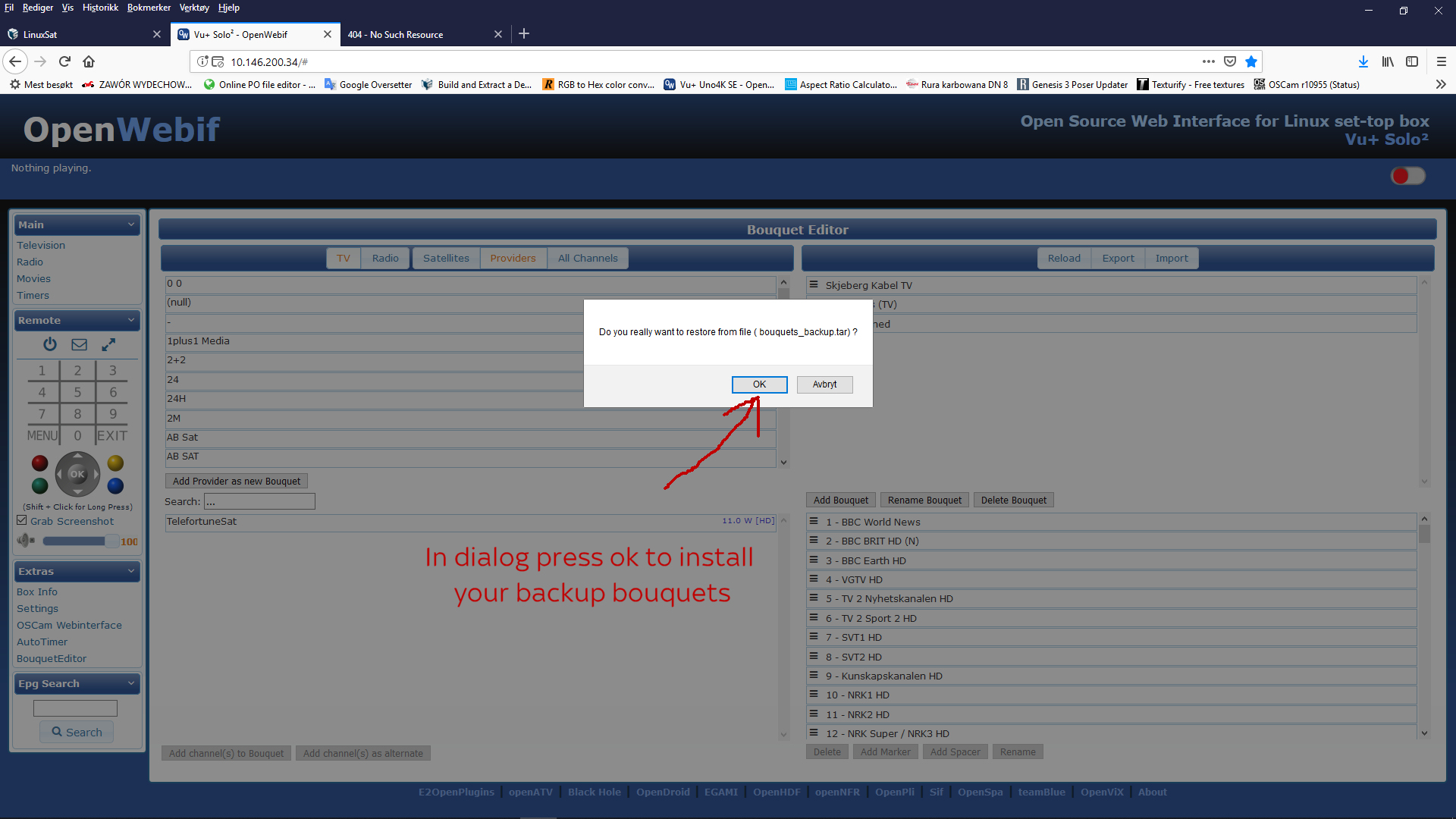
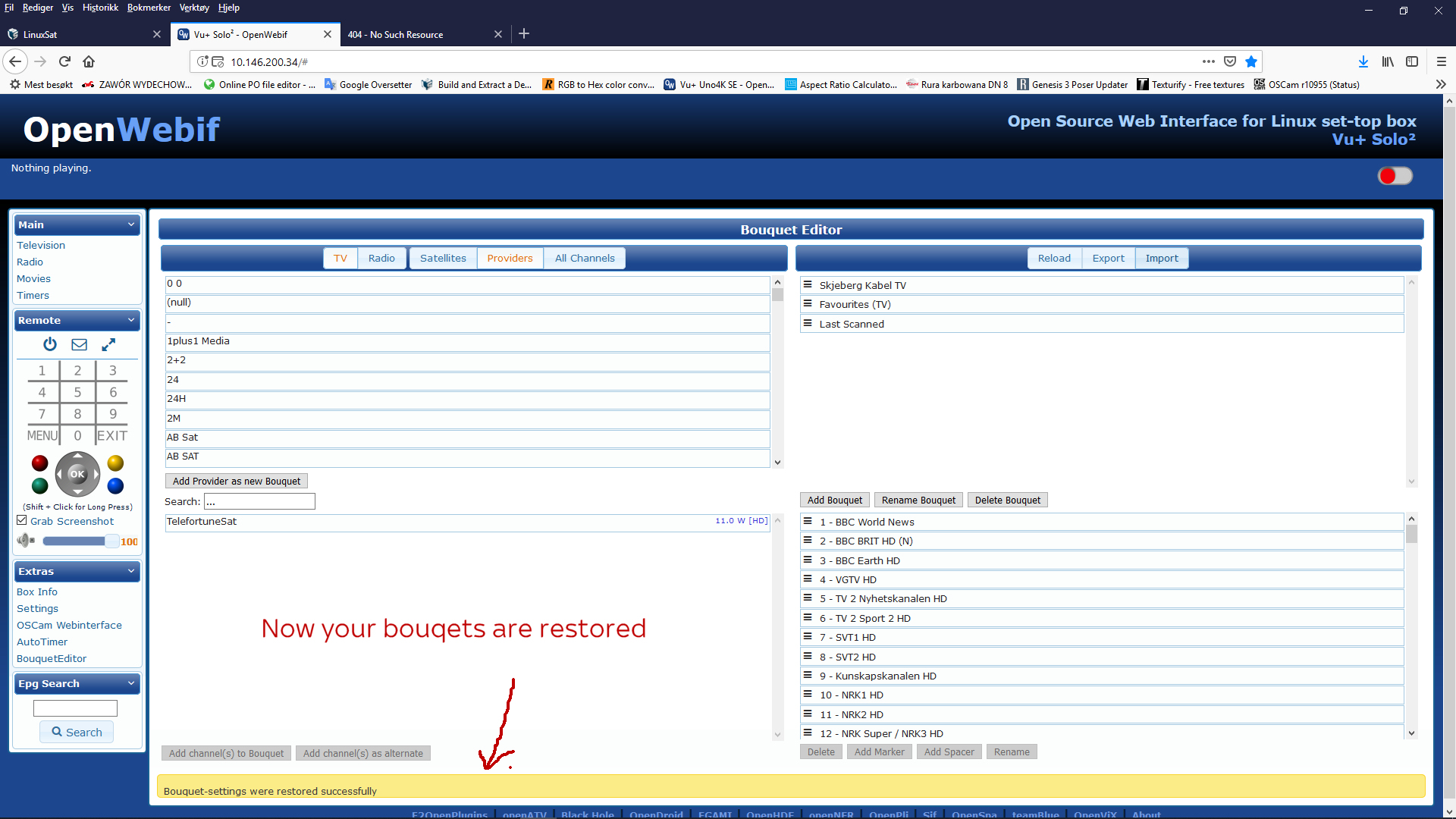
To restore a backup, follow these steps:

About the Author

Everything in life that's any fun is either immoral, illegal or fattening
--------------------------------------------------------------------------------------------------



Replies 1
seagen
Discussion of article How to Backup or Restore Enigma2 Bouquets with OpenWebIf: