


You can flash a new firmware image onto your Dreambox DM800 HD SE from a web browser using its second-stage loader. Follow the steps below.
What you'll need
- The firmware image you want to flash — it must have a .nfi extension (you can't flash .img or other formats).
- A DHCP server and a configured bootloader.
- A browser and a network cable — connect the Dreambox to a switch, hub or router on your local LAN.
- A working, intact second-stage loader.
These steps assume you have a DHCP server. If you don't, set up an IP address in the bootloader's serial setup.
Entering rescue mode
- Power the Dreambox down fully — use "shutdown" and switch it off at the power switch. Standby is not enough.
- Press and hold the power button.
- Switch the Dreambox on.
- The Dreambox takes the next free DHCP IP address from your router.
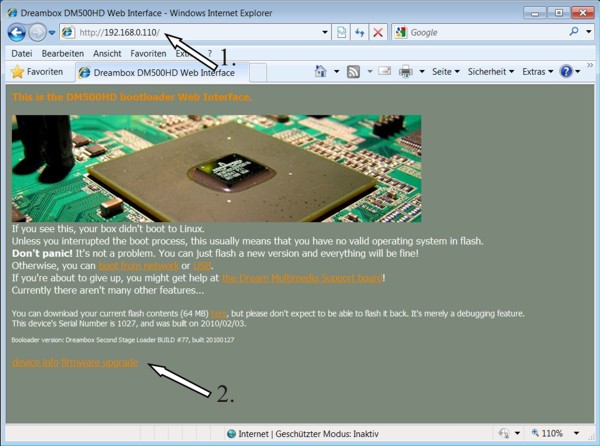
Uploading the image
- On your PC, open a browser and enter
http://ip/"in the address bar. - At the bottom of the page, click the firmware upgrade link.
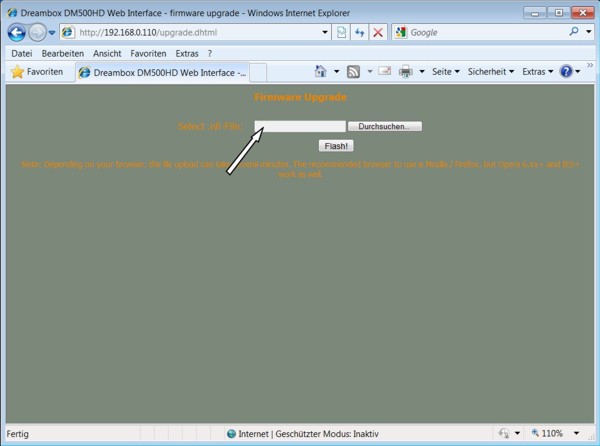
- On the next page, select the .nfi flash image (other formats such as .img won't work), click FLASH! and wait — uploading and flashing can take a little time.
- Switch the box off and on again. The new image should now be flashed and working.
⚠️ Don't interrupt the flash. Once flashing starts, do not power the box down until it completes — interrupting it can corrupt the firmware.

