

The Dreambox DM800 HD can be flashed with a new image directly from your PC's web browser, using the receiver's second-stage bootloader. This guide walks through the whole process.
What You Need
- The image file you want to flash. Image files have the .nfi extension — you cannot flash other formats such as
.img. Don't try it; it won't work. - Either a DHCP server, a configured bootloader, or a serial cable and a terminal program such as HyperTerminal.
- A web browser and a network cable. If you connect the Dreambox directly to your PC you need a cross cable; if you connect through a switch, hub or router you need a normal (non-cross) cable.
- A working second-stage loader — it must be present and not broken.
Step 1 — Enter the Bootloader
The following steps assume you have a DHCP server. If you don't, you must set up an IP address in the bootloader's serial setup (the same procedure as the DM8000).
Power down the Dreambox using "shutdown" and by removing the power connector — standby is not enough.
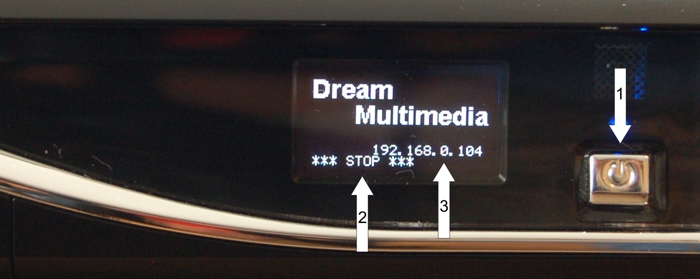
- (1.) Press and hold the power button. Replug the power connector into the Dreambox.
- (3.) A "··· STOP ···" message should appear. You can now release the button — the bootloader has entered "waiting" mode.
- (4.) Above the "··· STOP ···" text, an IP address should appear (four decimal values with a dot between them). If the string "dhcp" appears instead, the box is still searching for a DHCP server — wait a moment. If it doesn't change, something is wrong with the DHCP server; check that the network cable is plugged in. If it just won't work, set an IP using the serial terminal.
Step 2 — Flash via the Browser
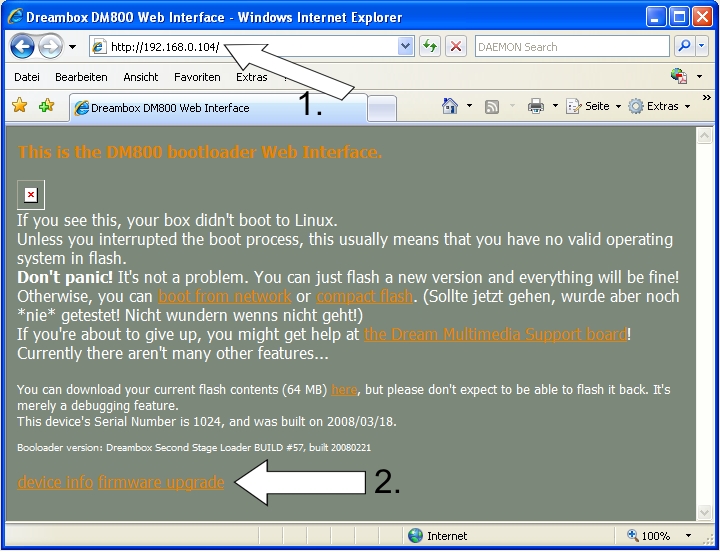
- Now open a web browser on your PC.
- (1.) Enter the receiver's address in the address bar:
http://ip/"(where "ip" must be replaced with the value shown on the receiver's LCD). - (2.) At the bottom of the page there is a link called "firmware upgrade". Click it.
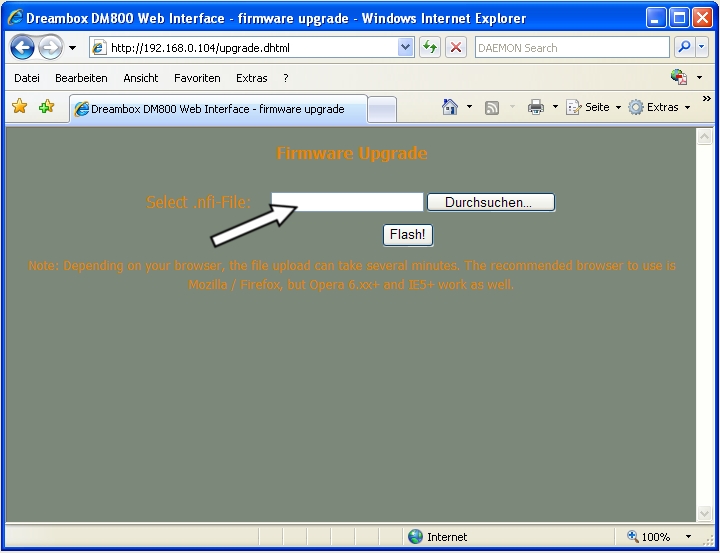
- On the next page, select the flash image you want to flash. Be sure it has the .nfi extension — you cannot flash other images such as
.img. - Click FLASH! and wait. It may take some time to upload and flash the image.
- Switch the box off and on again. The new image should now be flashed and working.

